EVISION - HD101 & HD102 www.roevisual.com
V1.13, 2020-05-20 | Copyright © 2020 ROE Visual Co., Ltd. All Rights Reserved.
17 / 41
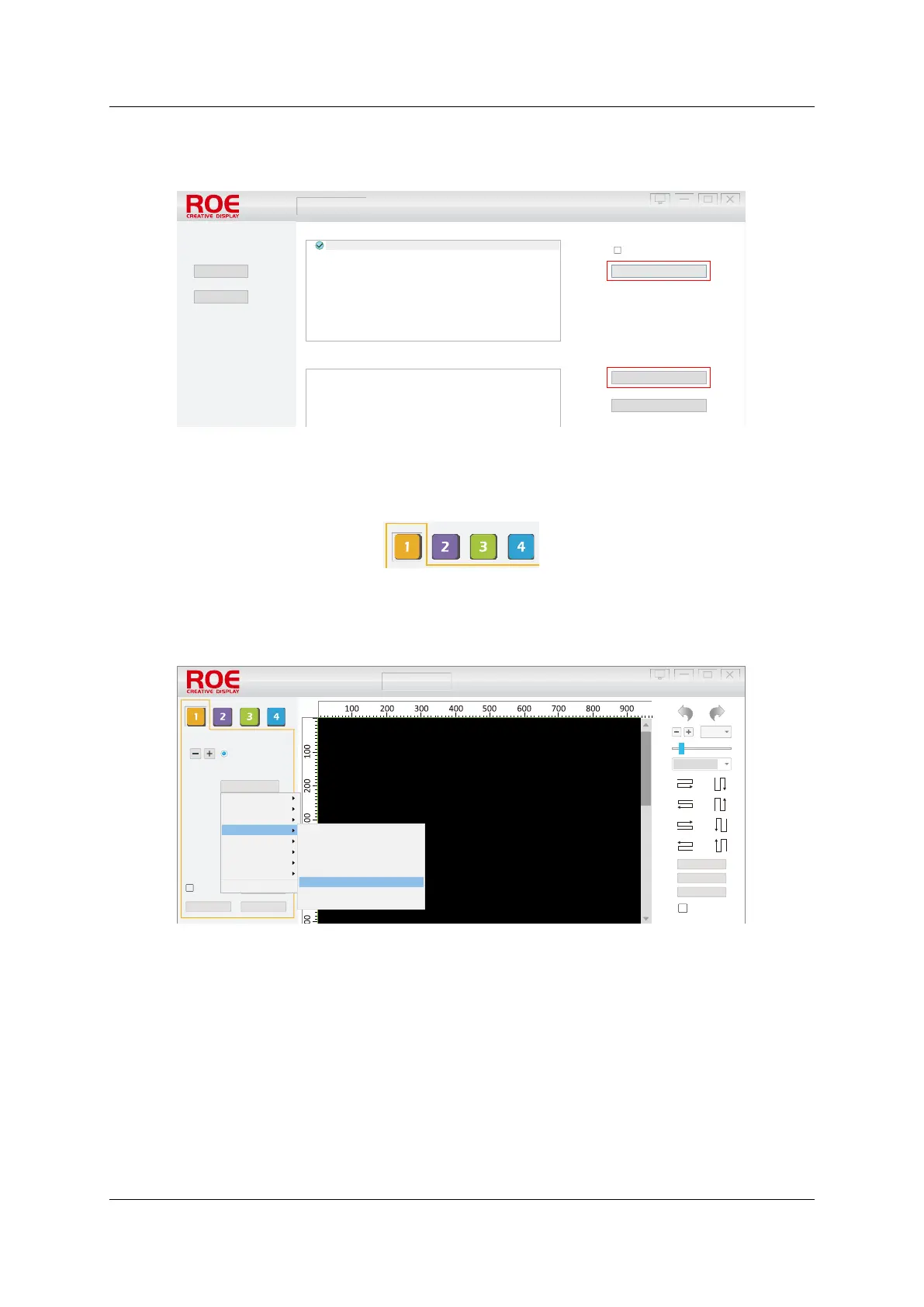
5.5 Detect Sender Card (Processor) and Receiver Card
Click the Detect Sender Card button to establish a connection between PC and processor.
Click the Detect Receiver Card button to establish connections between a processor and tiles.
Figure 5-5. EVISION hardware connection
5.6 Select Output Port
Select the output port based on physical cabling.
Figure 5-6. Output ports
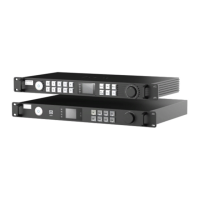
5.7 Select Config. File
Select the config file based on physical tiles connected.
Figure 5-7. Select config file
Hardware Connection LED Display Setup Testing and Adjusting Evision Edge
4.0
By Net (Wired only and LAN only)
Sender Card 1: HD102 1.02
Language
Detect Sender Card
Detect Receive Card
Cancel Detected
Manual
Port1: Detect 4 receiver cards.
Port1: Detect the 4 card is i6 10.0, temperature: 41.00, Net Line OK
Port1: Detect the 3 card is i6 10.0, temperature: 42.00, Net Line OK
Port1: Detect the 2 card is i6 10.0, temperature: 41.00, Net Line OK
Port1: Detect the 1 card is i6 10.0, temperature: 42.00, Net Line OK
200%
Sort Normal
Hotkey List
Reset All Tile
Reset Mapping
Mapping Save Setting
Preview
Indicator Off
Hardware Connection
LED Display Setup Testing and Adjusting Evision Edge
0
0
1
Select Tile TypeTile Type
H Count
V Count
H Position
V Position
H Size
V Size
Hybird (port1)
4.0
0
0
0
0
BO-I6
VANISH
Tiles Managment
BP
CB
BO-I5
C 3 Half-MBI5252.rcvbpb
CB3-MBI5252.rcvbp
CB4 Half-MBI5252.rcvbp
CB4-MBI5252.rcvbp
CB5 half-MBI5051B.rcvbp
CB5-MBI5051B.rcvbp
CB8 half-MBI5051B.rcvbp
CB8-MBI5051B.rcvbp
HYBRID
LINX
MC



 To Next Page