EVISION - HD101 & HD102 www.roevisual.com
V1.13, 2020-05-20 | Copyright © 2020 ROE Visual Co., Ltd. All Rights Reserved.
31 / 41
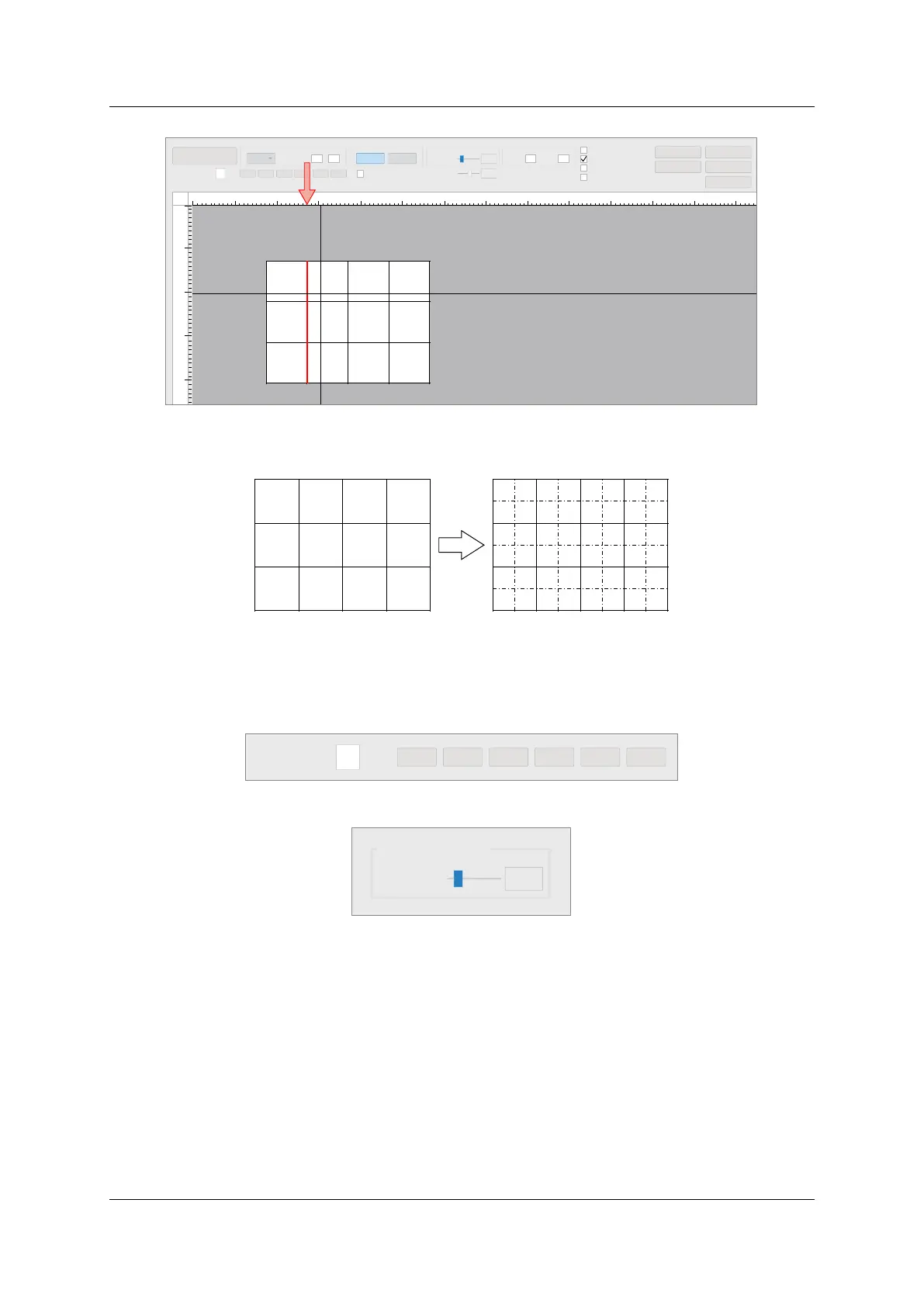
Click on the ruler to select edges.
Figure 6-26. Select edges of panels
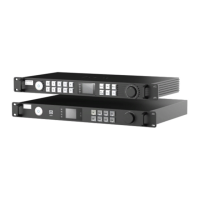
Check Show Module Edge to enable modules edge display for adjustment.
Figure 6-27. Show module edges
6.16.4 Adjust the brightness of edges
After edge-selection, use the brightness adjustment buttons or slider to adjust the brightness of the edge
pixels, smoothening the transition of panels/modules.
Figure 6-28. Brightness adjustment buttons
Figure 6-29. Brightness adjustment slider
6.17 Gamut Adjustment (Only HD102 supported)
Gamut Adjustment can apply adjustments on the color display of LED screens.
Gamut Adjustment data is separated from the original calibration data, stored on receiving cards. It can
apply color display changes without damaging the original calibration data.
6.17.1 Read Screen Information
Click Read Screen Information to pull down LED screen setups from all 4 ports of all processors.
6.17.2 Enable Gamut Adjustment mode
Check Gamut Adjustment to enable Gamut Adjustment.
Read Scr een Infor mation
Coefficient
1
Sending Card Offset Setti ng
-5%
-2% -1%
+1%
+2% +5%
1 Offset X
Y
Screen Displ ay
Normal
Seam
Bri ghtness Adjust
Bri ghtness
Module Size (px)
11%
Scaling
100%
Gr adual Adjustment
Height
64Width 64
Reset Edge Data
Save
Hotkey Setting
Export
Import
200
100 300 400 500 600 700 800 900 1000
1100 1200 1300
100 200 300 400
(304, 202)
Show Module Edge
Select Recei ving Card
Enable Edge Calibr ation
Gamut Adj ustment
Coefficient 1 -5% -2% -1% +1% +2% +5%
Brightness Adjust
Brightness
11 %



 To Next Page