EVISION - HD101 & HD102 www.roevisual.com
V1.13, 2020-05-20 | Copyright © 2020 ROE Visual Co., Ltd. All Rights Reserved.
19 / 41
5.11 Test Patterns
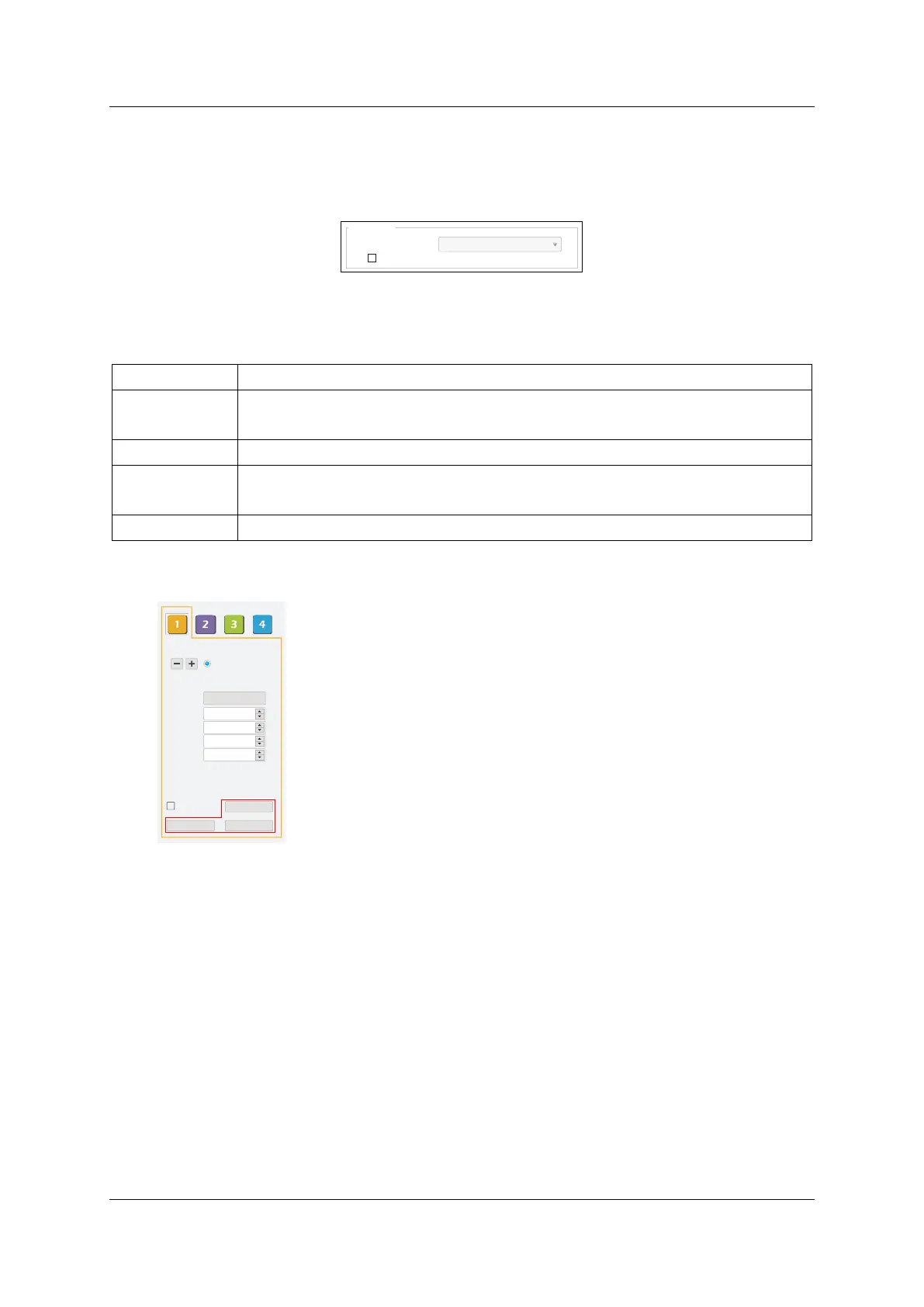
You can use the integrated test function to display patterns on LED to checkout performance and apply
adjustments.
Go to Testing and Adjusting -> Test patterns on EVISION to enable test pattern display.
Figure 5-11. EVISION test patterns
Table 5-1. Test pattern presets
Solid color
Red, Green, Blue, White, Black;
Moving lines
and grid
HmoveWhite, VmoveWhite, BRMoveWhite, TLMoveWhite, DMoveWhiteCheck;
Gradient color Gradient Red, Gradient Green, Gradient Blue, Gradient White;
Grey steps
Red Gray Increased, Green Gray Increased, Blue Gray Increased, White Gray
Increased;
Others
Alternate Black and White, RGBW Color Bar, Auto-Cycle Test Pattern (10s).
5.12 Preview, Save Mapping, Save Setting
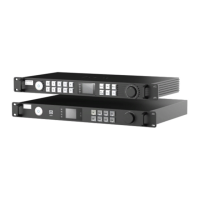
Figure 5-12. Preview, save mapping
& setting
Click Preview button to send the configuration to LED screens and
preview the performance.
Click Mapping -> Save Mapping to Receiver to upload the mapping
configuration to receiver cards.
Click Save Setting to upload the configuration to receiver cards,
mapping configuration included.
5.13 Disconnect PC
Once setup is successfully completed (config saved on processors), PC, as the control source, can be
disconnected from the processor. The processor will keep working as configured until changes from
control are received.
Test patterns
Mode
OFF
Black out
Mapping Save Setting
Preview
416
624
1
B5-MBI5051B.rcvb
Tile Type
H Count
V Count
H Position
V Position
H Size
V Size
Hybird (port1)
4
0
100
3



 To Next Page