TouchChat Express User’s Guide 70
Creating a Whiteboard Page
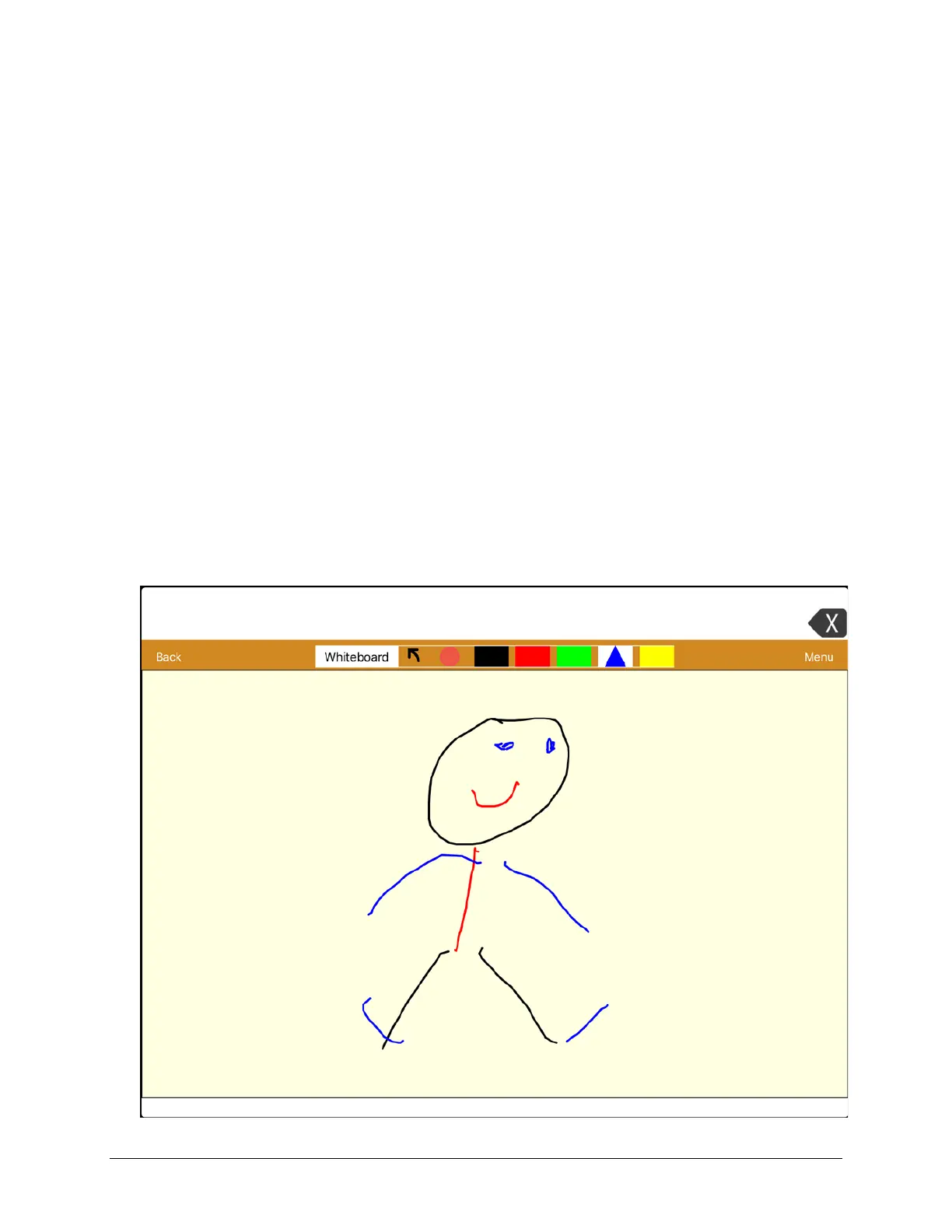
To create a whiteboard page, create a new page that has a single button and select the Whiteboard
button action.
1. Tap Menu and tap Edit Page.
2. Tap the button you want to link to your whiteboard page and select Edit This Button.
3. Add a label, scroll down to the Button Actions section, and replace the existing action with Navigate.
4. Tap the
+ in the upper right corner to create your new whiteboard page.
5. Enter a page name and select 1 Row and 1 Column.
6. Tap Save, select No Animation, and tap Save again.
7. Tap Done to exit Edit Mode and tap the button to navigate to the new whiteboard page.
8. Tap Menu, select Edit Page and select Create New Button.
9. Scroll to the Button Actions section of the Edit Button window and replace the Speech Message
action with the Whiteboard action.
10. Tap Save. Select Done to exit Edit Mode.
11. Use the Whiteboard tools at the top of the page to draw.


 To Next Page