EasyManua.ls Logo

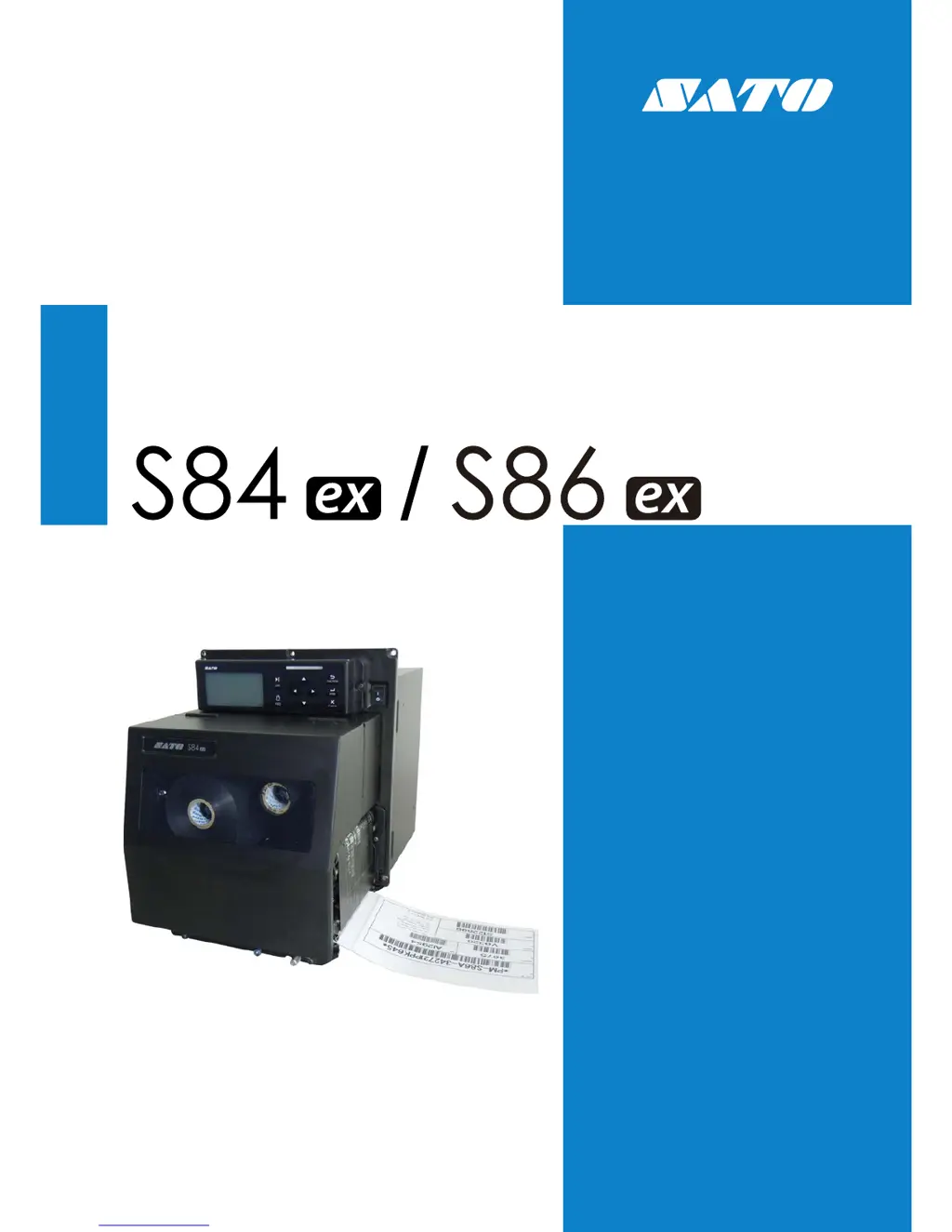
SATO s84ex - User Manual

SATO s84ex
380 pages
Print Icon
To Next Page IconTo Next Page
Loading...
Operator Manual
For printer model:

Table of Contents

Other manuals for SATO s84ex

Questions and Answers

  • D
    Donald FischerAug 31, 2025
    What to do if the SATO Label Maker shows a paper end error?
    • M
      Mr. Brian PetersAug 31, 2025
      If your SATO Label Maker displays a paper end error, it could be due to several reasons. First, ensure that the media is loaded correctly. Check also that the media sensor is clean and that its cable is properly connected. Adjust the sensor level if the sensitivity is not set correctly. If the media is jammed, remove it.
  • A
    Adam ThompsonSep 12, 2025
    How to resolve a BCC check error on a SATO s84ex Label Maker?
    • K
      kingkarenSep 12, 2025
      If you encounter a BCC check error on your SATO Label Maker, it means the BCC code of the data to be sent is incorrect. Check the data to be sent and the communication settings. You can either continue printing from the point of the error using the LINE button, or clear the error and continue from where it stopped by sending the SUB command.
  • C
    Christopher JohnsonAug 30, 2025
    What to do if my SATO Label Maker displays a 'Sensor cover open error'?
    • M
      Michael GordonAug 30, 2025
      If your SATO Label Maker displays a 'Sensor cover open error', it means the sensor cover is unlocked or the sensor for sensing the open/close status of the sensor cover is defective. Ensure the sensor cover is locked. If the error persists, the sensor may need to be replaced.
  • E
    Edward HamiltonSep 12, 2025
    What to do if SATO s84ex Label Maker shows RFID tag error?
    • A
      Alyssa StewartSep 13, 2025
      If your SATO Label Maker displays an RFID tag error, it means the device could not read or write to the RFID inlay. The solution is to discard the problematic tag.
  • S
    Susan Reid DDSSep 12, 2025
    What causes a calendar error on a SATO s84ex?
    • M
      Manuel WebbSep 12, 2025
      A calendar error on your SATO Label Maker occurs when the date and time of the calendar are incorrect, or the calendar IC is not installed. Check if you have installed the calendar IC, or replace the calendar PCB.
  • O
    onielsenSep 16, 2025
    What causes a 'Machine error' on my SATO s84ex Label Maker?
    • Z
      zrobertsSep 16, 2025
      If your SATO Label Maker shows a 'Machine error', it is caused by a defective circuit board. Replace the main (CONT) PCB.
  • A
    Angela WilliamsSep 23, 2025
    What causes a 'Saver error' on my SATO Label Maker?
    • L
      Lisa JonesSep 23, 2025
      If your SATO Label Maker displays a 'Saver error', it means the print head cannot stop at the specified position. Adjust the saver head position. Replace the saver sensor. Replace the saver motor and motor driver PCB. Replace the saver cam.
  • C
    claudia38Aug 27, 2025
    What to do if my SATO Label Maker shows a 'Head open' error?
    • D
      Daniel ThorntonAug 27, 2025
      If your SATO Label Maker shows a 'Head open' error, it means the print head is unlocked or the sensor for sensing the open/close status of the print head is defective. Make sure the print head is locked. If the problem persists, the sensor may need to be replaced.
  • D
    David HallAug 26, 2025
    What to do if my SATO s84ex Label Maker displays a 'Ribbon end' error?
    • S
      Sharon SalazarAug 26, 2025
      If your SATO Label Maker displays a 'Ribbon End' error, it could be due to several reasons: the ribbon is not loaded, damaged, or not loaded correctly, or the ribbon is torn. To resolve this, load a new ribbon correctly. If the ribbon is torn, clean and adjust the ribbon path.
  • C
    Carol SanchezAug 25, 2025
    What to do if my SATO s84ex Label Maker shows a 'Paper end' error?
    • A
      Amy LarsonAug 26, 2025
      If your SATO Label Maker displays a 'Paper End' error, it means the media is either not loaded, not loaded correctly, has jammed, or the media sensor is dirty or has a disconnected cable. First, load the media correctly and remove any jammed media. Then, clean the media sensor and ensure its cable is correctly connected. You may also need to adjust the sensor level.

Summary

Installing the Printer

Installation Precautions

Outlines essential safety and environmental considerations for printer installation.

Connecting the Interface Cable

Explains how to connect the printer to host computers using various available interfaces.

Connecting the Power Cord

Details the procedure for safely connecting the printer to an AC power source.

Power On;Off the Printer

Describes the correct steps for powering the printer on and off to prevent malfunctions.

Loading the Ribbon and Media

Loading the Ribbon

Provides step-by-step instructions for loading the ribbon into the printer correctly.

Loading Media

Outlines the process for loading media, with or without a dispenser, into the printer.

Operation and Configuration

Cleaning and Performing Printer Adjustments

Maintenance of the Print Head and Platen Roller

Provides intervals and procedures for cleaning essential print head and platen roller components.

Troubleshooting

When an Error Message Occurs

Lists common printer errors, their causes, and corresponding countermeasures for resolution.

Troubleshooting Table

Provides a systematic checklist for diagnosing and resolving common printer operational issues.

Interface Troubleshooting

Offers specific steps for troubleshooting issues related to various printer interface connections.

SATO s84ex Specifications

General IconGeneral
Max Print Length39.37 inches
Print MethodThermal Transfer / Direct Thermal
ConnectivityUSB, Serial
Supported Barcode TypesData Matrix, PDF417, QR Code
Supported Media TypesRoll, Fanfold
Media Thickness0.002 to 0.008 inches
Operating Temperature41 to 95°F (5 to 35°C)
Dimensions18.11" D x 12.6" H
Print Width4.09 inches
Max Print Width4.09 inches
Memory16MB Flash, 32MB SDRAM

Related product manuals