i. Camera A (or Camera B)
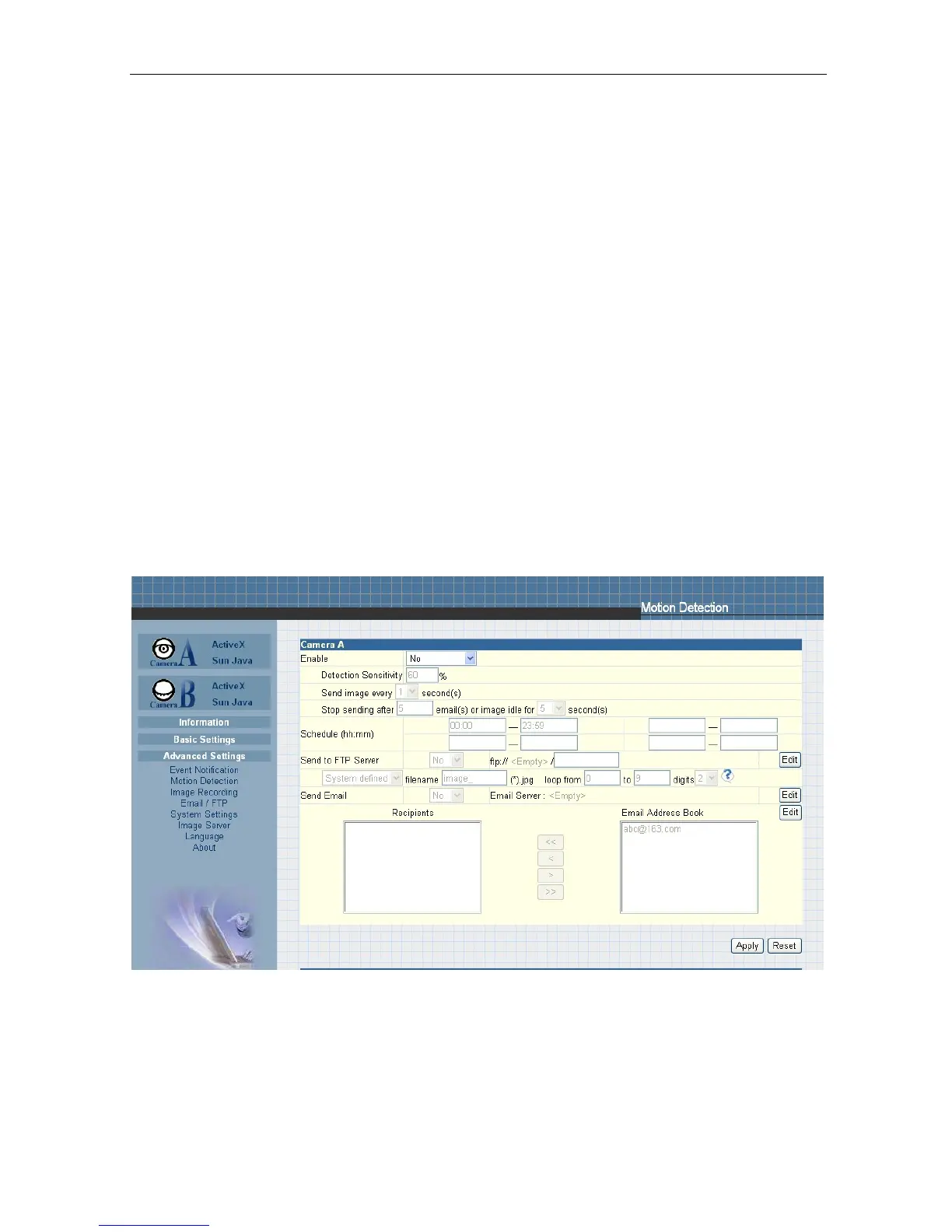
“Enable”
To activate motion detect, the administrator has two options;
a. “Always On” or
b. “On Schedule”, the administrator can set up to 4 different time slots for motion
detection.
“Detection
Sensitivity”
This will determine the level of change necessary before motion capture is triggered.
“Send image every”
Select a value between 1 to 5 seconds.
“Stop sending emails after ## email(s) or image idle for ## second(s)”
The IP Camera
will stop sending on the lesser of the two conditions. You
can set between 1, 3, 5, 7 and
10 seconds.
Emails can be set from 1 to 99999
pieces, or
0 for stop sending email
only when image is idle.
“Schedule”
If set to “On Schedule” in the above section, the administrator can then input the
four preferred schedule time slots for motion detection.
Time
must be entered in
24hr format.
Fig.35 IP Camera Motion Detection Page
“Send to FTP Server”
This option
allows the administrator
to send and store the motion detected images
on a FTP site.
This is
useful for future reference and recording purpose.
Click
“Yes” to activate.
“ftp://<empty>/<folder>”
This box allows the administrator to determine the file location within the FTP site
IP Camera Manual 30



 To Next Page