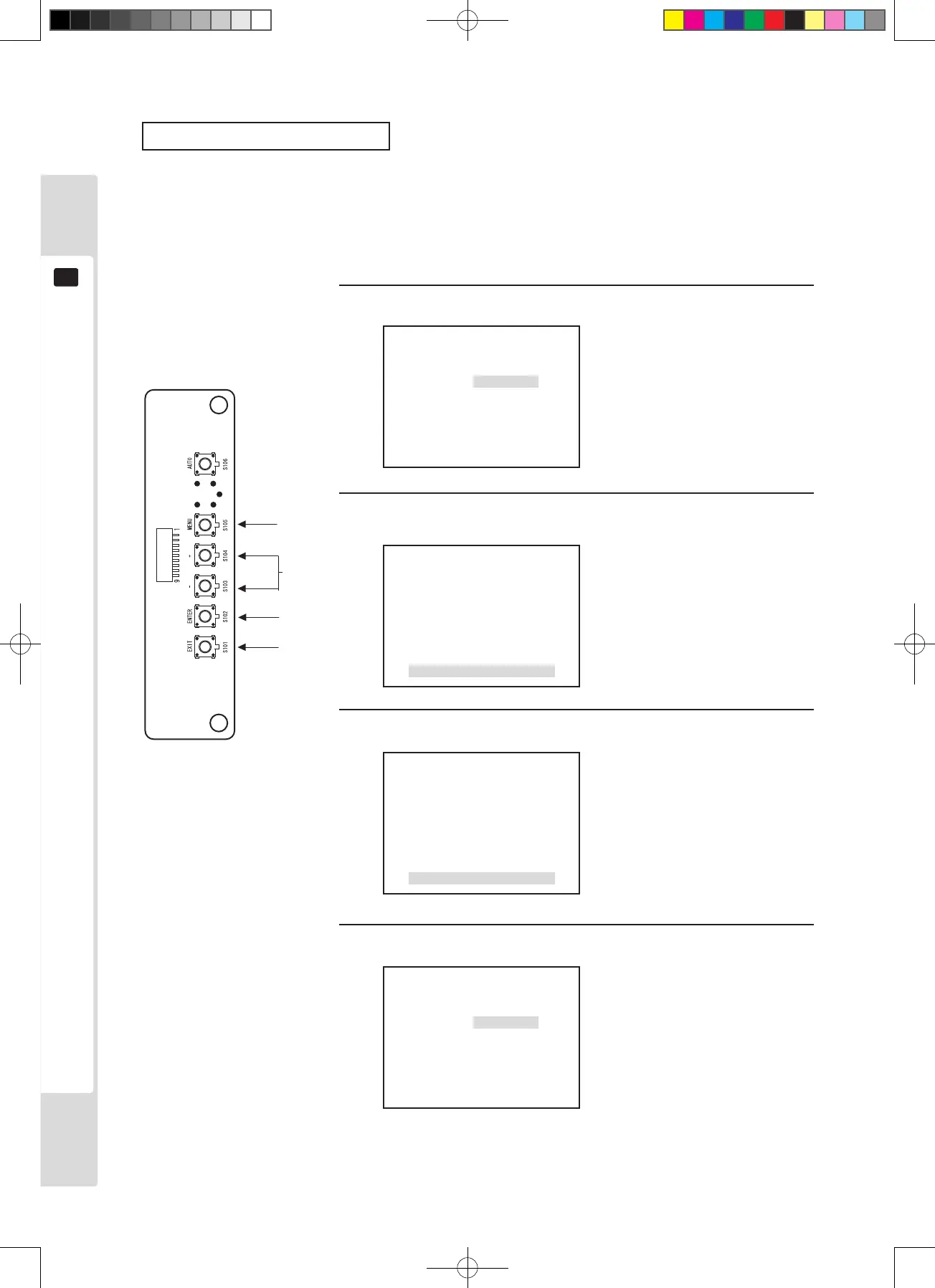
Phase adjustment (PHASE)
The screen sampling phase (PHASE) is adjusted in the factory to a standard condition, but it can be adjusted for
preference. In some cases, it may be necessary to make adjustments after changing game software.
However, incorrect phase adjustment dramatically reduces screen image quality, causing jittering, so the user is
advised to keep the standard settings.
1
1, 3
1
P1
W/B
BRIGHT
CONTRAST
SHARPNESS
POSI
CLOCK
PHASE
2
Press the [MENU] key, then use the [–] key to move the cursor.
Move to the PHASE position and press the [ENTER] key.
The adjustment and setting items are displayed.
The MENU screen is displayed.
The adjustment and setting item
menu is displayed.
3
PHASE
+1
Adjusted data values change.
Adjust so that the sampling phase
is in the optimum state.
(Jitter disappears)
4
Pressthe[ENTER]key.(Storeandclose)
The adjusted data is stored and
the display returns to the Menu
screen.
*If there is no need to store,
press the [EXIT] key to return to
the Menu screen without storing.
2, 4
*4
Use the [+] and [–] keys to adjust.
PHASE
0
P1
W/B
BRIGHT
CONTRAST
SHARPNESS
POSI
CLOCK
PHASE





 To Next Page