OmniHub CMP203– User Manual
Page 19 of 109
3.1 OmniHub CMP203 Web Interface Overview
3.1.1 Connecting to the Management Port
CMP203 has an embedded gigabit switch inside the chassis. The four network ports are
respectively used for managing and data reception/streaming over IP network. From left
to right, port 1 and port 2 are used for management purposes and, port 3 and port 4 are
used for IP reception/streaming.
If external IP switch needs to install between CMP203 and other headend devices, this
switch should support IGMP V2 and IGMP snooping function.
3.1.2 Logging into the CMP203 Web Interface
To open the CMP203 web interface use one of the following supported browsers and
navigate to the unit’s IP address:
• Firefox
• Google Chrome
Factory network settings of the Management Port:
• IP address: 192.168.1.10
• Subnet Mask: 255.255.255.0
• Gateway: 192.168.1.254
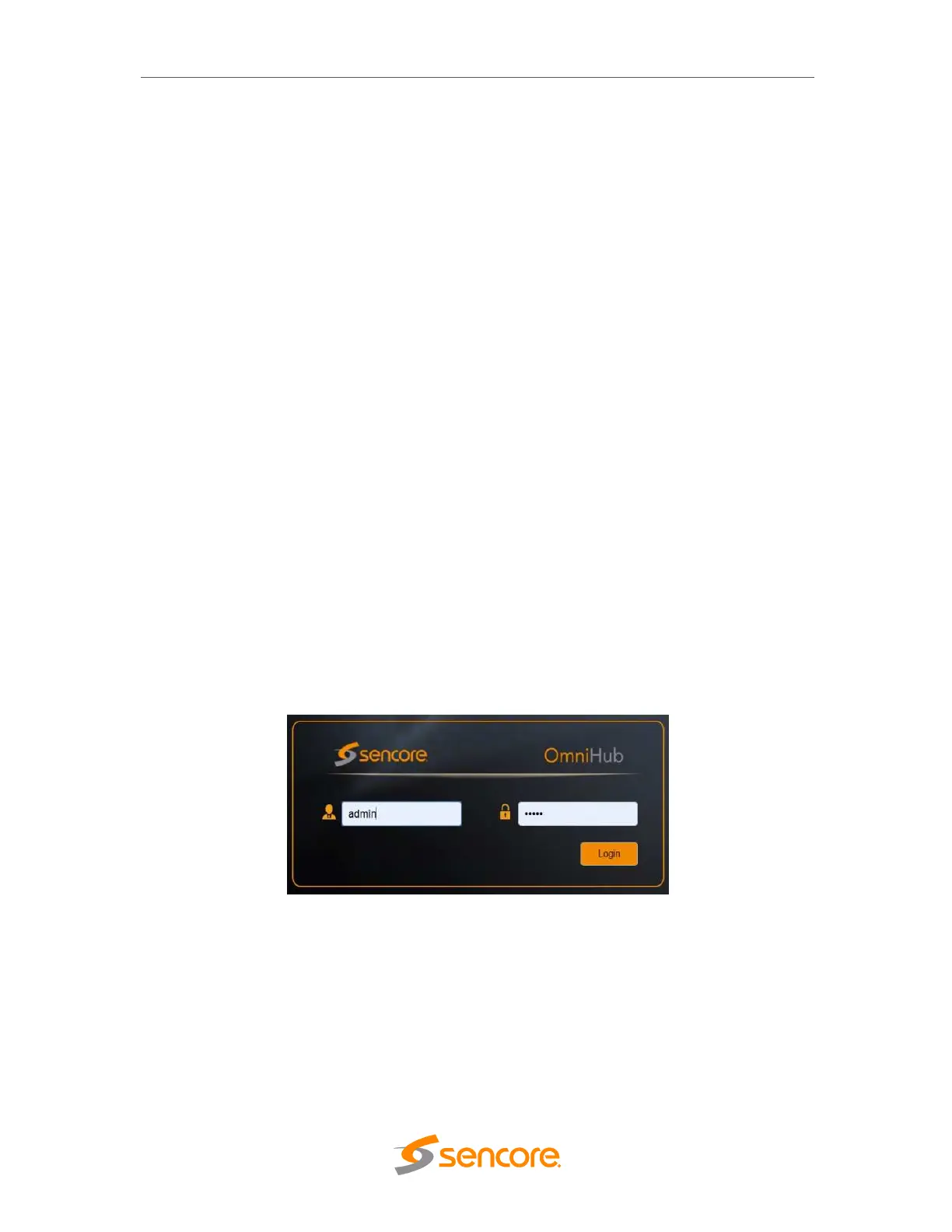
The user will need to login to the web interface. The default username and password
are admin/admin. Press the login button in order to login to the web interface.
3.2 Status Overview
After a successful login, a welcome screen is displayed. The welcome screen allows you
to navigate to:
1. Module List shows the module(s) installed inside the chassis
2. Settings buttons: status, system settings, IP inputs, IP outputs, admin
3. Device host operation status


 To Next Page