EasyManua.ls Logo

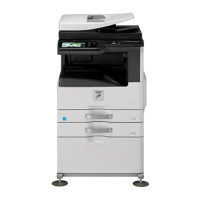
Sharp MX-M260 - Service Manual

Sharp MX-M260
137 pages
Print Icon
To Next Page IconTo Next Page
Loading...
Parts marked with ā€œ ā€ are important for maintaining the safety of the set. Be sure to replace these parts with
specified ones for maintaining the safety and performance of the set.
This document has been published to be used
for after sales service only.
The contents are subject to change without notice.
SERVICE MANUAL
CONTENTS
CODE: 00ZMXM310/S1E
DIGITAL MULTIFUNCTIONAL
SYSTEM
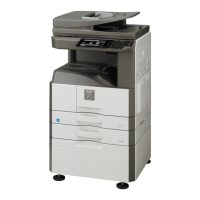
MX-M260/M310
MODEL
MX-M260N/M310N
NOTE FOR SERVICING
[1] PRODUCT OUTLINE . . . . . . . . . . . . . . . . . . . . . . . . . . . . . . . . . . . 1-1
[2] SPECIFICATIONS . . . . . . . . . . . . . . . . . . . . . . . . . . . . . . . . . . . . . . 2-1
[3] CONSUMABLE PARTS . . . . . . . . . . . . . . . . . . . . . . . . . . . . . . . . . . 3-1
[4] EXTERNAL VIEW AND INTERNAL STRUCTURE . . . . . . . . . . . . . 4-1
[5] ADJUSTMENTS . . . . . . . . . . . . . . . . . . . . . . . . . . . . . . . . . . . . . . . 5-1
[6] SIMULATION . . . . . . . . . . . . . . . . . . . . . . . . . . . . . . . . . . . . . . . . . . 6-1
[7] SELF DIAG AND TROUBLE CODE . . . . . . . . . . . . . . . . . . . . . . . . 7-1
[8] MAINTENANCE. . . . . . . . . . . . . . . . . . . . . . . . . . . . . . . . . . . . . . . . 8-1
[9] FIRMWARE UPDATE . . . . . . . . . . . . . . . . . . . . . . . . . . . . . . . . . . . 9-1
[10] ELECTRICAL SECTION . . . . . . . . . . . . . . . . . . . . . . . . . . . . . . . . 10-1

Table of Contents

Other manuals for Sharp MX-M260

Questions and Answers

  • C
    Charlotte LopezAug 21, 2025
    What to do if my Sharp All in One Printer makes blank copies?
    • A
      alexandracampbellAug 21, 2025
      If your Sharp All in One Printer is producing blank copies, the first thing to check is the toner cartridge. If it's empty or low, replace it with a new one.
  • J
    Jonathan LangSep 3, 2025
    What to do if Sharp All in One Printer shows wrong paper size in bypass tray?
    • B
      Brianna MaciasSep 3, 2025
      If your Sharp All in One Printer displays the wrong paper size for the paper in the bypass tray, check the bypass tray settings. Make sure the correct paper size is selected.
  • A
    Anne WhiteSep 1, 2025
    Why is part of the copied image cut off on my Sharp All in One Printer?
    • S
      susanwareSep 1, 2025
      If part of the copied image is cut off when using your Sharp All in One Printer, make sure the original is placed correctly on the scanner. Also, check the copy settings to optimize the margins.
  • D
    Dana WestAug 31, 2025
    How to stop Sharp All in One Printer copy job that stops before finishing?
    • A
      Anna HenryAug 31, 2025
      If a copy job on your Sharp All in One Printer stops before it's finished, check the paper path for any jams or obstructions.
  • R
    Robert RandolphAug 29, 2025
    How to fix Sharp All in One Printer when power is on but copying is not possible?
    • R
      Ryan MorganAug 29, 2025
      If the power is on, but copying is not possible on your Sharp All in One Printer, check the screen for any error messages. Addressing these messages may solve the problem.
  • H
    Heather WilliamsAug 27, 2025
    What to do if Sharp All in One Printer text is not clear in a copy?
    • C
      christophertaylorAug 27, 2025
      If the text is not clear when making copies with your Sharp All in One Printer, try replacing the toner cartridge. It might be running low.
  • C
    Carol MooreAug 27, 2025
    How to resolve dark or light copies on Sharp All in One Printer?
    • J
      johnsonandreAug 27, 2025
      To resolve copies that are too dark or too light on your Sharp All in One Printer, you can adjust the density settings directly in the copy menu.
  • S
    Stephanie GrahamAug 25, 2025
    Why is my Sharp All in One Printer not operating?
    • J
      James JonesAug 25, 2025
      If your Sharp All in One Printer is not operating, verify that the printer is properly connected to a power source and that it is turned on.
  • C
    Curtis JacksonAug 23, 2025
    How to fix smudged or dirty copies from Sharp All in One Printer?
    • M
      Michelle FrancisAug 23, 2025
      If your copies are coming out smudged or dirty when using the Sharp All in One Printer, you should clean the scanner glass and the interior of the machine.

Summary

NOTE FOR SERVICING

[5] ADJUSTMENTS

1. Adjustment item list

A comprehensive list of all adjustable items and their corresponding procedures or SIM numbers.

2. Details of adjustment

Detailed procedures for performing various adjustments on specific machine sections.

A. Process section

Details adjustments related to the process section, including developing doctor gap and bias voltage.

B. Mechanism section

Covers adjustments for mechanical components, such as print start position and paper off-center.

C. Image density (exposure) adjustment

Procedures for adjusting image density and exposure levels in different copy modes.

[6] SIMULATION

1. General

Outline and purpose of the simulation functions for diagnosis and setup.

B. Code-type simulation

Operating procedures for accessing and using code-type simulations.

(2) How to change the simulation adjustment value set by the touch panel in the adjustment value entry process

Explains the procedure for modifying adjustment values using the touch panel interface.

2. Simulation code list

A comprehensive list of simulation codes, their functions, and related main/sub codes.

3. Details of simulation

Detailed explanations and procedures for specific simulation codes and their operations.

[7] SELF DIAG AND TROUBLE CODE

1. Trouble code list

A comprehensive list of all trouble codes, their contents, and detection methods.

2. Details of trouble code

Detailed explanations of trouble codes, including causes and recommended remedies.

[8] MAINTENANCE

1. Maintenance list

A list of parts and their recommended maintenance cycles (cleaning, replacement, lubrication).

2. Details of Maintenance

Detailed procedures for disassembling and maintaining various machine units and components.

[9] FIRMWARE UPDATE

[10] ELECTRICAL SECTION

1. Block diagram

A system block diagram showing the interconnections of major components and PWBs.

Sharp MX-M260 Specifications

General IconGeneral
Print TechnologyLaser
Print Speed26 ppm
Max Print Resolution600 x 600 dpi
Copy Speed26 cpm
Max Copy Resolution600 x 600 dpi
Scan Resolution600 x 600 dpi
Warm-up Time25 seconds
Fax Resolution200 x 200 dpi
Paper Capacity1, 100 sheets
Max Paper SizeA3
Duplex PrintingYes
FunctionsPrint, Copy, Scan
Zoom Range25% to 400%
Supported Paper SizesA4, A5, B5
Network ConnectivityOptional (Ethernet)
USB ConnectivityUSB 2.0
Weight28.5 kg

Related product manuals