15
MAKING COPIES
REDUCTION/ENLARGEMENT/ZOOM
Manual selection
1
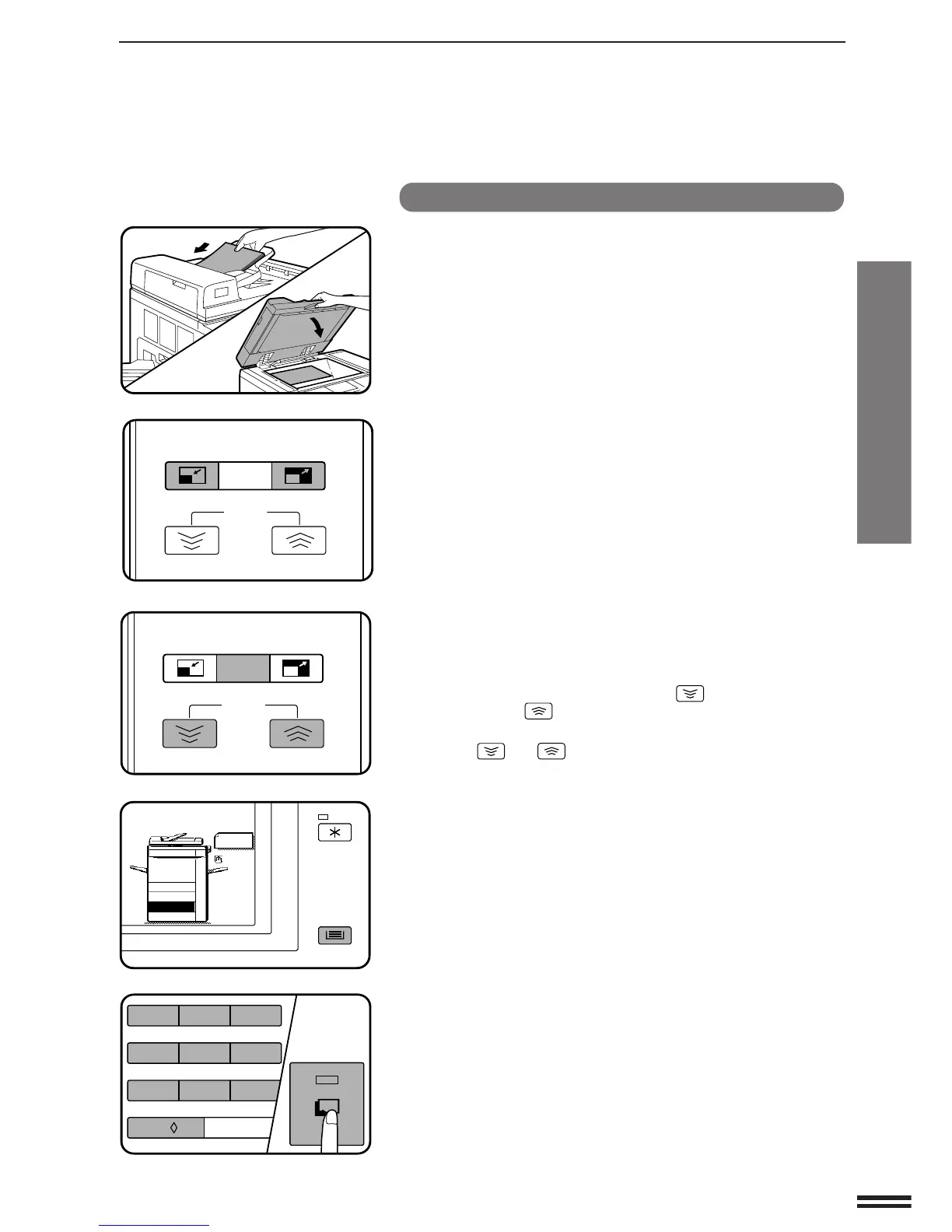
Set the original(s) face up in the document feeder tray
or face down on the document glass.
2
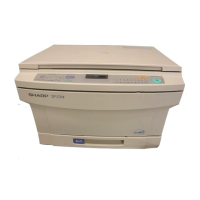
Use the REDUCTION, ENLARGEMENT and ZOOM keys
to set the desired copy ratio.
A. Preset reduction ratios are: 86%, 81%, 70%, and 50%
(95%, 77%, 64%, and 50%).
B. Preset enlargement ratios are: 115%, 122%, 141%, and
200% (121%, 129%, 141%, and 200%).
●
The message “IMAGE IS LARGER THAN COPY PAPER.”
may appear, indicating that the selected copy ratio is too large
for the copy paper size. However, if you press the START key,
a copy will be made.
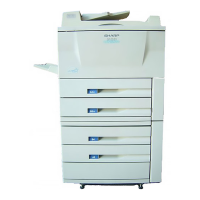
C. Zoom ratios: Any ratio from 50% to 200% can be set in 1%
increments.
●
Press the REDUCTION key or ENLARGEMENT key to set the
approximate ratio, then press the key to decrease the
ratio or the key to increase the ratio.
●
To decrease or increase the zoom ratio rapidly, press and hold
the or key. However the value will stop at the
preset reduction or enlargement ratios. To move beyond these
ratios, release the key and then press and hold it again.
D. Same-size reset: Press the 100% key to reset the copy
ratio to 100%.
3
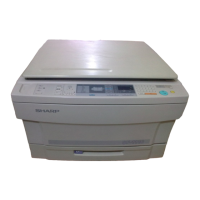
Ensure that the desired tray is selected.
●
If the AUTO PAPER SELECT mode is on, the appropriate
copy paper size will have been automatically selected based
on the original size and selected copy ratio.
●
If a tray of the required size is not installed, use the manual
feed tray and press the TRAY SELECT key to select the
manual feed tray.
4
Enter the desired number of copies.
5
Press the START key.
Reduction/Enlargement/Zoom
REDUCTION
EXPOSURE
ENLARGEMENT
100%
ZOOM
REDUCTION
EXPOSURE
ENLARGEMENT
100%
ZOOM
START
123
456
7
8
9
C
0/
AUDIT CLEAR
A4R


 To Next Page