90
OPTIONAL
EQUIPMENT
20-BIN STAPLE SORTER (SF-S53N)
Staple cartridge replacement
The message “ADD STAPLES. FOLLOW INSTRUCTIONS INSIDE
THE SORTER.” will appear when the staple cartridge is empty.
Replace the staple cartridge as follows:
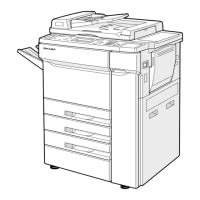
SF-S53N 20-bin staple sorter
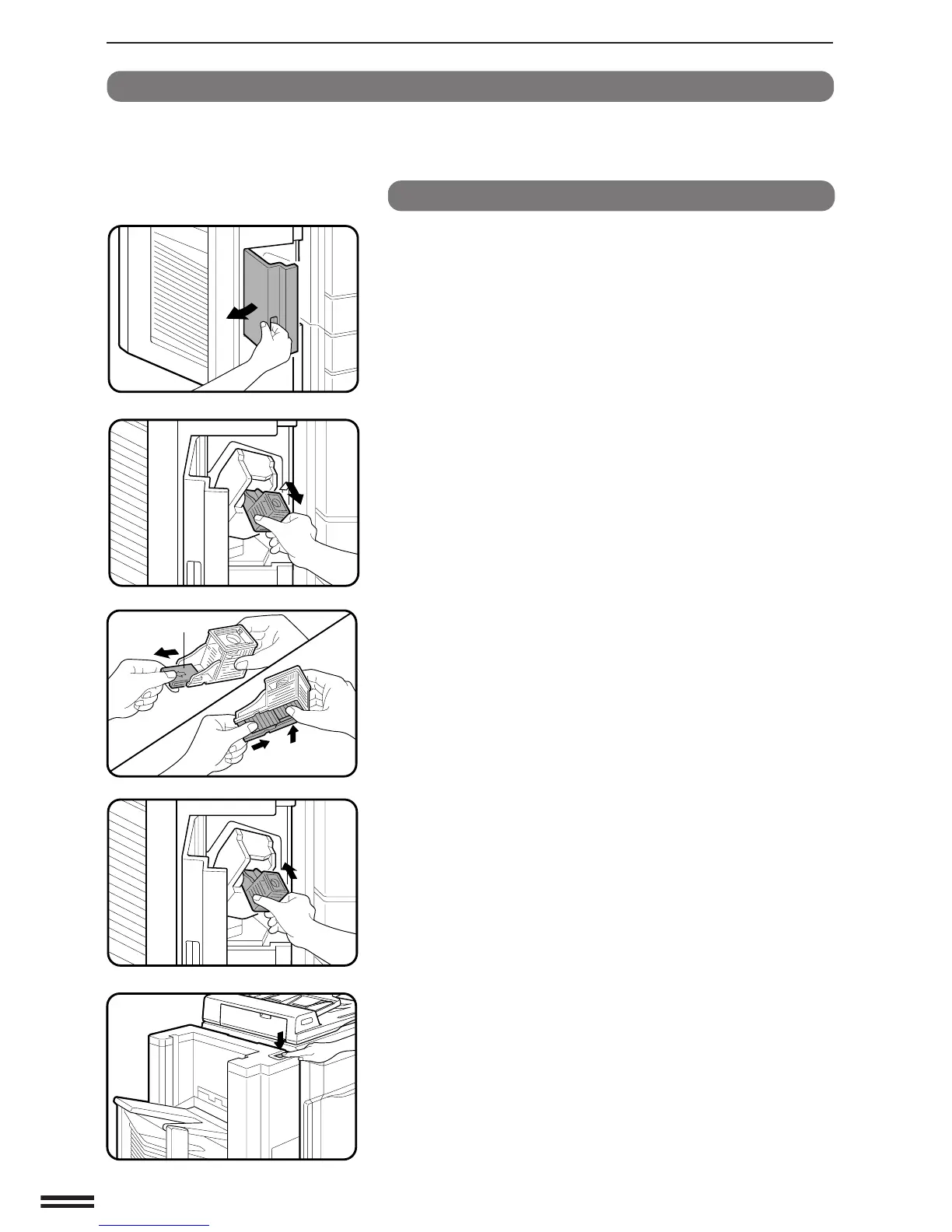
1
Open the stapler cover.
2
Pull the empty staple cartridge up and out to remove it.
●
Do not remove the staple cartridge unless the message “ADD
STAPLES. FOLLOW INSTRUCTIONS INSIDE THE
SORTER.” is displayed. Doing so will cause the stapler to jam.
3
Remove the protective covering from a new staple
cartridge and check to ensure that the staples are all
stacked within the cartridge.
●
No staples should be protruding into the staple guide. If any
are protruding, push them back into the staple cartridge.
●
The cartridge holds 5,000 staples.
4
Insert the new staple cartridge into the stapler until it
clicks into place.
5
Close the stapler cover.
6
Place a sheet of paper into the bin below the non-sort
bin. Press the manual staple key when it lights up.
●
Check to see whether the sheet is stapled.
If it is not stapled, press the manual staple key again.
●
If the stapler does not operate properly even after
replacement, a staple may be jammed in it. See page 93.
●
Staples for the staple sorter are available from your Sharp
dealer.
Protector
20-bin staple sorter (SF-S53N)


 To Next Page