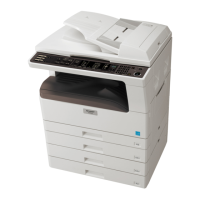
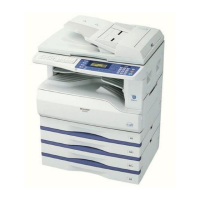
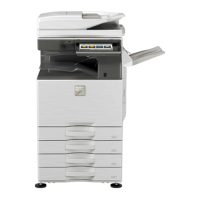
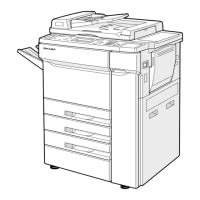
SF-S55N 20-bin staple sorter
1
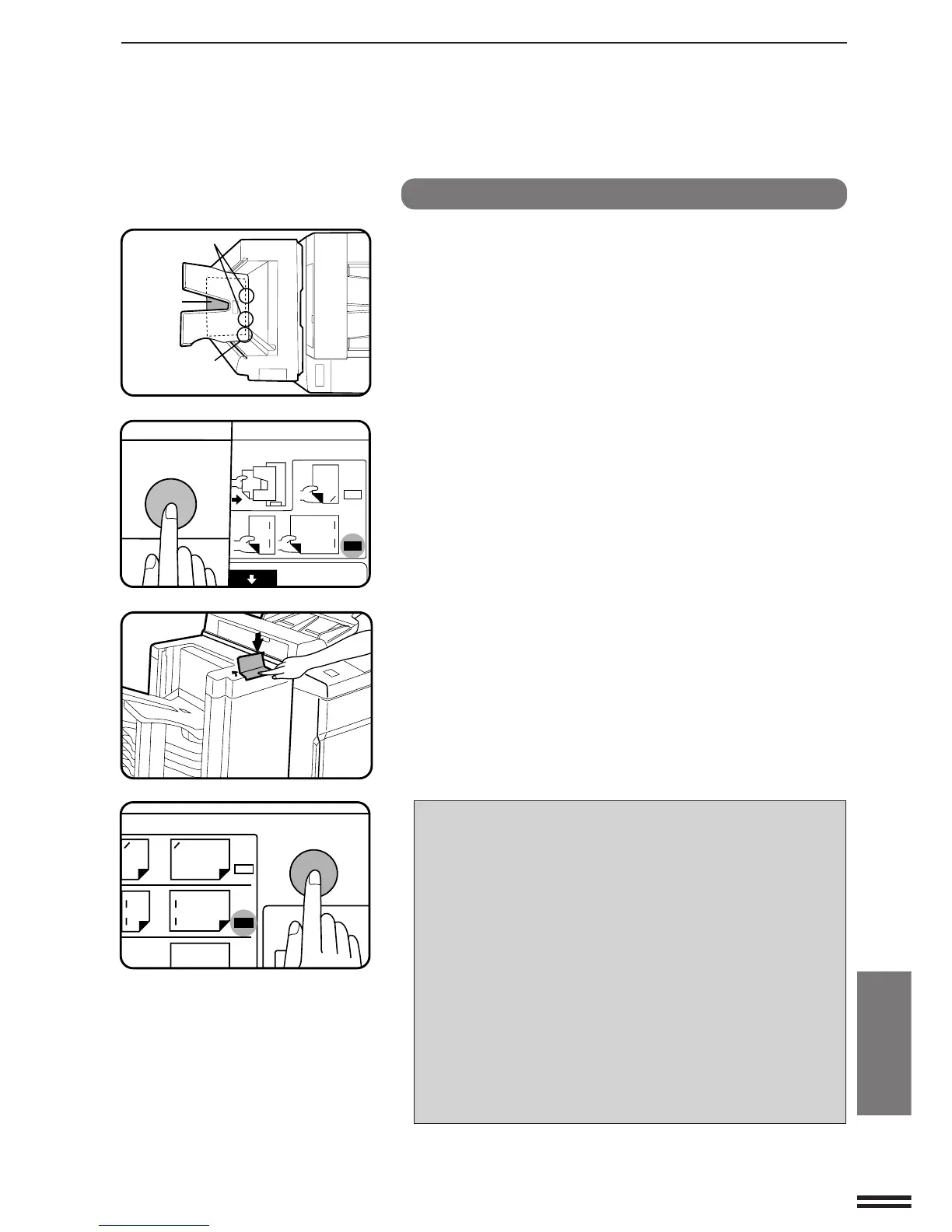
Align the edges of the copies to be stapled.
2
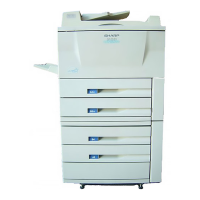
Place the set of copies into the bin below the non-sort
bin, making sure the edges are flush with the inner
right corner, as shown in the figure.
●
Make sure that there is no paper in the other sort bins. If there
is, the STAPLING START/STOP key will not light up.
●
Up to 50 sheets of paper can be stapled together. Exceeding
this maximum may result in damage to the stapler.
3
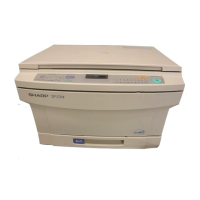
Use the POSITION SELECTION key on the staple sorter
to select CORNER or TWO STAPLE.
●
The selected stapling mode is indicated in the HAND-
INSERTED section on the operation panel of the staple sorter.
CORNER can be selected for all sizes. However, TWO
STAPLE can be selected only for A4, B4, A3, and 8-1/2" x
11"(8-1/2" x 11", 11" x 17", and A4) sizes.
4
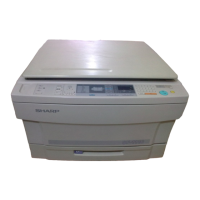
Press the STAPLING START/STOP key on the staple
sorter when it lights up.
●
The set of copies will be stapled.
The manual stapling function can also be used after copying
in the SORT mode is completed if the number of copies does
not exceed the maximum allowable number and the
automatic front access function for the SORT mode has been
disabled.
Use the POSITION SELECTION key on the staple sorter to
select the desired stapling position and then press the
STAPLING START/STOP key.
●
The positions which can be selected depend on the copy
paper size to be used.
CORNER: A4, A4R, B4, A3, 8-1/2" x 11"
(8-1/2" x 11", 8-1/2" x 11"R, 8-1/2" x 14",
11" x 17", A4)
TWO STAPLE: A4, B4, A3, 8-1/2" x 11"
(8-1/2" x 11", 11" x 17", A4)
ONE STAPLE: A4R (8-1/2" x 11"R, 8-1/2" x 14")
POSITION
SELECTION
STAPLING
START/STOP
HAND-INSERTED
A4
A3
B4
20-bin staple sorter (SF-S55N)


 To Next Page