Useful Features
Camera Recording
Useful
Features
39
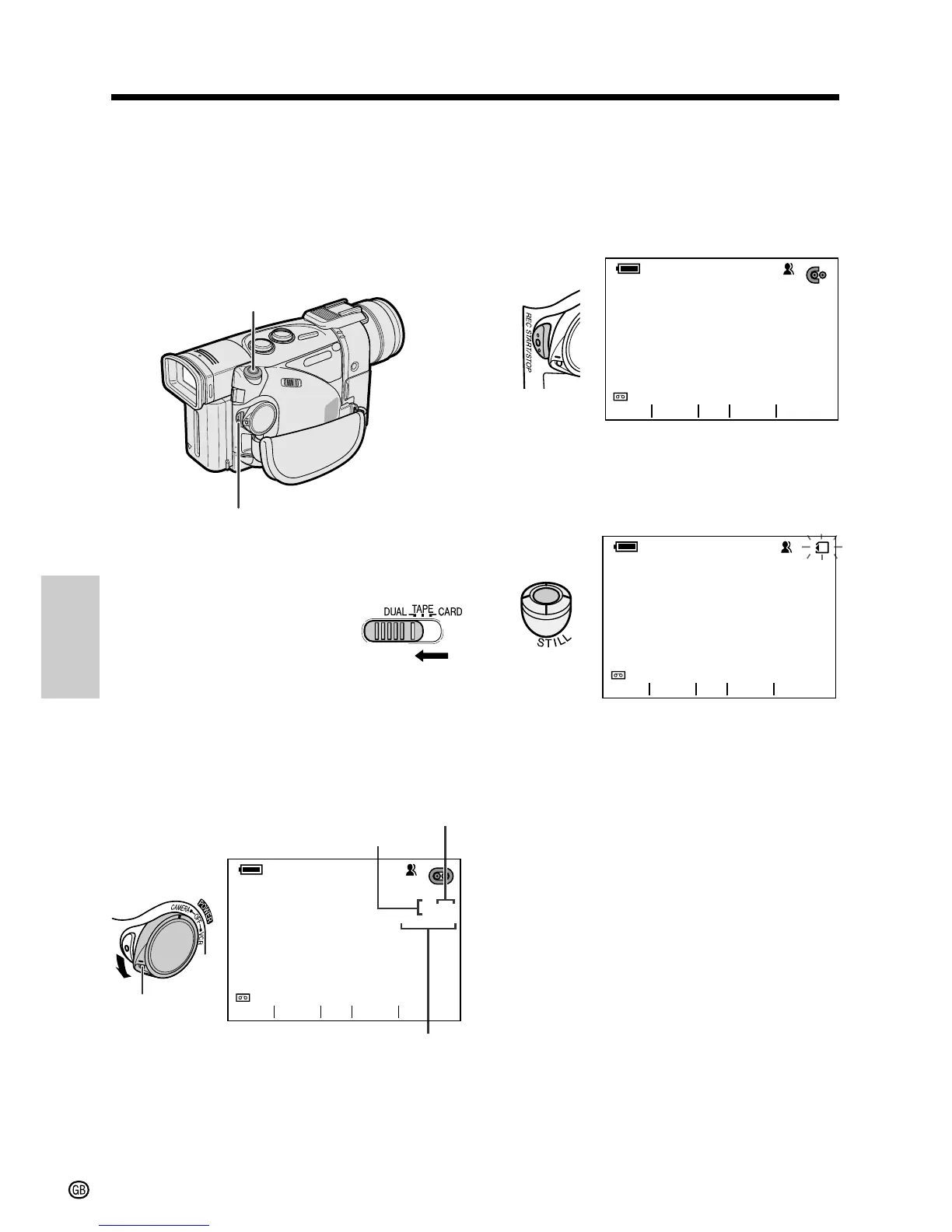
4 Press the REC START/STOP button to
begin recording motion images of the
subject on a tape.
• Operate the camcorder just as you
ordinarily would when recording in
TAPE-CAMERA mode.
Press the STILL button to record a still
image of the subject on a card.
• The O indicator flashes red while the
image is being recorded on the card.
Notes:
• If you press the STILL button while recording
motion images on a tape in DUAL-CAMERA
mode, a still image of the subject is recorded on
the tape for 1.5 seconds as well as on a card
(the Q indicator is recorded on the tape along
with the still image).
• See page 78 for playing back still images
recorded on a card.
Dual Recording
Available mode: DUAL-CAMERA
By setting the camcorder to DUAL-CAMERA
mode, you can automatically record motion
images on a tape and still images on a card
without operating the Media Selection switch.
1 Make sure that a Mini DV cassette and a
card are inserted in the camcorder.
2 Set the Media Selection
switch to DUAL.
3 Hold down the Lock button and set the
POWER switch to CAMERA.
• The camcorder turns on in DUAL-
CAMERA mode.
• The camcorder is now ready to record
(Recording Standby mode).
Note: You can select the desired picture
quality for still images recorded on a card
(see page 73).
STILL button
REC START/STOP button
NORMAL
2/98
AUTO
60
min
GAMMA
FADE
SRCH



 To Next Page