43
Software
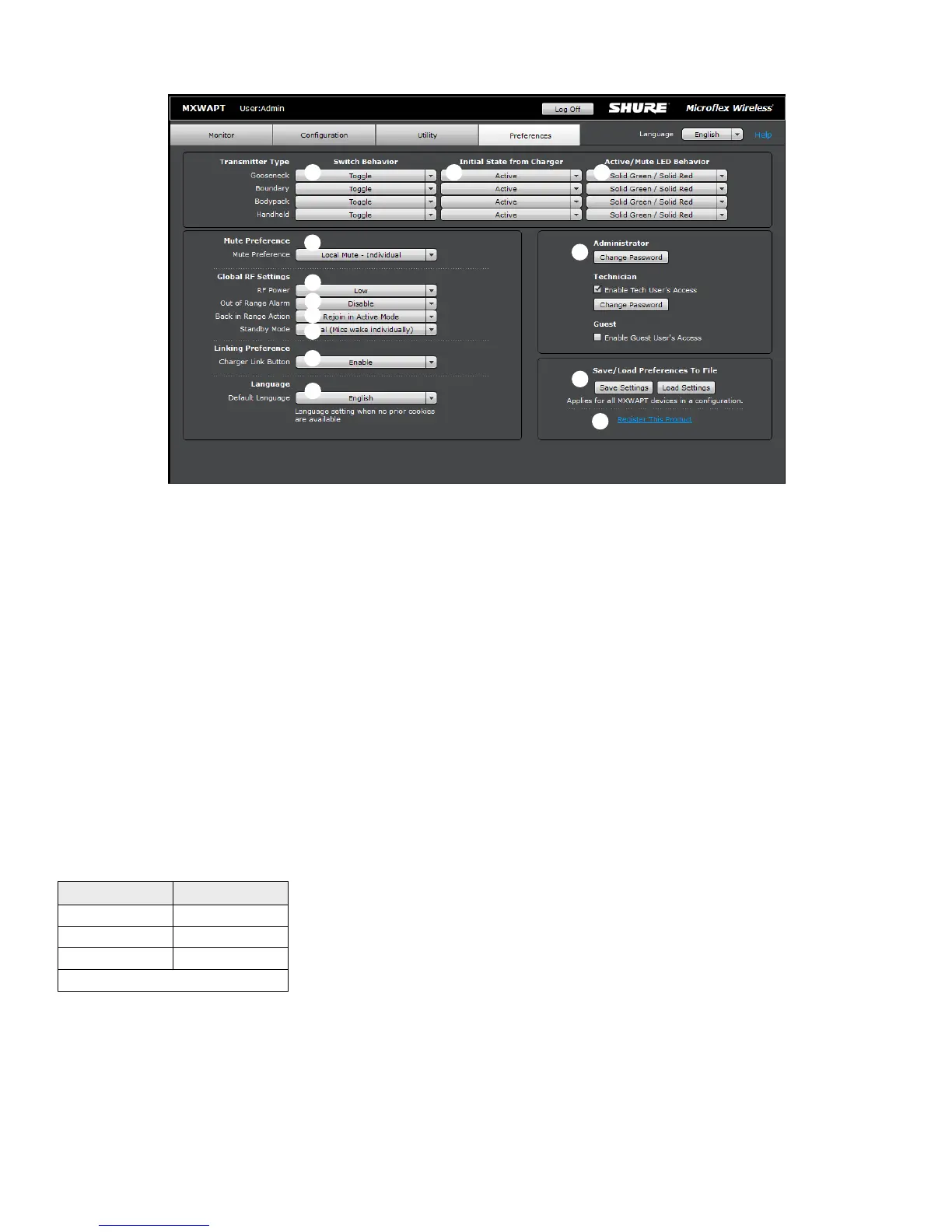
All preferences apply to each device in the Configuration.
① Switch Behavior
Customize the switch on each transmitter type.
• Toggle (default): Press and release the button to change the status
to Active or Mute.
• Push-to-talk: Hold button to pass audio.
• Push-to-mute: Hold button to mute the audio.
• Disabled: The button does not affect the audio.
② Initial State from Charger
Assigns the state for the transmitter after it has been removed from the
charger:
• Active: On and passing audio to the network.
• Mute: On but the audio is muted.
• Standby: On but in a 'sleep' state with audio muted. Standby
conserves battery charge and enables a change to the transmitter's
status from the control software.
• Off: Power is off. A transmitter in this state cannot be remotely
controlled by the software.
③ LED Behavior
Set the behavior of the mute/active LED for each transmitter type.
Standby mode is always represented with a pulsing red LED.
Active Mute
Solid Green* Solid Red
Solid Red Flashing Red
Solid Red Off
External LED Control
*Not available for MX400R series gooseneck microphones
④ Mute Preference
• Local Mute - Individual (default): Each transmitter is muted
individually.
• Local Mute - All: All transmitters mute when any transmitter is muted.
• External Mute: Transmitter audio is on, and muted from a 3rd-party
controller.
Preferences Tab
⑤ RF Power
Determines the RF coverage of an access point.
• Low: 25 ft (1mW)
• Medium: 50 ft (3 mW)
• Medium High: 100 ft (16 mW)
• Max: 150 ft (80 mW)
⑥ Out of Range Alarm
When enabled, a transmitter will audibly beep when it is taken out of
the RF coverage area. (Disabled by default.)
⑦ Back in Range Action
Transmitters can be set to automatically activate (default) or mute when
they re-enter the RF coverage area.
⑧ Standby Mode
• Local (default): Transmitter can individually be activated.
• Global: All transmitters are activated at the same time from Standby
mode.
⑨ Linking Preference
The Link procedure can be restricted to the control software by
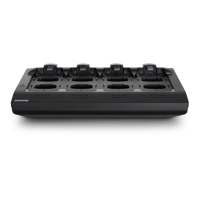
disabling the hardware Link button on the Networked Charging Station.
By default, the Link button is enabled.
⑩ Language
Determines the language of the control software.
⑪ Password Setup
The default password for the device is 'admin'. The following describes
access rights for each logon:
Admin (default): Full monitoring and editing access. The Admin can
enable or disable the Tech- and Guest-level logon.
Tech: Monitoring with limited editing access.
Guest: Monitoring only.
⑫ Save/Load Preferences
Saves the preferences of the Configuration as a file to the computer.
The file can be loaded and will overwrite the settings for all devices in
the Configuration.
⑬ Register the Product Link
Links to Shure website for product registration.
①
②
④
⑤
③
⑩
⑪
⑥
⑦
⑧
⑨
⑫
⑬





 To Next Page