Sierra Wireless FX30S User Guide
Rev. 7 August 2021 12 41110485
Step 1—Insert the SIM Card and Optional IoT
Expansion Card
The Sierra Wireless FX30S has one mini-SIM (2FF) card slot.
If the SIM card has not already been installed, insert the SIM card into the gateway before
connecting any external equipment or power to the FX30S.
To install the SIM card:
1. Use a Phillips screwdriver to remove the cover.
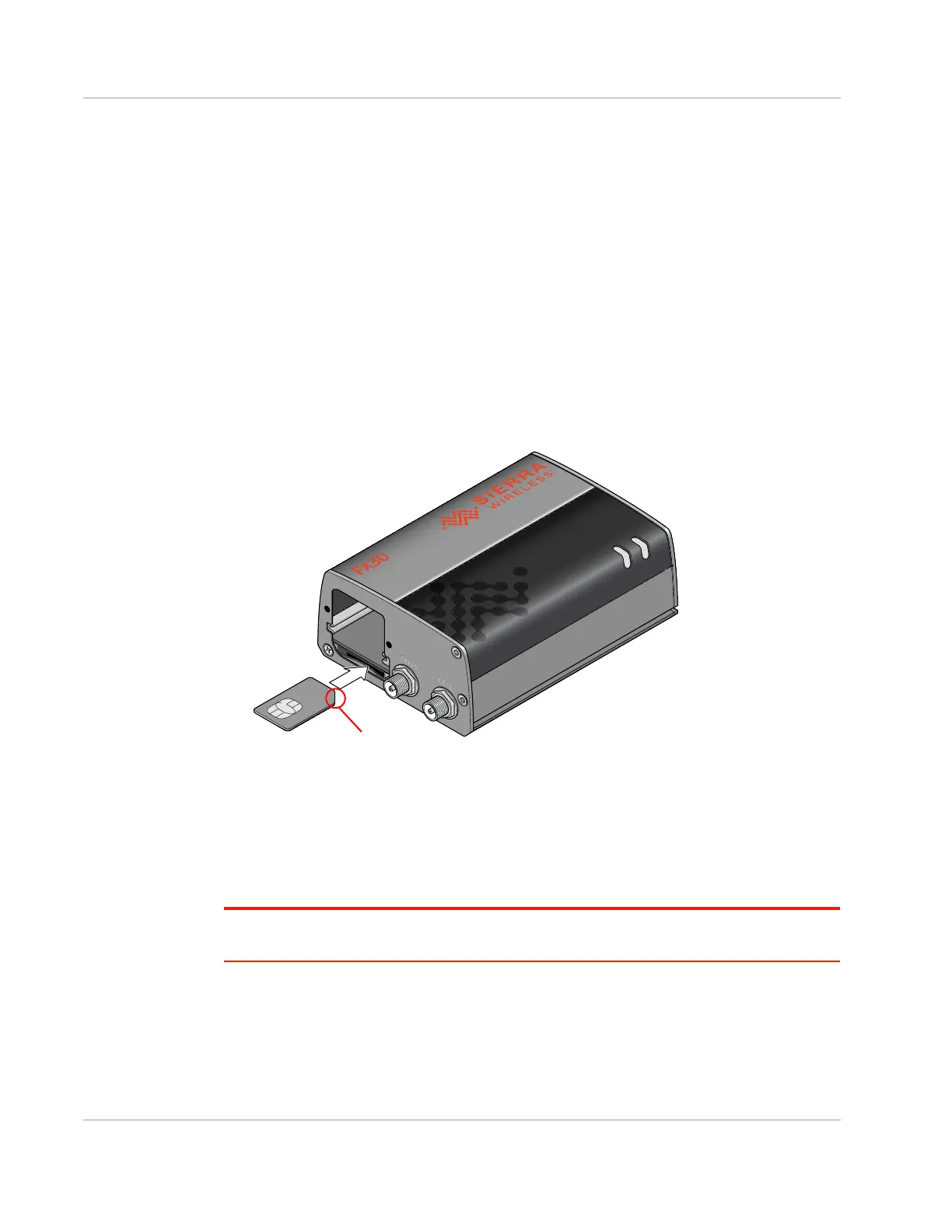
2. Orient the SIM card, as shown in Figure 2-1. The gold contacts on the SIM card face
up.
3. Gently slide the SIM card into the slot until it clicks into place.
To remove the SIM card, press it in, and release it. Gently grip the SIM card and pull it
out.
Figure 2-1: Installing the SIM card
4. Reattach the cover.
The FX30S has a slot for an IoT Expansion card that provides a standard hardware
interface for sensors, network adapters and other IoT technologies. Using Legato, you can
design host applications for the IoT Expansion Card. For more information, see IoT
Expansion Card on page 56.
Note: Expansion cards shall be connected/disconnected when equipment is not energized, and
shall be secured using screws.
To install an IoT Expansion card:
1. Use a Phillips screwdriver to remove the SIM card/IoT Expansion card cover.
2. Orient the IoT Expansion card as shown in Figure 2-2 and slide the card into the IoT
slot.
3. Reattach the cover.
Note the location of the notch




 To Next Page