Sierra Wireless FX30S User Guide
Rev. 7 August 2021 34 41110485
Setup for Windows
The following steps assume you have installed the USB drivers for WP Series modules,
available from http://source.sierrawireless.com/devices/fx-series/FX30/ (in the Software
section under Windows drivers).
To set up the FX30S for use with Windows:
1. Power up the FX30S and connect it to a USB port on the computer.
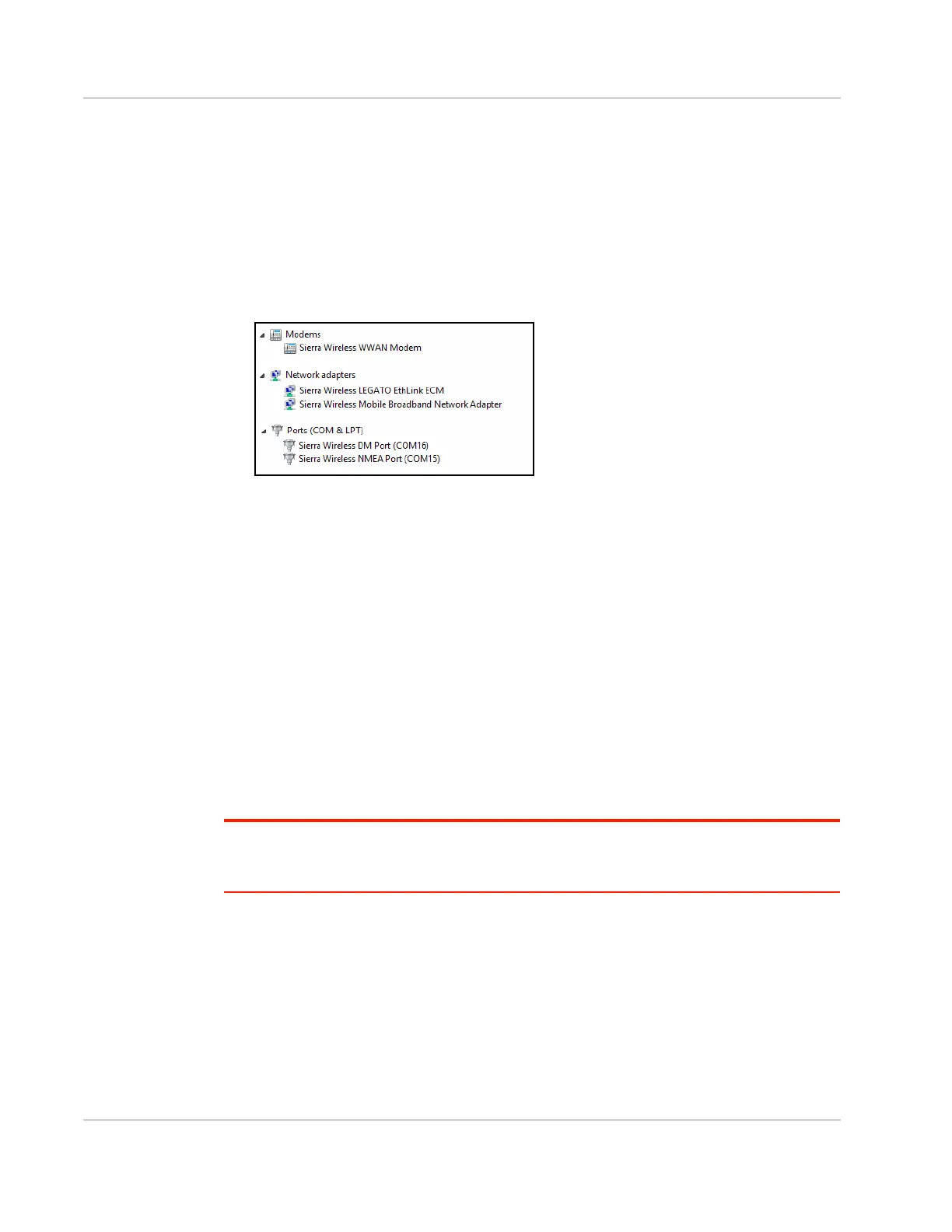
2. The FX30S appears in Windows Device Manager as shown below.
• The AT command COM port is available within the Modems > Sierra Wireless
WWAN Modem device.
· To view the COM port number, right-click the modem name, select Properties,
and then select the Modem tab.
• Sierra Wireless LEGATO Ethlink ECM is the network adapter over USB, which
allows you to SSH to the FX30S.
• The Sierra Wireless DM Port is a Diagnostic Monitor port for debugging and
boot.
• The Sierra Wireless NMEA Port is a serial port that outputs GPS information.
3. Open a terminal emulator program such as Tera Term.
4. Connect to the AT command port. Set the terminal program com port to match the
port number you found for the Sierra Wireless WWAN Modem. You should now be
able to issue AT commands to the modem. If the connection fails, check the serial
port settings.
5. Use the terminal program to SSH to root@192.168.2.2 and establish a secure shell
connection.
Note: The first time you connect, you must create a password to log in securely. Ensure that you
create an effective password that is longer than eight characters, and uses special characters,
numbers, and upper and lower case characters.
Disabling the Windows Cellular Connection
You may need to disable the Windows cellular connection if you want to prevent Windows
from:
• using the cellular connection, which is a metered connection
• altering your modem settings. Windows may change the modem's APN preventing it
from connecting.




 To Next Page