CHAPTER 3
USING YOUR INTERACTIVE WHITEBOARD SYSTEM
16 smarttech.com/kb/170782
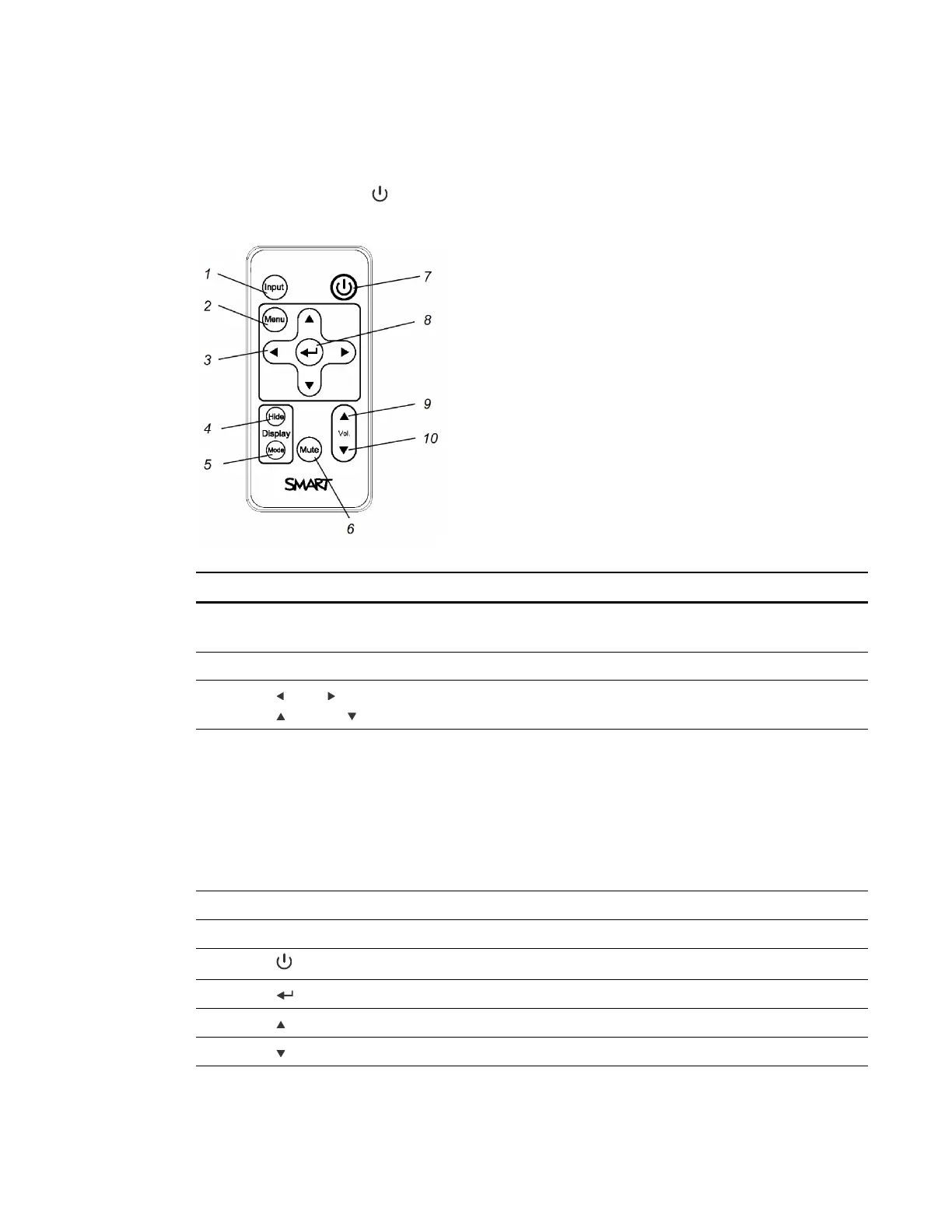
Using the remote control buttons
The projector remote control enables you to access on-screen menus and change projector
settings. Press the Power button twice on the remote control to put the projector into Standby
mode. You can also use the Input button on the remote control to switch sources on the projector.
Number Function Description
1 Input Select a video and audio input source on the
projector.
2 Menu Show or hide the projector menus.
3 (Left), (Right),
(Up) and (Down) arrows
Change the menu selections and adjustments.
4 Hide Freeze, hide or display the image:
l
Press once to freeze the image.
For example, you can display a question on
the screen while you check your e-mail.
l
Press again to hide the image, that is, to
display a black screen.
l
Press again to return to the live image.
5 Mode Select a display mode.
6 Mute Mute audio amplification.
7
(Power)
Turn on the projector or put it into Standby mode.
8 (Enter) Accept the selected mode or option.
9 (Volume Up) Increase audio amplification volume.
10 (Volume Down) Decrease audio amplification volume.


 To Next Page