CHAPTER 5
TROUBLESHOOTING YOUR INTERACTIVE WHITEBOARD SYSTEM
36 smarttech.com/kb/170782
l If necessary, complete additional troubleshooting with the guidance of SMARTSupport using
SMARTBoard Diagnostics.
l For more projector troubleshooting tips, see
Resolving projector issues
on the next page.
Resetting your interactive whiteboard
You can reset your interactive whiteboard by disconnecting and then reconnecting the power
cable. This turns the power off and back on, restarting all components of your interactive
whiteboard.
Resolving connection issues
l Confirm that the projector’s on-screen menu option for the USB receptacle is set to the
correct video source.
l Confirm that the USB cable is properly connected from a fully functional USB receptacle on
the computer to the interactive whiteboard.
Determining your SMARTV30 projector status
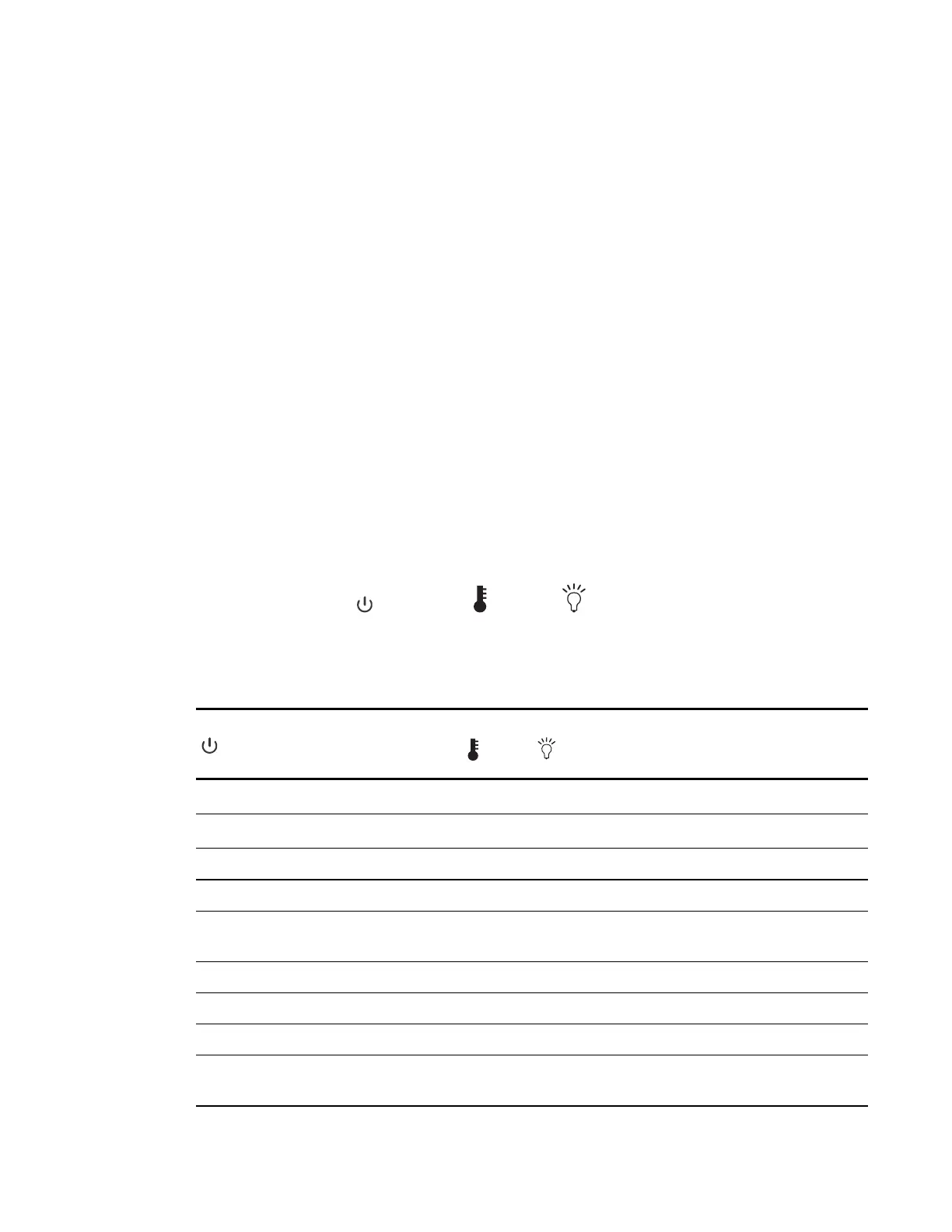
Your projector’s Power , Temperature and Lamp indicator lights are located on the
bottom of the projector.
Use the following table to determine the status of your interactive whiteboard system:
Power indicator light Temperature
indicator light
Lamp indicator light Projector status
Solid red
Off
Off Standby
Flashing green
Off
Off Powering up
Solid green Off Off On
Flashing red Off Off Cooling
Alternating green and
red
Solid red Solid red Downloading firmware
Solid red Solid red Off Projector over-heated
Solid red Flashing red Off Fan breakdown
Solid red Off Solid red Lamp failure
Solid red Off Flashing red Color wheel
breakdown


 To Next Page