8. Update Center
When a new model is added and a new version of the software is available, the system will prompt
the user to upgrade, and it is recommended that the user upgrade to the latest version in a timely
manner.
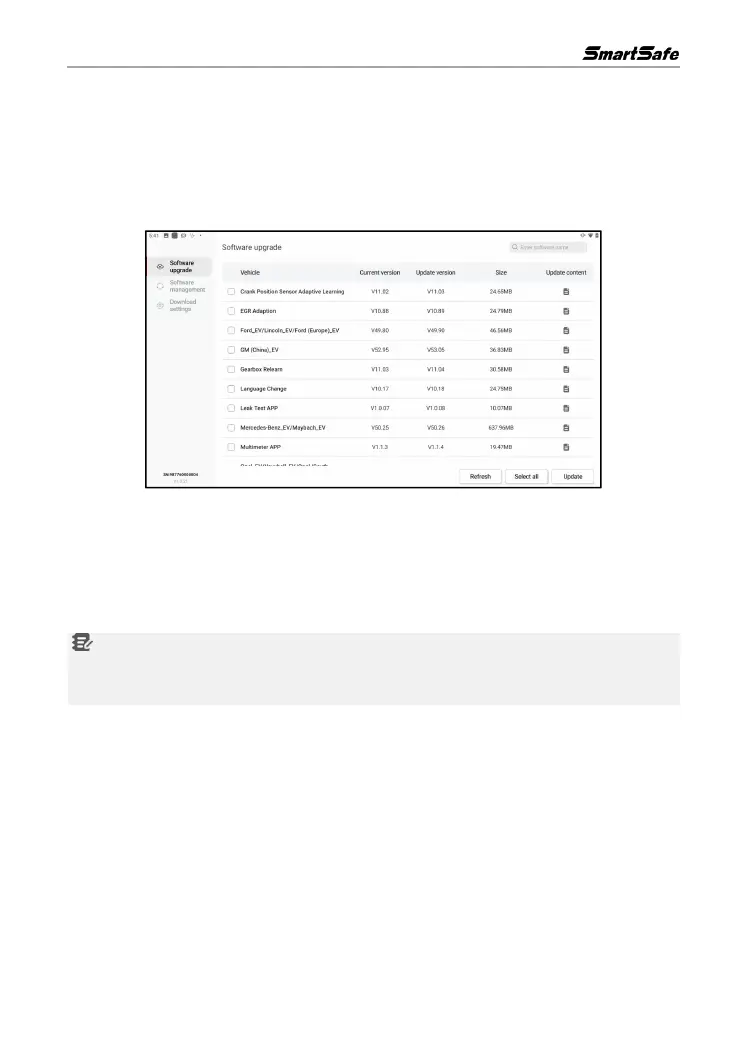
Click Update Center in the main interface to enter the following page:
8.1 Software Upgrade
Under the Software Upgrade tab, click Select All to select all upgradeable software or check the
software that needs to be upgraded, and then click Update to start downloading the software
installation package, and the system will automatically install the software after the download is
complete.
Notes: During the upgrade process, please make sure the network connection is normal. If
there is a lot of software to be upgraded, it may take a long time (depending on the speed of the
Internet), so please be patient.
If you need to deselect a software, click the check box in front of the software.
8.2 Software management
Click the Software Management tab, the list shows the current downloaded software. In this page,
you can view the software version information, the size of the installation package and software
updates, and you can also upgrade the downloaded software with one click.
8.3 Download settings
Clicking on the Download settings tab, users can turn on or off the Automatic downloads on Wi-
Fi. When the function is turned on, the applications in the pending download list will be downloaded
automatically when the device is connected to Wi-Fi.



 To Next Page