As you increase the Z offset, the heated bed will drop a corresponding
distance, and vice versa.
Standby mode is only available when printing with a single extruder.
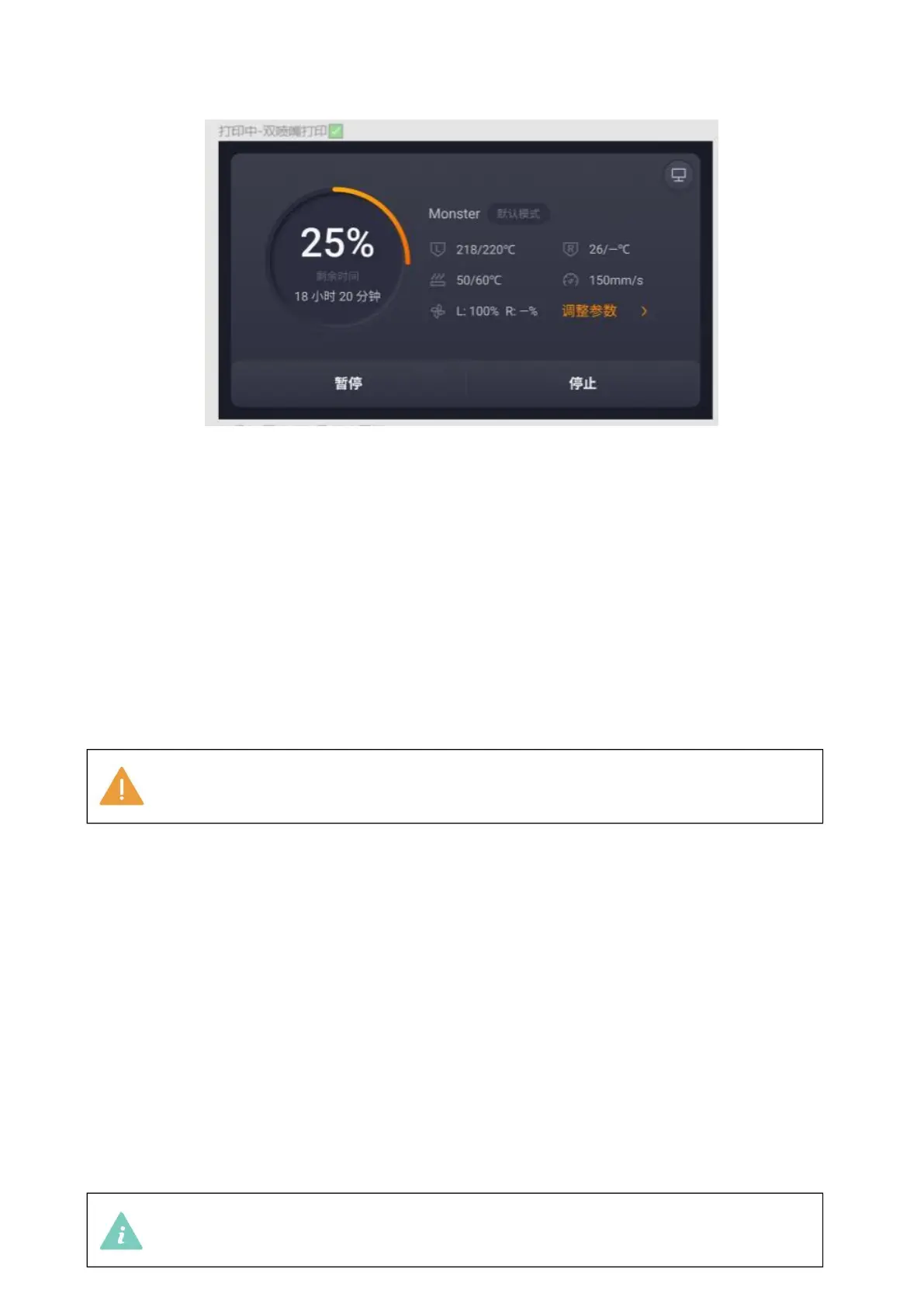
When printing, click Adjust Parameters in the print menu interface to enter the print
parameter setting page.
-
To adjust the extruder temperature, tap extruder > Slide to Target Temperature >
tap Heat.
- To adjust the hotbed temperature, click on the hotbed > slide to target
temperature > click on heat.
- To adjust the Z-axis offset, click the Z-axis offset and then click + 0.05mm
or -0.05mm to lower or raise the heated bed.
-
To adjust the working speed, tap the working speed and slide to the target speed.
-
To adjust the output of the filament, click Flow and then slide to the target flow.
-
To adjust the fan speed, tap Fan Speed and then slide to the target speed.
-
To adjust the lighting level, click Lighting, and then click the level you want.
- To turn the standby mode on or off, tap Standby Mode, and then tap to toggle it
on or off. When the standby mode is turned on, the machine will continue
printing with the standby extruder if the working extruder filaments are used
up.



 To Next Page