25
snom 821 User Manual Getting to Know Your Phone
Active identity
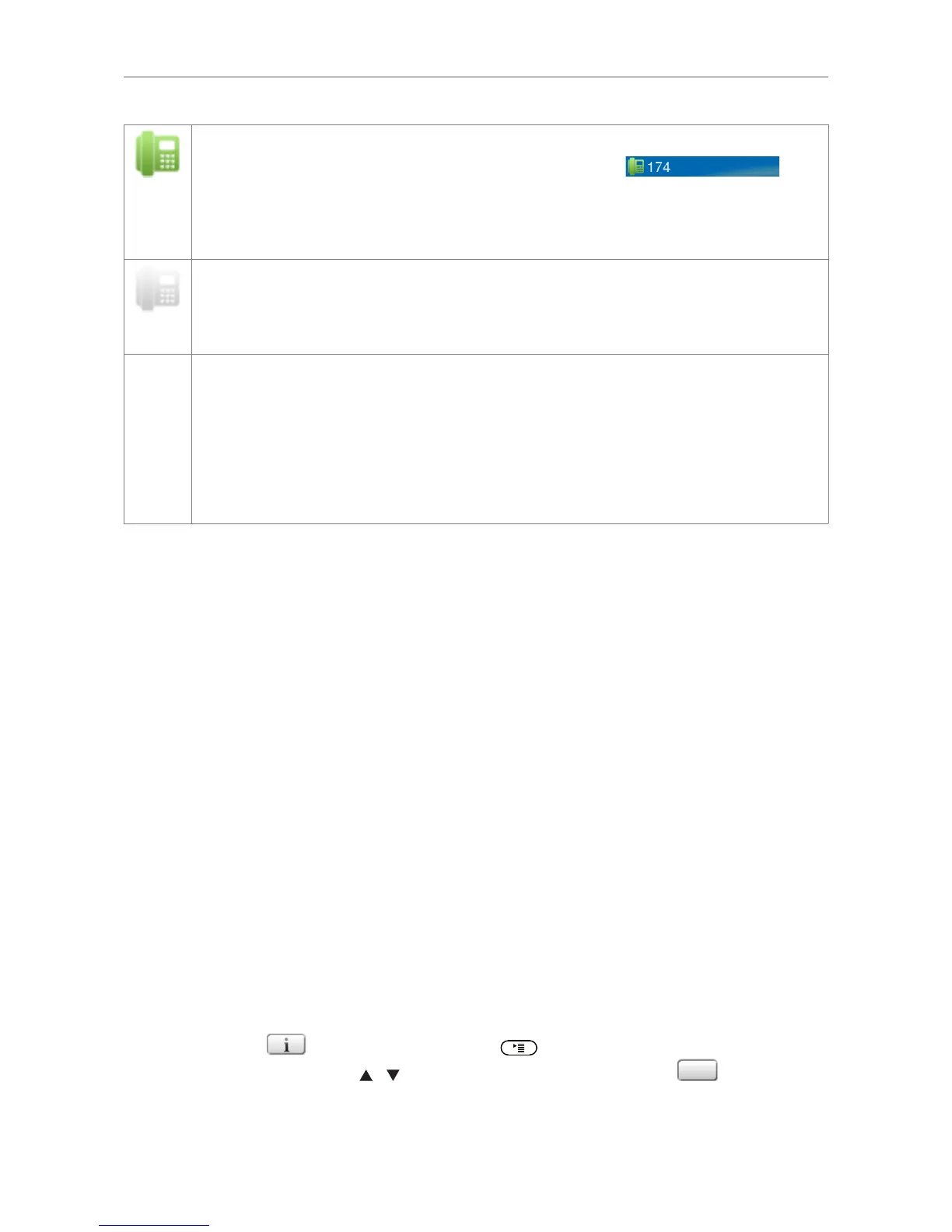
• Active identities are indicated by the green phone symbol:
• Can be called
• Can be selected as the outgoing identity for making calls by pressing rs on the
navigation key.
• Blinking gray phone symbol: The identity is trying to register
• The phone symbol has stopped blinking, but remains gray: Failed registration, the
identity is not properly registered. Check the settings and/or inform your network
administrator or your VoIP provider.
Identities can be unregistered without removing the registration settings by changing their
status to "inactive" on the phone's web interface. Inactive identities are not displayed on
the idle screen. They cannot be called or selected as the outgoing identity. To reregister
the identity, open the phone's web interface > Configuration Identity (1-12).
1. Change the "Identity active" setting to "on".
2. Click on "Re-Register".
3. Click on "Save".
Status bar
Any of numerous messages concerning the current status of the phone might be displayed in this bar,
for example the availability of a firmware update, a reboot being required, etc. If there is more than
one current status message at any one time, the one with the highest priority will be shown. For a
comprehensive list in descending order of priority, see "Appendix 2 - Status messages" on page 86.
Two of the most common status messages you will see in idle mode are:
• The text "CFwd:" and the phone number calls will be forwarded to when call forwarding (when busy
or no answer) is activated. When there are missed calls, this information is replaced by the missed
calls information.
• The warning "HTTP Password not set"`. It will override both the called forwarding and missed call
information. It can be turned off by either setting the password or telling the system to ignore the
warning.
◦ Setting the password: Web interface > Advanced > QoS/Security > HTTP Server
◦ Turning off the warning: Web interface > Advanced > QoS/Security > Security > Ignore
security advices: Click "On" and "Apply"
Deleting status messages
• Messages will be deleted automatically when the underlying cause is removed, i.e., call forwarding
is turned off, HTTP password is set, etc.
• Manually: Press , if the button is available, or > 6 Information > 1 Status info to open
the "Status info" screen. Use
/ to select an item from the list and press
Del
to delete.



 To Next Page