40
snom 821 User Manual Directories
Editing an entry
When you open an existing entry, the current information is displayed in the text fields of "Add or Edit
Entry" and two additional buttons, "Add Sub" and "Change", are available.
• Editing
◦ If single entry, click on in the entry's line.
◦ If there is more than one number associated with a name:
- Click on in the name's line if you wish to edit/add the first or last name of the date of
birth and the data in the blue area applicable to the master record.
- Click on in a phone number's line if you wish to edit the subentry`s data (phone number,
number & contact type, outgoing identity, and any blue area data applicable to this subentry
only).
Make changes as necessary and click on "Change".
• Adding additional phone number (subentry) for a name
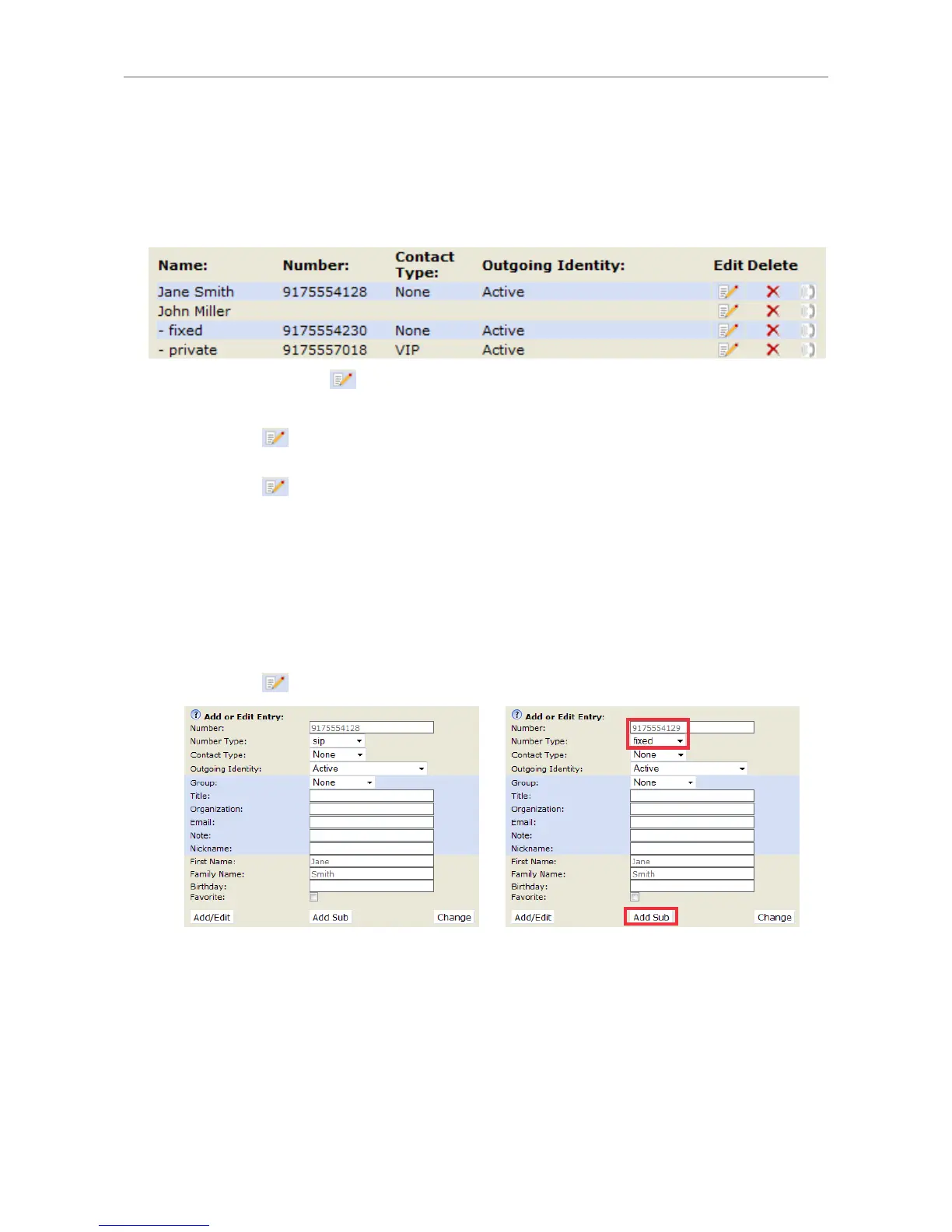
◦ Jane Smith's entry has only one phone number, her SIP phone number. In this example, the
phone number of Jane Smith's landline will be added to the directory.
- Click on in Jane Smith's line. The data is shown in "Add or Edit" area (Fig. 1).
Fig. 1 Fig. 2
- Enter the phone number in the text field of "Number" (Fig. 2).
- Select "fixed" from the drop-down menu of "Number type" (Fig. 2).
- If you wish, select a contact type and an outgoing identity from drop-down lists.
- Click on "Add Sub" (Fig. 2).
◦ John Miller's entry has a SIP number and a private number. In this example, his cell phone
number will be added as a third number.



 To Next Page