48
snom 821 User Manual Using the Phone
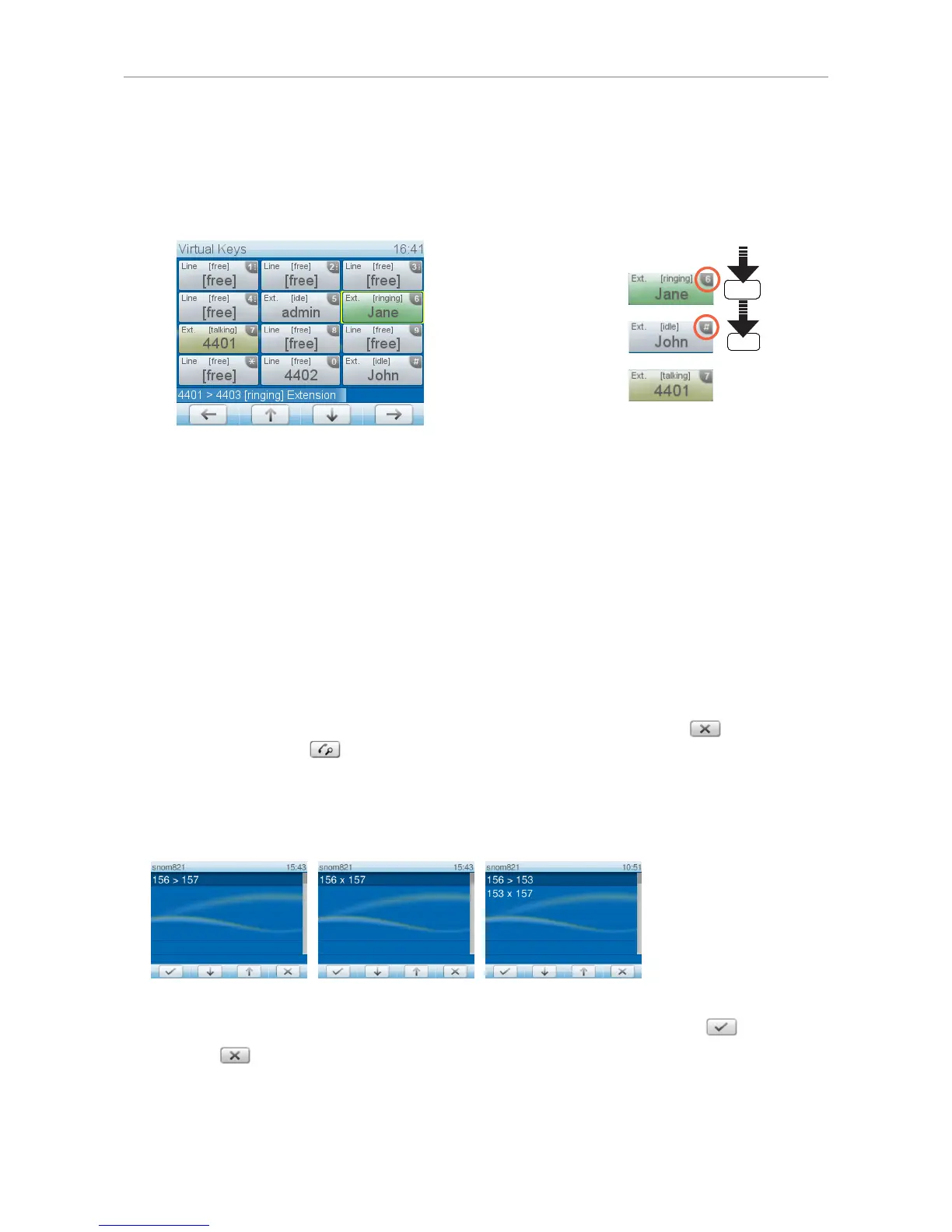
Using the virtual key screen
When a call is ringing on a monitored extension, the virtual key screen appears. Calls ringing
on monitored extensions are indicated by a green key. They can be picked up by pressing the
alphanumeric key indicated by the number or character in the upper right corner of the virtual key.
• Extension busy (yellow key):
• Call pickup (green key):
• Dial extension:
Using the call monitoring screen
If you wish to see more information on the current activities of all monitored extensions (who is talking
to or calling whom), you can program the function "Monitor Calls" onto one of the freely programmable
function keys P2-P12 or onto one of the programmable keys underneath the display. For more
information, see "Programming the function keys" on page 61 and "Example 2, Monitoring calls on-
screen" on page 63.
When a call is ringing on a monitored extension, the virtual key screen appears. Calls ringing on
monitored extensions are indicated by a green key.
• If call monitoring is mapped onto one of the keys P2-P12, press the corresponding alphanumeric
key to open the call monitoring screen.
• If call monitoring is mapped onto one of the keys underneath the display, press to return to the
idle screen, then press to open the call monitoring screen.
The call monitoring screen shows any ongoing activity on monitored extensions or lines. In the below
example, "156 > 157" indicates that extension 156 is calling extension 157; "156 x 157" indicates that
156 is connected to 157 and that 156 is the caller, 157 the callee.
Monitored extension ringing Monitored extension busy Simultaneous calls
◦ If a ringing call is not answered, you can pick it up on your phone by pressing .
◦ Press to close the details screen and return to the idle screen.



 To Next Page