EasyManua.ls Logo

Socket CHS Series 7 - User Manual

Socket CHS Series 7
130 pages
Print Icon
To Next Page IconTo Next Page
Loading...
Socket
Bluetooth
®
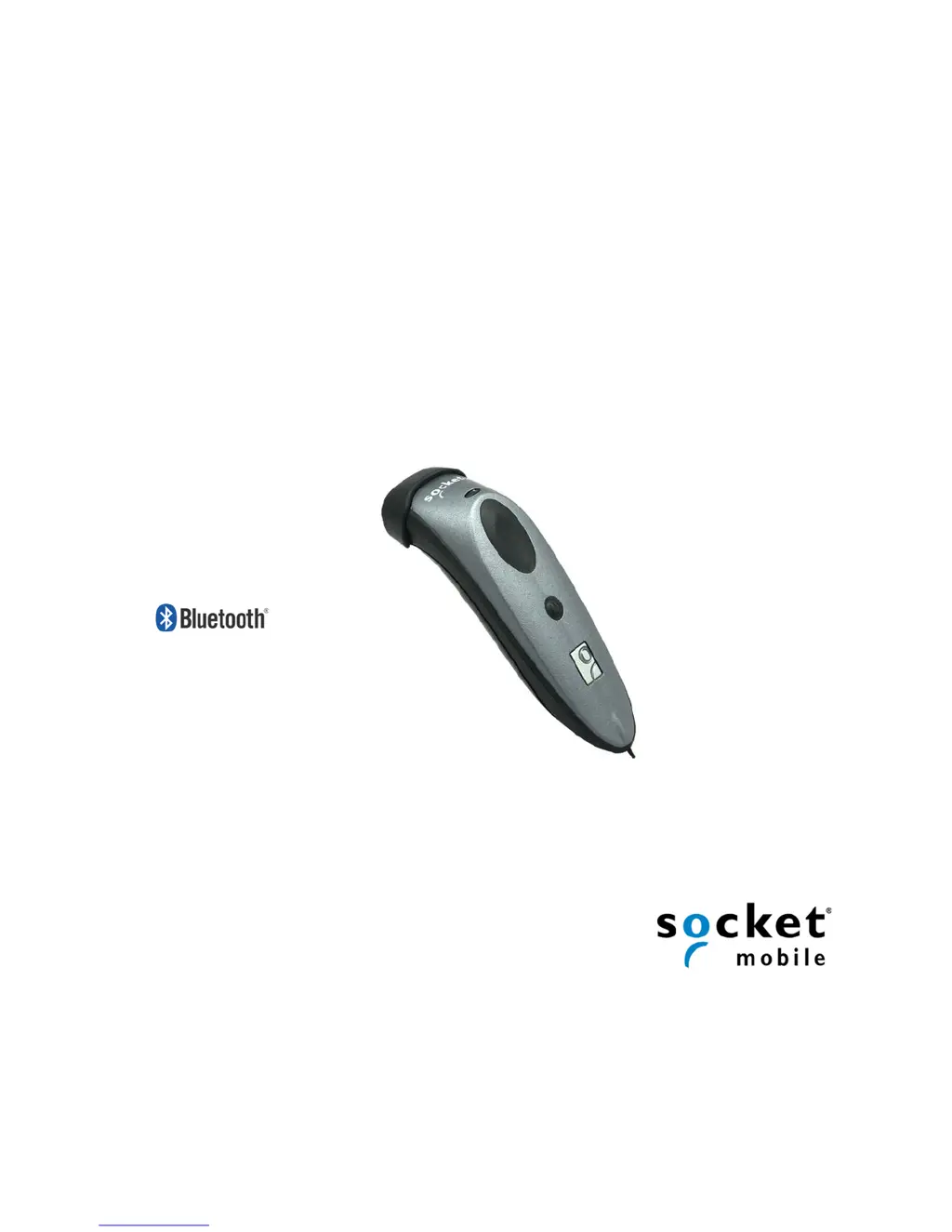
Cordless Hand Scanner (CHS) Series 7 (v3)
1D Models
User’s Guide

Questions and Answers

  • J
    Jeffery SchmidtSep 12, 2025
    Why SocketScan 10 can’t connect to unknown device?
    • N
      Nicholas PrinceSep 12, 2025
      If, when you try to connect the Socket Barcode Reader CHS, an error message says that SocketScan 10 can’t connect to unknown device, it means that the CHS is already paired to another device. Unpair the CHS (see Appendix F for instructions) and delete any “Unknown devices” in the Bluetooth paired devices list.
  • B
    Barbara MaysAug 23, 2025
    Why my computer/device cannot find Socket Barcode Reader CHS?
    • T
      Tanya WalkerAug 23, 2025
      If your computer or device cannot find the Socket Barcode Reader CHS, and/or you receive an error message indicating connection problems, consider the following: * Ensure the computer/device is within 10-15 meters of the CHS. * Verify that the CHS is powered on. * If using the CHS in SPP mode, remove any settings that assign another device as your default Bluetooth serial device. * Confirm that Bluetooth is enabled on your computer/device and the Bluetooth software is running. * Check if the CHS is already paired with another computer/device. If so, unpair the CHS. See Appendix F for instructions.
  • L
    Lisa ReedSep 8, 2025
    Why I am getting an input system error while scanning barcodes into a BlackBerry smartphone with Socket Barcode Reader?
    • N
      Nicole VasquezSep 8, 2025
      If, when scanning barcodes into a BlackBerry smartphone, you get an input system error, it means that you are using a Socket Barcode Reader CHS v2 scanner with SocketScan 10. SocketScan 10 is compatible only with CHS v3. Either downgrade your software to SocketScan 7 or upgrade your scanner to CHS v3.
  • C
    crystalbrandtSep 6, 2025
    What to do if Vibrate Mode fails to complete in Socket CHS 7 Barcode Reader?
    • E
      Elizabeth SpencerSep 6, 2025
      If, when you try to enable or disable Vibrate Mode in Scanner Settings, you get an error message about properties 131340 failing to complete, it means that you are using a Socket Barcode Reader CHS v2 scanner with SocketScan 10. SocketScan 10 is compatible only with CHS v3. Either downgrade your software to SocketScan 7 or upgrade your scanner to CHS v3.
  • W
    webbnicoleSep 5, 2025
    Why SocketScan 10 says it cannot determine the Bluetooth stack?
    • L
      lkellerSep 5, 2025
      If, when you open SocketScan 10, an error message states that it cannot determine the Bluetooth stack, it means that Bluetooth is not enabled on your PC. Enable Bluetooth on your PC and make sure Bluetooth is fully initialized before opening SocketScan 10.
  • M
    Mary PriceSep 3, 2025
    How to resolve SocketScan failed to set the scanner configuration mode error?
    • D
      Donna MillerSep 4, 2025
      If, when trying to open Scanner Settings, an error message indicates that SocketScan failed to set the scanner configuration mode, and the CHS is connected to Toshiba Bluetooth stack, and SocketScan 10 is running, ignore the message and click OK. The Scanner Settings application will launch and work properly.
  • J
    Jennifer PalmerSep 2, 2025
    Why SocketScan 10 says that incompatible scanner tried to connect?
    • A
      Ashley CampbellSep 2, 2025
      If, when trying to connect the Socket Barcode Reader CHS to your SoMo, you receive an error message stating that an incompatible scanner tried to connect: * The CHS may be in SPP mode, and the SoMo does not have any free Bluetooth serial ports. Free up a Bluetooth serial port for the CHS connection. * The CHS may be incompatible, possibly an older version. Use the correct version of SocketScan for your CHS version, or upgrade your CHS to v3.
  • V
    Victor DiazAug 31, 2025
    How to fix SocketScan 10 reporting last CHS connected and unable to modify settings?
    • E
      Emily FlynnSep 1, 2025
      If, after attempting to connect, SocketScan 10 reports the Friendly Name of the last CHS connected to the computer, and you cannot modify any advanced settings or symbologies, it is a known issue in SocketScan 10 for Windows XP and Vista. Close and restart SocketScan 10 and reconnect.
  • A
    Alyssa WileyAug 30, 2025
    What to do if Socket CHS 7 Barcode Reader CHS is not connected in SPP mode?
    • J
      Jaclyn WilliamsAug 30, 2025
      If you are using the Socket Barcode Reader CHS in SPP mode and get the “CHS not connected” icon in the system tray, preventing you from triggering the scanner or scanning barcodes, it means that your PC is not connected to the CHS. Make sure the CHS is on, in range, and has sufficient battery power. Try reconnecting.
  • A
    Adam RiveraAug 29, 2025
    Why scanning a barcode invokes odd behaviors with Socket CHS 7 Barcode Reader?
    • C
      clucasAug 29, 2025
      If, when scanning a barcode, odd behaviors occur such as different applications seem to be invoked in your system, and/or special characters are displayed unexpectedly in the application, it is because, in HID mode, the Socket Barcode Reader CHS will only properly read printable ASCII characters. Non-printable ASCII characters or extended characters cannot be interpreted by the scanner. Printable ASCII characters are numbers between 0x20 and 0x7E, and any ASCII characters that fall outside of this scope are considered as non-printable. Use the SocketScan 10 SDK to develop a custom application that supports non-printable ASCII characters. Learn more about the SDK at: http://www.socketmobile.com/products/sdk/.

Summary

1 Introduction

System Compatibility Requirements; Compatible Devices

Details compatible OS and devices for Bluetooth connection modes.

About Bluetooth HID and SPP Modes

Explains Bluetooth connection profiles (SPP and HID) and their advantages/disadvantages.

About SocketScan 10 Software

Describes the SocketScan 10 keyboard wedge software and its features for data input.

Accessories

Lists available accessories for the scanner, including SKU numbers.

Hardware Features

Describes the physical components and design of the scanner.

Status Indicator LED

Explains the meaning of different LED light patterns and activities.

Status Indicator Beeps

Details the various beep patterns and their corresponding meanings.

Bluetooth Mode Sequence

Outlines how the Bluetooth mode changes after the scanner is powered on.

Simultaneous Use of CHS and Socket Plug-in Device

Explains how to use the scanner with other Socket plug-in devices concurrently.

2 Scanner Setup

Installing Batteries and Attaching the Tether

Step-by-step guide for installing batteries and securing the tether.

Assembling the AC Adapter

Instructions on how to attach the correct plug to the AC adapter for charging.

Charging the Scanner

Details the process of charging the scanner using the AC adapter or USB cable.

3 Setup for Windows PC

Connection Options

Compares HID and SPP connection modes for Windows PCs, outlining pros and cons.

Option 1: Using the CHS in HID Mode

Step-by-step guide for pairing and connecting the CHS using the HID mode.

Option 2: Using the CHS in SPP Mode

Instructions for installing SocketScan 10 and configuring SPP mode for Windows PCs.

SocketScan 10 Special Features (SPP Mode Only)

Highlights special features of SocketScan 10 when used in SPP mode.

SocketScan 10 Settings

Explains how to configure COM ports, keyboard wedge, and other settings in SocketScan 10.

Scanner Settings

Details how to access and configure scanner properties like symbologies and scan confirmation.

4 Setup for Windows Mobile

Connection Options

Compares HID and SPP connection modes for Windows Mobile devices.

Option 1: Using the CHS in HID Mode

Guide for pairing and connecting the CHS in HID mode with Windows Mobile devices.

Option 2: Using the CHS in SPP Mode

Instructions for installing SocketScan 10 for SPP mode on Windows Mobile.

SocketScan 10 Special Features (SPP Mode Only)

Describes special features of SocketScan 10 for Windows Mobile in SPP mode.

SocketScan 10 Settings

Explains configuration options for SocketScan 10 on Windows Mobile.

Scanner Settings

Details accessing and modifying scanner settings on Windows Mobile.

5 Setup for Apple

Connection Options

Compares HID and iOS (SPP) connection modes for Apple devices.

Option 1: Using the CHS in HID Mode

Guide for pairing and connecting the CHS in HID mode with Apple devices.

Option 2: Using the CHS in iOS Mode

Instructions for configuring the CHS for iOS mode with compatible applications.

6 Setup for Android

Connection Options

Compares HID and SPP connection modes for Android devices.

Option 1: Using the CHS in HID Mode

Guide for pairing and connecting the CHS in HID mode with Android devices.

Option 2: Using the CHS in SPP Mode

Instructions for installing SocketScan 10 for SPP mode on Android devices.

Scanner Settings (SPP Mode Only)

Explains scanner settings and status indicators for SPP mode on Android.

Configuration

Details configuration options for scan confirmation, suffixes, and vibrate mode.

Symbology

Explains how to enable or disable barcode symbologies for scanning.

Test

Describes the test feature for scanning barcodes and viewing their properties.

Language Selection

Explains how to change the language selection on the Android device's keyboard.

7 Setup for BlackBerry

Using the CHS in HID Mode (BlackBerry PlayBook)

Guide for pairing and connecting the CHS in HID mode with BlackBerry PlayBook.

Using the CHS in SPP Mode (BlackBerry OS)

Instructions for installing SocketScan 10 for SPP mode on BlackBerry OS.

SocketScan 10 Special Features

Highlights special features of SocketScan 10 for BlackBerry.

Scanner Settings

Details configuration options for scanner settings on BlackBerry.

Appendix A Specifications

Physical Characteristics

Provides dimensions, weight, and power source details for the scanner models.

Environmental Characteristics

Lists operating temperature, storage, humidity, and ambient light specifications.

Operating System; Device and Bluetooth Profile Support

Details OS compatibility and Bluetooth profile support across different platforms.

Barcode Support

Lists supported barcode symbologies and scanning capabilities on device screens.

Scanner Performance

Outlines scanner type, scan angle, rate, resolution, and print contrast.

Bluetooth Characteristics

Provides details on Bluetooth interface, protocol, range, security, and stack support.

Certification;Compliance

Lists electrical safety, environmental, EMI/RFI, and laser safety certifications.

About Bluetooth Range

Explains factors affecting Bluetooth connection range and potential interference.

Appendix B Safety and Usage Tips

Scanning Tips

Provides advice on optimizing scanning distance and technique for different barcodes.

Scanning Distance

Details factors influencing optimal scanning distance based on barcode size and type.

About Bluetooth and Health

Discusses Bluetooth technology and RF exposure levels relative to safety guidelines.

Product Care

Offers guidelines on handling, cleaning, and maintaining the scanner to prevent damage.

Antenna Care

Advises against placing metallic shields around the scanner to maintain transmission efficiency.

Efficient Use

Suggests avoiding metal surroundings for optimal scanner performance.

Driving

Advises checking vehicle compatibility with the scanner's RF energy emissions.

Aircraft

Provides safety instructions for using the scanner on aircraft, including power-off requirements.

Radio Frequency Exposure

Explains RF energy generation and compliance with exposure limits and regulations.

Appendix C Barcode Label Specifications

Background Substrate

Specifies requirements for barcode printing media, including finish and reflectance.

Ink Color and Type

Details acceptable ink reflectance values for accurate barcode reading.

Voids and Specks

Outlines criteria for rejecting barcode labels with defects like voids or specks.

Definition

Describes the required clarity and definition of barcode bars and spaces for proper scanning.

Contrast

Specifies the minimum contrast required between barcode bars and background for reliable decoding.

Tolerance

Explains barcode specifications regarding bar/space width ratios and edge quality.

Appendix D Decode Zone

CHS 7 C;7 Ci

Illustrates typical scanning distances for CHS 7C/7Ci models based on barcode size.

CHS 7 E

Shows typical scanning distances for the CHS 7E model based on barcode size.

CHS 7 M;7 P

Depicts typical scanning distances for CHS 7M/7P models based on barcode size.

Appendix E Command Barcodes for CHS 7 C, 7 CI

Command Barcodes for CHS 7 C, 7 Ci in HID Mode

Provides scan codes to configure CHS 7C/7Ci for HID mode and Bluetooth connection.

Command Barcodes for CHS 7 C;7 Ci in SPP Mode or CHS 7 Ci in iOS Mode

Offers scan codes for SPP and iOS modes, as well as connection settings.

Appendix F Command Barcodes for CHS 7 E, 7 M, 7 P

Command Barcodes for CHS in HID Mode

Provides scan codes to configure CHS 7E/7M/7P for HID mode and Bluetooth connection.

Command Barcodes for CHS 7 E, 7 M or 7 P in SPP Mode

Offers scan codes for SPP mode and connection settings for CHS 7E/7M/7P.

Appendix G Special Button Sequences

Restoring Factory Defaults

Explains the button sequence to reset the scanner to its factory default settings.

Unpairing the CHS

Details the procedure to unpair the scanner from a device before pairing with a new one.

Appendix H CAB Installation

Appendix I Connection Barcodes

Appendix J Troubleshooting

General Troubleshooting - All OS

Addresses common scanning issues and connection problems across all operating systems.

Troubleshooting for Windows Mobile

Provides solutions for specific issues encountered with Windows Mobile devices.

Troubleshooting for Android OS

Offers fixes for connection and functionality problems on Android devices.

Troubleshooting for BlackBerry

Lists solutions for issues encountered when using the scanner with BlackBerry smartphones.

Appendix K Technical Support

Limited Warranty

SocketScan Software License Agreement

Regulatory Compliance

Radio Frequency Interference Requirements

Explains FCC and Industry Canada compliance for radio frequency interference.

CE Marking & European Union Compliance

Details CE marking and compliance with applicable European Union directives and standards.

LASER DEVICE

Provides safety information and warnings related to the laser scan engine.

Battery Warning

Lists important safety precautions regarding the rechargeable battery.

Product Disposal

Advises on the proper disposal of the device and electronic products.

Socket CHS Series 7 Specifications

General IconGeneral
Connectivity TechnologyBluetooth
InterfaceBluetooth
Power SupplyRechargeable battery
Operating Temperature-10°C to 50°C
Storage Temperature-20°C to 60°C
Supported Symbologies1D and 2D barcodes

Related product manuals