SmartSMS User Manual Soft dB inc.
User Manual p. 42
6.4.1.2 Manual Equalization:
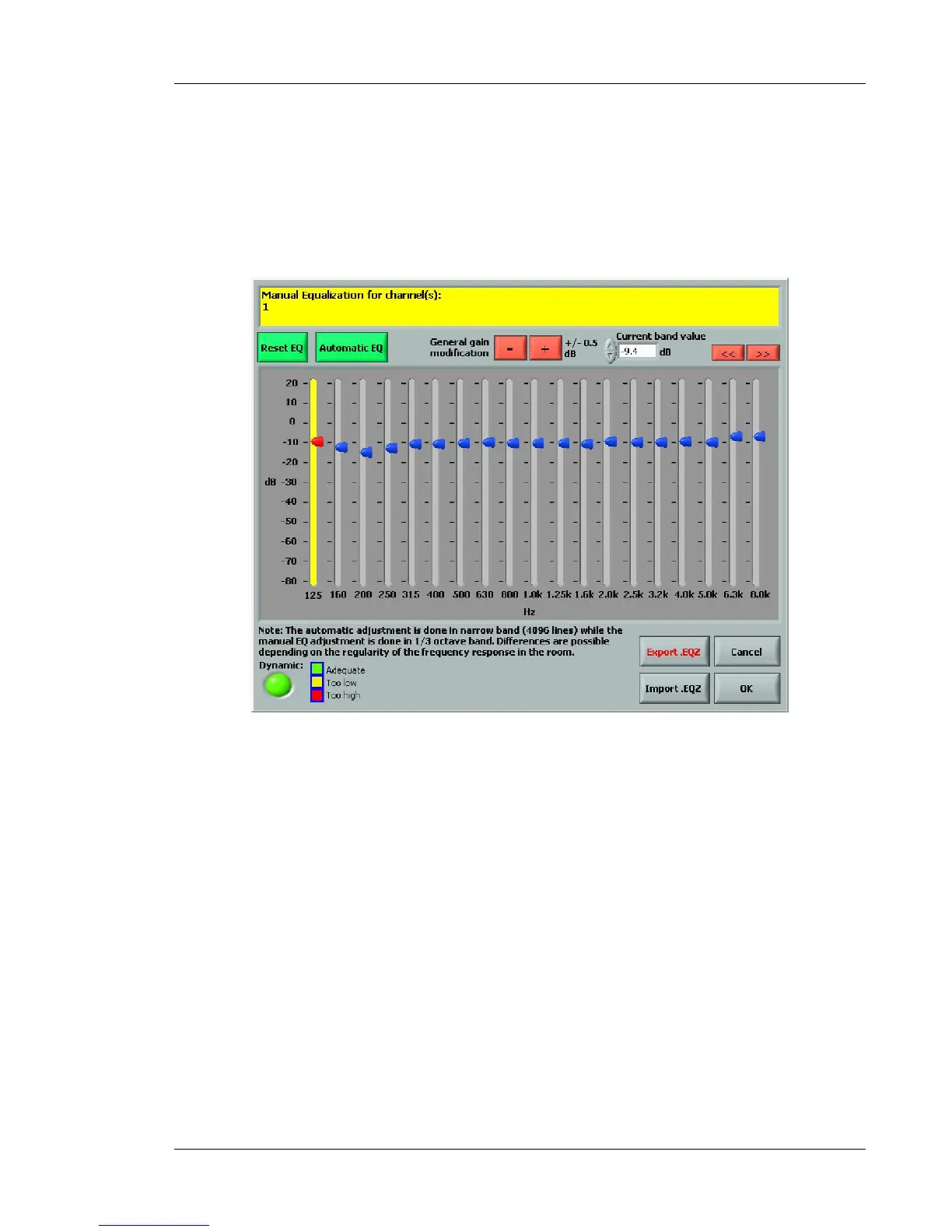
When you click on Manual Equalization, the selected channel switches in manual adjustment
mode and an equalizer is displayed (see Figure 33). The current equalization for that channel is
presented in the 1/3-octave band. To make an adjustment to the masking sound, simply move the
cursor up or down with the mouse, or use the arrow keys to navigate in the bands. You can also
use the red arrow in the upper right hand corner to change the band selection and enter the desired
value in the "current band value" box.
Figure 33 : Manual calibration mode equalizer
The Dynamics indicator in the lower left hand corner will display information about the manual
adjustment. If the equalizer is set too high, there may be some distortion in the masking sound. In
that case, the display will turn red. Try lowering the equalizer. If the level is set too low, the display
will turn yellow.
The Export button allows an equalizer configuration to be exported as a .EQZ file. The Import
function is used to open .EQZ files. Typical equalizer configurations can be saved and transferred
to other channels, or to other systems. The user can also use the main interface Copy/Paste
function (Additional Functions tab) to transfer the equalizer from a specific channel to another
channel or other channels.



 To Next Page