SmartSMS User Manual Soft dB inc.
User Manual p. 14
3. Software Installation and USB Driver
! Do not connect the SmartSMS unit to your PC before installing the software and the SmartSMS
system drivers (Windows does not automatically recognize the SmartSMS system and the wrong
drivers could be installed).
Follow each step below precisely to ensure a proper installation of the software
and the drivers on your PC.
STEP 1: Installation of the SmartSMS Software
1) Launch the installation CD provided with the unit and click on “SmartSMS Installer",
You can also download the latest release of the SmartSMS software from Soft dB
website at http://www.softdb.com/sms-software.html
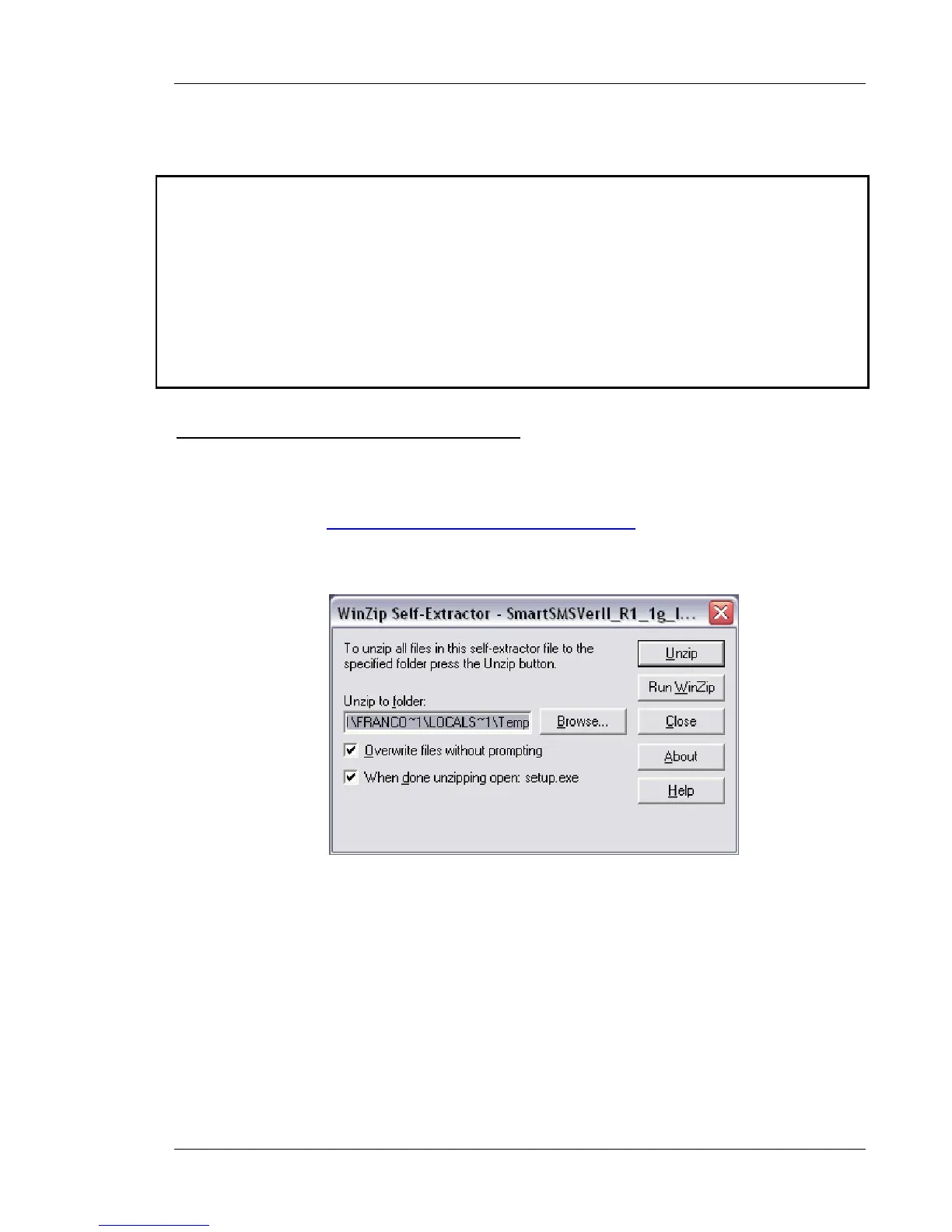
2) The following window appears:
Figure 5: Self-Extractor message, which appears during the installation process
Click “Unzip” and follow the installation procedure. By default, the SmartSMS software is
installed in the C:\Program Files\SMS_Software_VersionII directory. Do not start the
SmartSMS software after finishing this step. The USB driver has to be installed beforehand
(Step 3).



 To Next Page