56
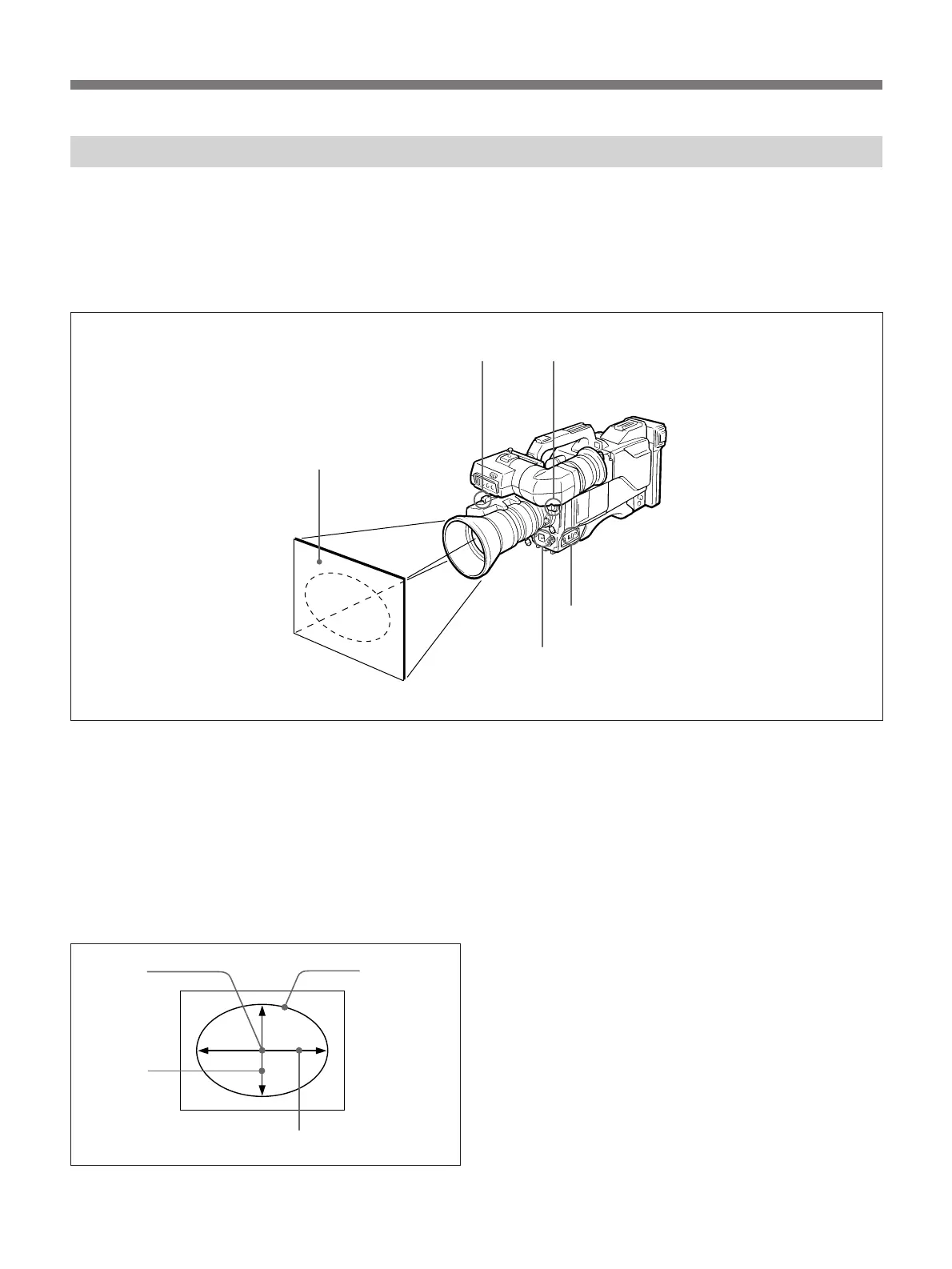
1 Select the position of the FILTER selector on the
camera head according to lighting conditions.
2 Set the WHITE BAL selector to “A” or “B”.
3 Zoom up on a white object such as a white cloth or
paper with the same lighting conditions as those
for shooting. The minimum white area required
for adjustment is as follows:
Adjusting the White Balance
The white balance should be adjusted so that a white
object is reproduced as white and life-like color is
obtained. The white balance changes depending on the
lighting conditions.
The camera has two memories, A and B, in which to
3
41
5
2
store the adjusted white balance values. You can store
two adjusted values under two different lighting
conditions and recall either of the values according to
ambient conditions.
About 80% of the screen width
Center of
the screen
on center
of this
oval.
About 80%
of the
screen
height
Place the white
object in the
oval.
No other light
object should
appear inside.
Adjustment and Settings
4 Set the IRIS selector on the lens to “A”.
5 Press the AUTO W/B BAL switch to the WHT
position. When you hear a click, release the switch.
“AUTO WHITE -OP-” appears on the display
screen during adjustment, and “AUTO WHITE -
OK-” appears on the viewfinder screen when
adjustment ends. The camera stores the adjusted
white balance value in the selected memory.


 To Next Page