1-20
83
VCR Recording
Recording From Connected
Equipment With a Timer
(Synchro Rec)
You can set the recorder to automatically record
programs from connected equipment that has a
timer function (such as a satellite tuner). Connect
the equipment to the LINE 1 IN jacks on the rear
of the recorder (page 13).
When the connected equipment turns on, the
recorder starts recording a program from the LINE
1 IN jacks.
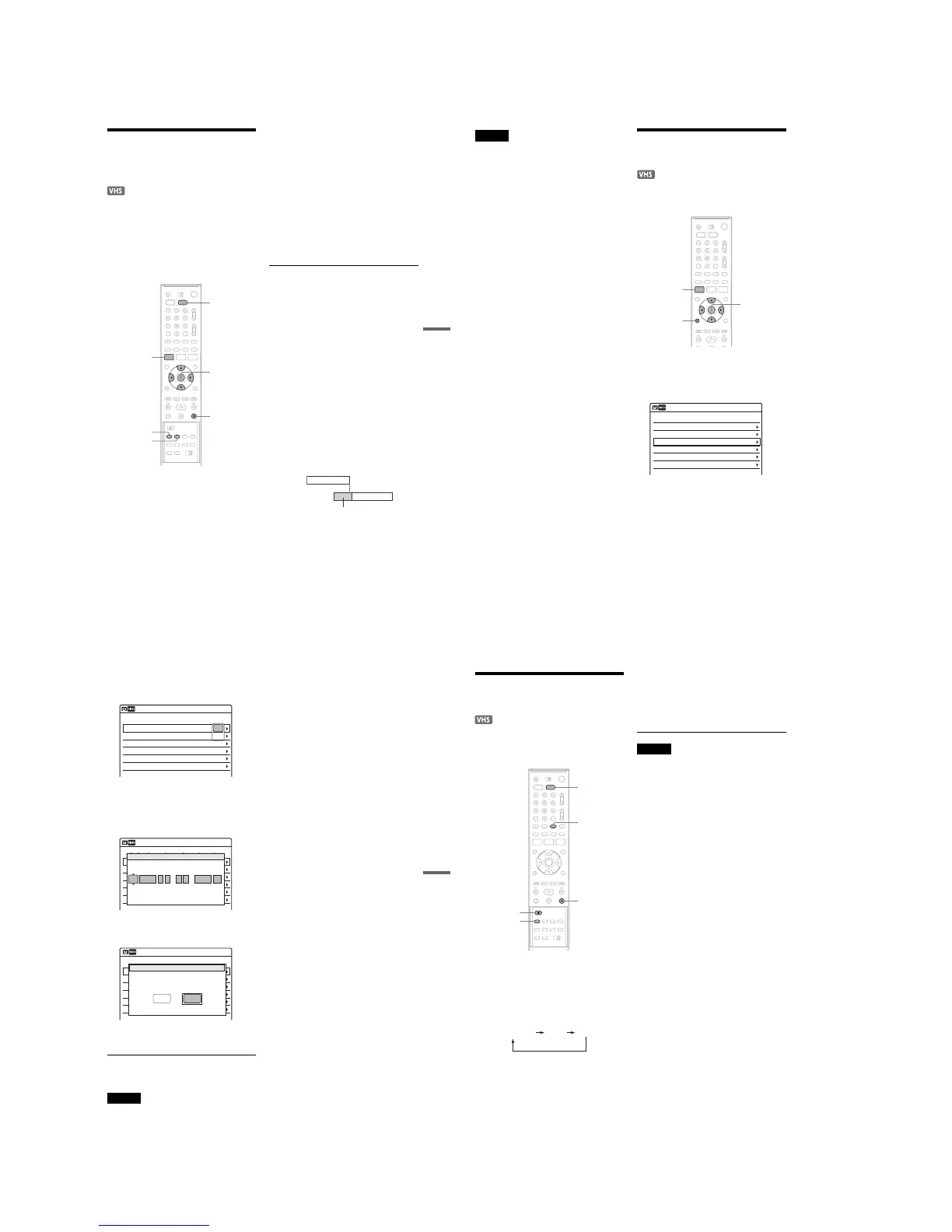
1 Press VIDEO to operate the VCR.
2 Insert a tape with its safety tab in place.
3 Press REC MODE repeatedly to select the
recording mode, “SP” or “EP.”
4 Press SYSTEM MENU while the recorder is
in stop mode.
5 Select “Setup,” and press ENTER.
6 Select “Features,” and press ENTER.
The “Features” setup appears.
7 Select “Synchro Recording,” and press
ENTER.
8 Select “to VIDEO,” and press ENTER.
9 Press SYSTEM MENU to turn off the menu.
10
Set the timer on the connected equipment
to the time of the program you want to
record, and turn it off.
11
Press SYNCHRO REC.
The SYNCHRO REC indicator lights up on
the front panel and the recorder stands by for
Synchro-Rec.
The recorder starts recording when a signal is
received from the connected equipment.
When the connected equipment turns off, the
recording stops and the recorder turns off.
To stop recording
Press x STOP twice.
To cancel Synchro-Rec function
Press SYNCHRO REC before recording starts.
The SYNCHRO REC indicator on the recorder
turns off.
If you press SYNCHRO REC during Synchro-
Rec, the recording stops, the SYNCHRO REC
indicator turns off, and the recorder turns off.
If the timer settings of a Synchro-Recording
and another timer recording overlap
Regardless of whether or not the program is a
Synchro-Rec program, the program that starts first
has priority and the second program starts
recording only after the first program has finished.
If the end time of one setting and the start time of
another timer setting is the same, the beginning of
the program that starts later will be cut.
SYNCHRO
REC
x STOP
REC MODE
SYSTEM
MENU
M/m/</,,
ENTER
VIDEO
7:00 8:00 9:00 10:00
Program 1
Program 2
will be cut off
,continued
84
Notes
•The recorder starts recording only after detecting the
video signal from the connected equipment. The
beginning of the program may not be recorded
regardless of whether or not the recorder’s power is on
or off.
•To use the connected equipment during Synchro-Rec
standby, cancel the standby mode by pressing
SYNCHRO REC. To return to standby mode again, be
sure to turn off the equipment and press SYNCHRO
REC, before Synchro-Rec starts.
•The Synchro-Rec function does not work with some
tuners. For details, see the tuner’s operating
instructions.
•During Synchro-Rec standby, the Auto Clock Set
function does not work.
•After a recording has finished, the recorder enters the
Synchro-Rec standby mode until the SYNCHRO REC
indicator turns off.
•You cannot record on a tape with its safety tab
removed.
• If Synchro-Rec starts with the recorder turned on, the
recorder will turn off when the recording ends.
Changing or Canceling VCR
Timer Settings (Timer List)
You can change or cancel timer settings using the
Timer List menu.
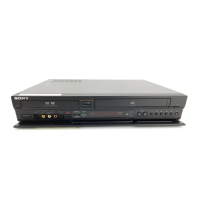
1 Press SYSTEM MENU.
The System Menu appears.
2 Select “Timer,” and press ENTER.
3 Select “Timer List,” and press ENTER.
Timer information displays the recording
date, time, recording mode, etc.
If there are more than six timer settings, press
m to display the next page.
SYSTEM
MENU
M/m/</,,
ENTER
O RETURN
01 VCR 04/15 09:00PM 10:00PM Ch8
--- --/-- --:-- --:-- ---- ---04
--- --/-- --:-- --:-- ---- ---05
--- --/-- --:-- --:-- ---- ---06
03 --- --/-- --:-- --:-- ---- ---
02 VCR 04/30 09:15PM 09:45PM Ch11
10:10 AM
SP
SP
Timer List
No. Media Date Start Stop Ch Mode Edit
85
VCR Recording
4 Select the timer setting you want to change
or cancel, and press ENTER.
The sub-menu appears.
5 Select one of the options, and press
ENTER.
“Edit”: Changes the timer setting.
Select an item using </, and adjust using
M/m. Press ENTER.
“Delete”: Erases the timer setting.
Select “OK” and press ENTER when asked
for confirmation.
6 Press SYSTEM MENU to turn off the Timer
List.
To return to the previous display
Press O RETURN.
Notes
•Even when correctly set, the program may not be
recorded if another recording is underway, or other
prioritized timer setting overlaps. For priority, see
page 82.
•You cannot change the timer settings for a recording
currently underway.
•The Timer List displays both the DVD recorder and
VCR timer settings.
01 VCR 04/15 09:00PM 10:00PM Ch8
--- --/-- --:-- --:-- ---- ---04
--- --/-- --:-- --:-- ---- ---05
--- --/-- --:-- --:-- ---- ---06
03 --- --/-- --:-- --:-- ---- ---
02 VCR 04/30 09:15PM 09:45PM Ch11
10:10 AM
Timer List
No. Media Date Start Stop Ch Mode Edit
Delete
Edit
01 DVD 04/15 09:00PM 10:00PM CH8
--- --/-- --:-- --:-- ---- ---04
--- --/-- --:-- --:-- ---- ---05
--- --/-- --:-- --:-- ---- ---06
03 --- --/-- --:-- --:-- ---- ---
02 DVD 04/30 09:15PM 09:45PM CH11
10:10 AM
Timer – Standard
No Rec To Date Start End Source Mode Edit
No.01
: PM
VCR
PM
:
04/15 09 00 10 00 Ch 8 SP
Media Date Start Stop Ch Mode
01 VHS 4/15 09:00PM 10:00PM CH8
--- --/-- --:-- --:-- ---- ---04
--- --/-- --:-- --:-- ---- ---05
--- --/-- --:-- --:-- ---- ---06
03 --- --/-- --:-- --:-- ---- ---
02 VHS 4/30 09:15PM 09:45PM CH11
10:10 AM
Timer List
No Rec To Date Start End Source Mode Edit
Do you want to erase “No.01”?
OK
Cancel
86
Recording From Connected
Equipment Without a Timer
You can record from a connected VCR or similar
device. For connection details, see “Connecting
Another VCR or Similar Device” on page 28.
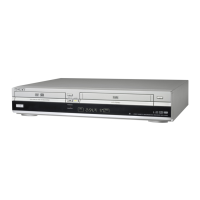
1 Press VIDEO to operate the VCR.
2 Insert a tape with its safety tab in place.
3 Press INPUT SELECT repeatedly to select
an input source according to the
connection you made.
The front panel display changes as follows:
*Does not appear when the cable box is connected
to the LINE 1 or LINE 2 jacks and “Set Top Box
Control” is set to “On.”
4 Press REC MODE repeatedly to select the
recording mode, “SP” or “EP.”
5 Insert the source tape into the connected
equipment and set to playback pause.
6 Press z REC on this recorder and the
pause or play button on the connected
equipment at the same time.
Recording starts.
To stop recording, press x STOP on this
recorder.
Notes
•A video game image may not be recorded clearly.
•You cannot record on a tape with its safety tab
removed.
•During recording or recording pause, you cannot
change the recording mode.
•You cannot change the channel or input source during
recording.
INPUT
SELECT
VIDEO
z REC
x STOP
REC MODE
LINE2LINE1
Channel
*



 To Next Page