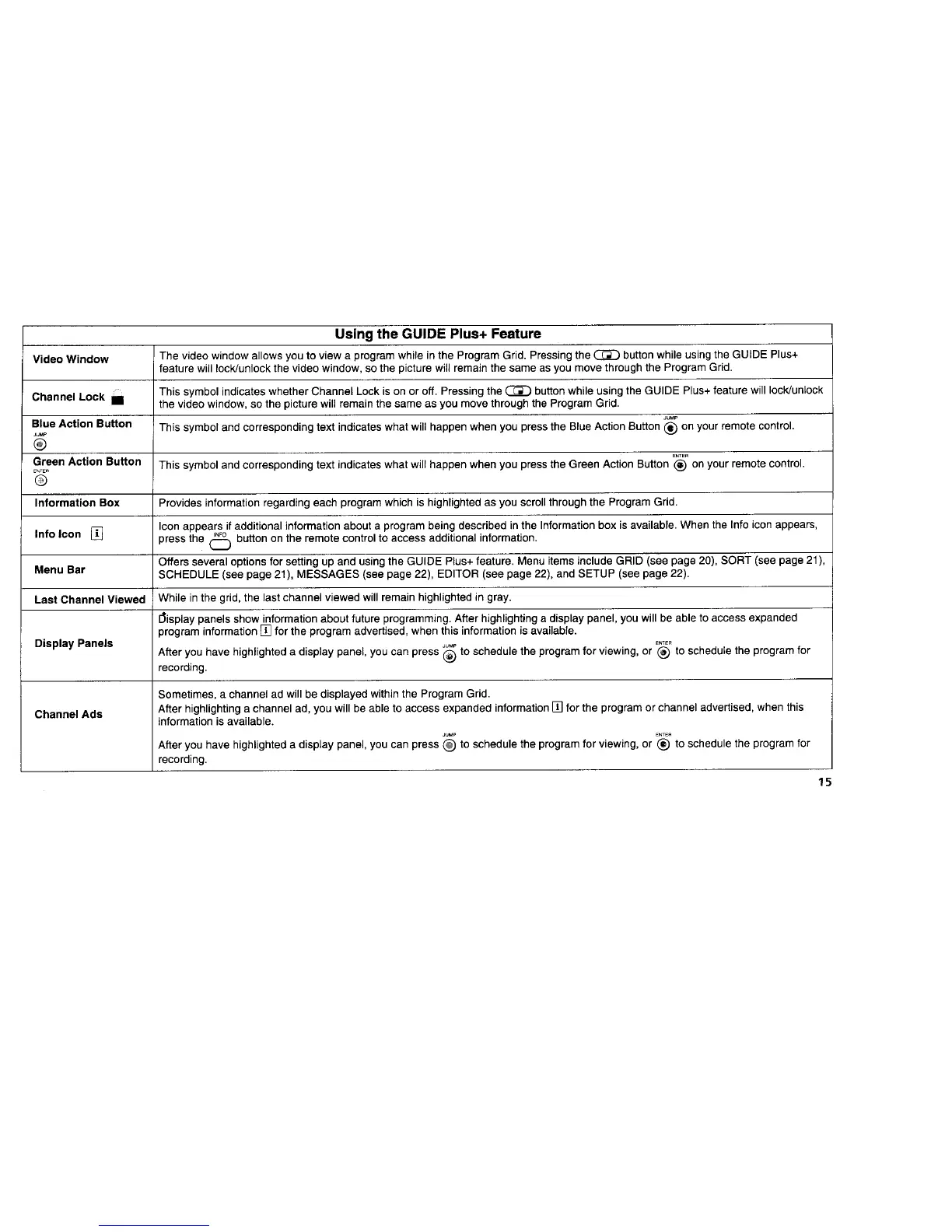
Using the GUIDE Plus+ Feature
Video Window The video window allows you to view a program while in the Program Grid. Pressingthe _ button while using the GUIDE Plus+
feature will lock/unlock the video window, so the picture will remain the same as you move through the Program Grid.
Channel Lock m This symbol indicateswhether Channel Lock is on or off. Pressing the _ button while using the GUIDE Plus+ feature will lock/unlock
the video window, so the picture will remain the same as you move through the Program Grid.
JUMP
Blue Action Button This symbol and corresponding text indicates what will happen when you press the Blue Action Button (_) on your remote control.
JuMP
®
ENTER
Green Action Button This symbol and corresponding text indicates what will happen when you press the Green Action Button (_) on your remote control.
E_,TER
®
Information Box Provides information regarding each program which is highlighted as you scroll through the Program Grid.
Icon appears if additional information about a program being described in the Information box is available. When the Info icon appears,
Info Icon [] press the (_ button on the remote control to access additional information.
Offers several options for setting up and using the GUIDE Plus+ feature. Menu items include GRID (see page 20), SORT (see page 21),
Menu Bar SCHEDULE (see page 21), MESSAGES (see page 22), EDITOR (see page 22), and SETUP (see page 22).
Last Channel Viewed While in the grid, the last channel viewed will remain highlighted in gray.
[_isplay panels show information about future programming. After highlighting a display panel, you will be able to access expanded
program information [] for the program advertised, when this information is available.
JUMP Et_TER
Display Panels After you have highlighted a display panel, you can press (_) to schedule the program for viewing, or _) to schedule the program for
recording.
Sometimes, a channel ad will be displayed within the Program Grid.
Channel Ads After highlighting a channel ad, you will be able to access expanded information [] for the program or channel advertised, when this
information is available.
JUMp ENTER
After you have highlighted a display panel, you can press _ to schedule the program for viewing, or (_) to schedule the program for
recording.
15




 To Next Page