Learning to schedule viewing
and recording using the
GUIDE Plus+ feature
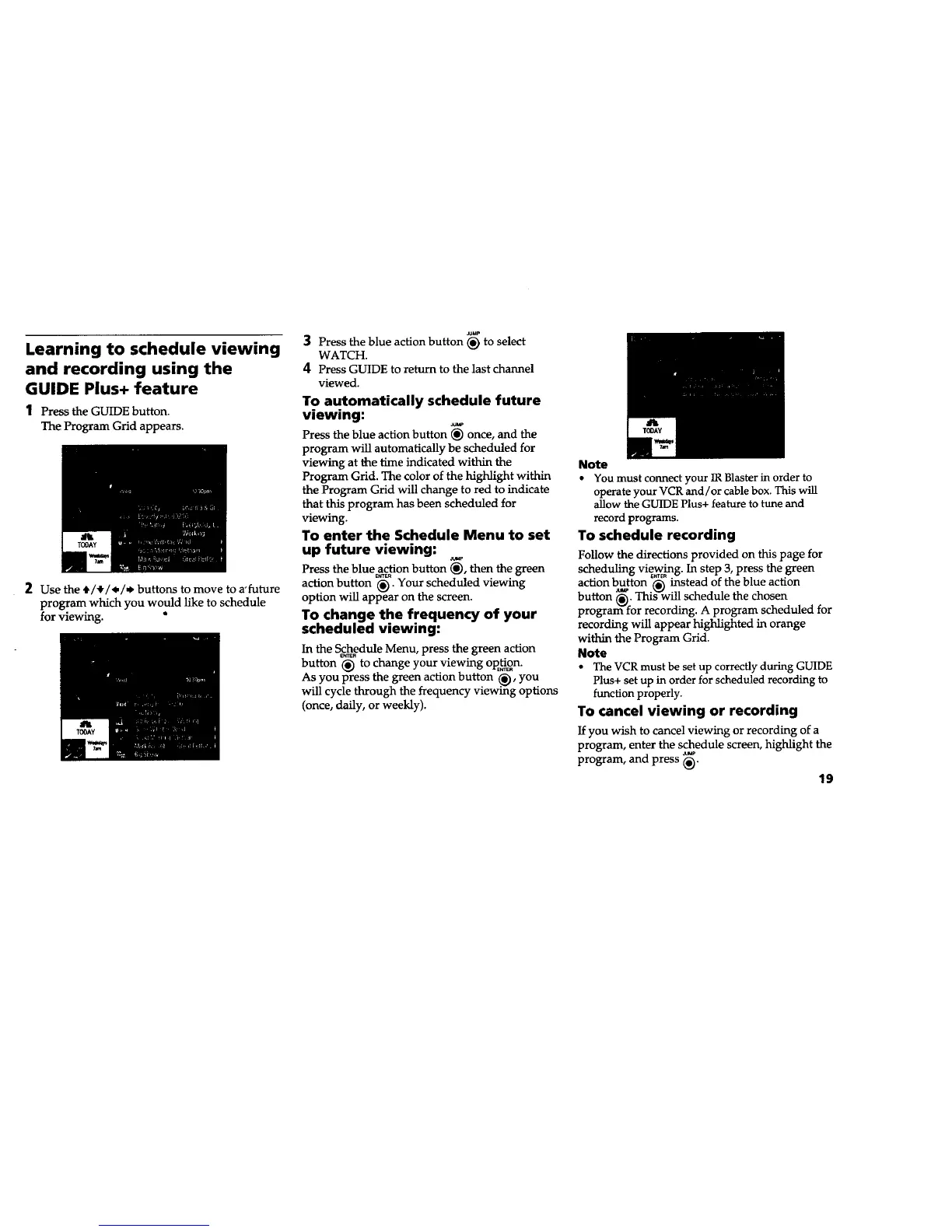
1 Press the GUIDE button.
The Program Grid appears.
2 Use the _/#/*/_" buttons to move to a'future
program which you would like to schedule
for viewing. "
JUMp
3 Press the blue action button _ to select
WATCH.
4 Press GUIDE to return to the last channel
viewed.
To automatically schedule future
viewing:
Press the blue action button _ once, and the
program will automatically be scheduled for
viewing at the time indicated within the
Program Grid. The color of the highlight within
the Program Grid will change to red to indicate
that this program has been scheduled for
viewing.
To enter the Schedule Menu to set
up future viewing:
Press the blue action button _, then the green
action button _. Your scheduled viewing
option will appear on the screen.
To change the frequency of your
scheduled viewing:
In the Schedule Menu, press the green action
button _ to change your viewing option.
As you press the green action button ._, you
will cycle through the frequency viewing options
(once, daily, or weekly).
Note
• You must connect your IR Blaster in order to
operate your VCR and/or cable box. This will
allow the GUIDE Plus+ feature to tune and
record programs.
To schedule recording
Follow the directions provided on this page for
scheduling viewing. In step 3, press the green
• _/rrER . *
action button _ instead of the blue action
button _. This"_'will schedule the chosen
prograrfffor recording. A program scheduled for
recording will appear highlighted in orange
within the Program Grid.
Note
• The VCR must be set up correctly during GUIDE
Plus+ set up in order for scheduled recording to
function properly.
To cancel viewing or recording
If you wish to cancel viewing or recording of a
program, enter the schedule screen, highlight the
program, and press _.
19







 To Next Page