STEMCELL TECHNOLOGIES INC.’S QUALITY MANAGEMENT SYSTEM IS CERTIFIED TO ISO 13485 MEDICAL DEVICE STANDARDS.
FOR RESEARCH USE ONLY. NOT INTENDED FOR HUMAN OR ANIMAL DIAGNOSTIC OR THERAPEUTIC USES.
TOLL-FREE PHONE 1 800 667 0322
PHONE +1 604 877 0713 VERSION 02
INFO@STEMCELL.COM
TECHSUPPORT@STEMCELL.COM
FOR GLOBAL CONTACT DETAILS VISIT WWW.STEMCELL.COM DOCUMENT #10000005578
11
3.2 Power and Network Connections
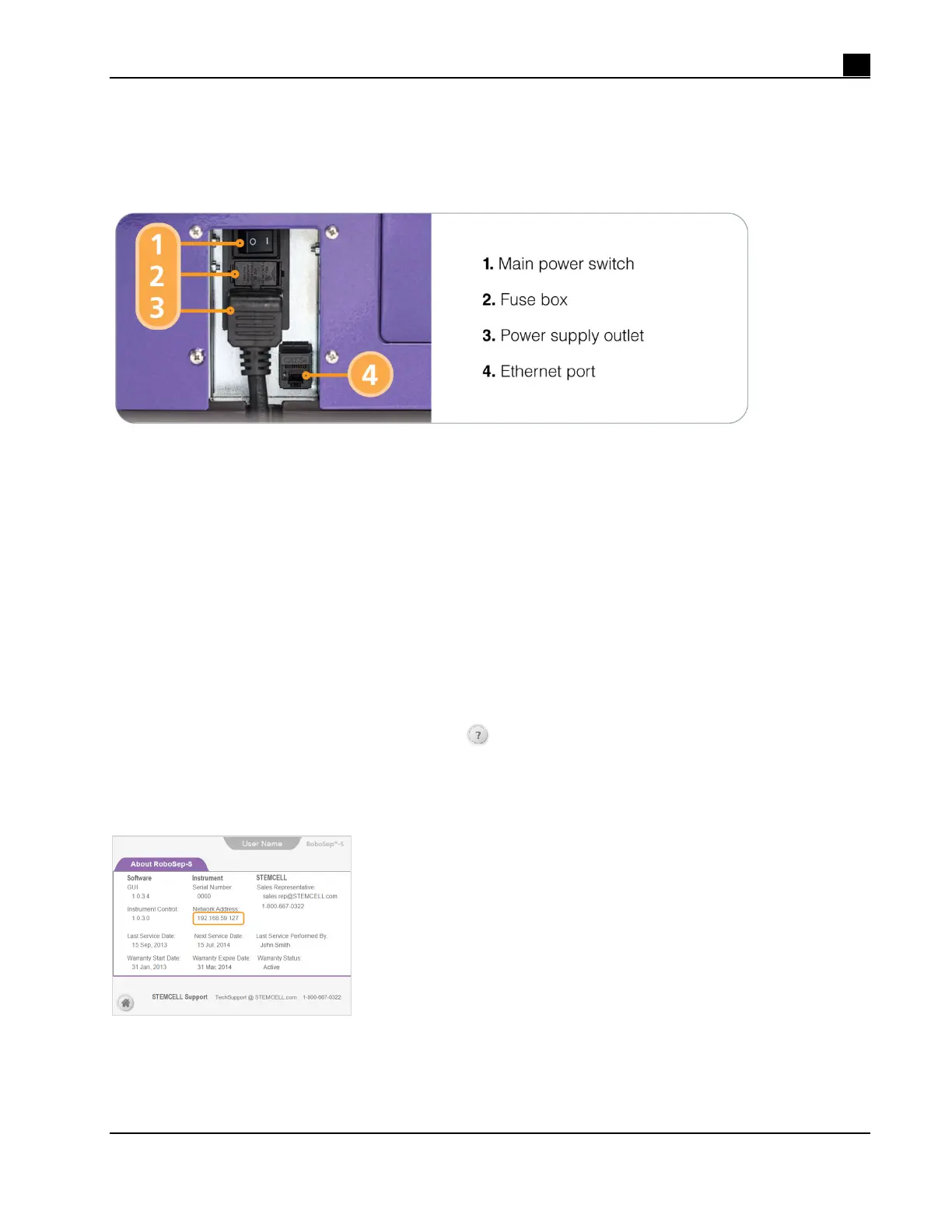
Plug in the power cord provided with RoboSep™-S to the power supply outlet located on the back of the
instrument (Figure 11), and connect it into a 3-prong, grounded AC outlet rated 2A 100 - 240 V. Do not use an
adapter to a two-terminal outlet.
Figure 11. Power and Network Connections
Data connections to RoboSep™-S are through:
An Ethernet port located on the back of the instrument (Figure 11)
3 x USB ports located on the front of the instrument (Figure 1)
3.2.1 Connecting to a Network
RoboSep™-S can be connected to networks via the Ethernet port. The instrument will automatically assign
itself an IP address when connected to a Local Area Network (LAN). Shared documents can then be
accessed by all other computers also connected to the LAN.
To access RoboSep™-S shared documents from a separate networked computer:
1. Connect one end of a CAT-5 Ethernet cable (not provided) to the Ethernet port located on the back of
RoboSep™-S (Figure 11) and the other end to a networked router. This will connect RoboSep™-S
to your
LAN.
2. Start up RoboSep™-S (section 3.3) and select
[Help] from the Home screen.
3. Note the Network address (IP address) that appears on the Help screen (Figure 12).
4. On the separate networked computer, go to Start > Run and then enter two backslashes followed by the
Network address (e.g. //192.168.59.127).
Figure 12. Help Screen



 To Next Page