STEMCELL TECHNOLOGIES INC.’S QUALITY MANAGEMENT SYSTEM IS CERTIFIED TO ISO 13485 MEDICAL DEVICE STANDARDS.
FOR RESEARCH USE ONLY. NOT INTENDED FOR HUMAN OR ANIMAL DIAGNOSTIC OR THERAPEUTIC USES.
TOLL-FREE PHONE 1 800 667 0322
PHONE +1 604 877 0713 VERSION 02
INFO@STEMCELL.COM
TECHSUPPORT@STEMCELL.COM
FOR GLOBAL CONTACT DETAILS VISIT WWW.STEMCELL.COM DOCUMENT #10000005578
31
8.0 Troubleshooting
8.1 Log Files
To assist with troubleshooting and diagnostics, a STEMCELL Technologies representative may ask to receive
the log files.
To access RoboSep™-S log files:
1. Select
[Maintenance] from the Home screen.
2. Select
[Diagnostic Package].
3. Insert a USB drive into one of the USB ports of the RoboSep™-S (Figure 1).
4. Select USB as a destination and navigate to the USB drive folder where you want to save the log files.
The files will automatically be transferred onto the USB drive.
5. Remove the USB drive.
8.2 Power Issues
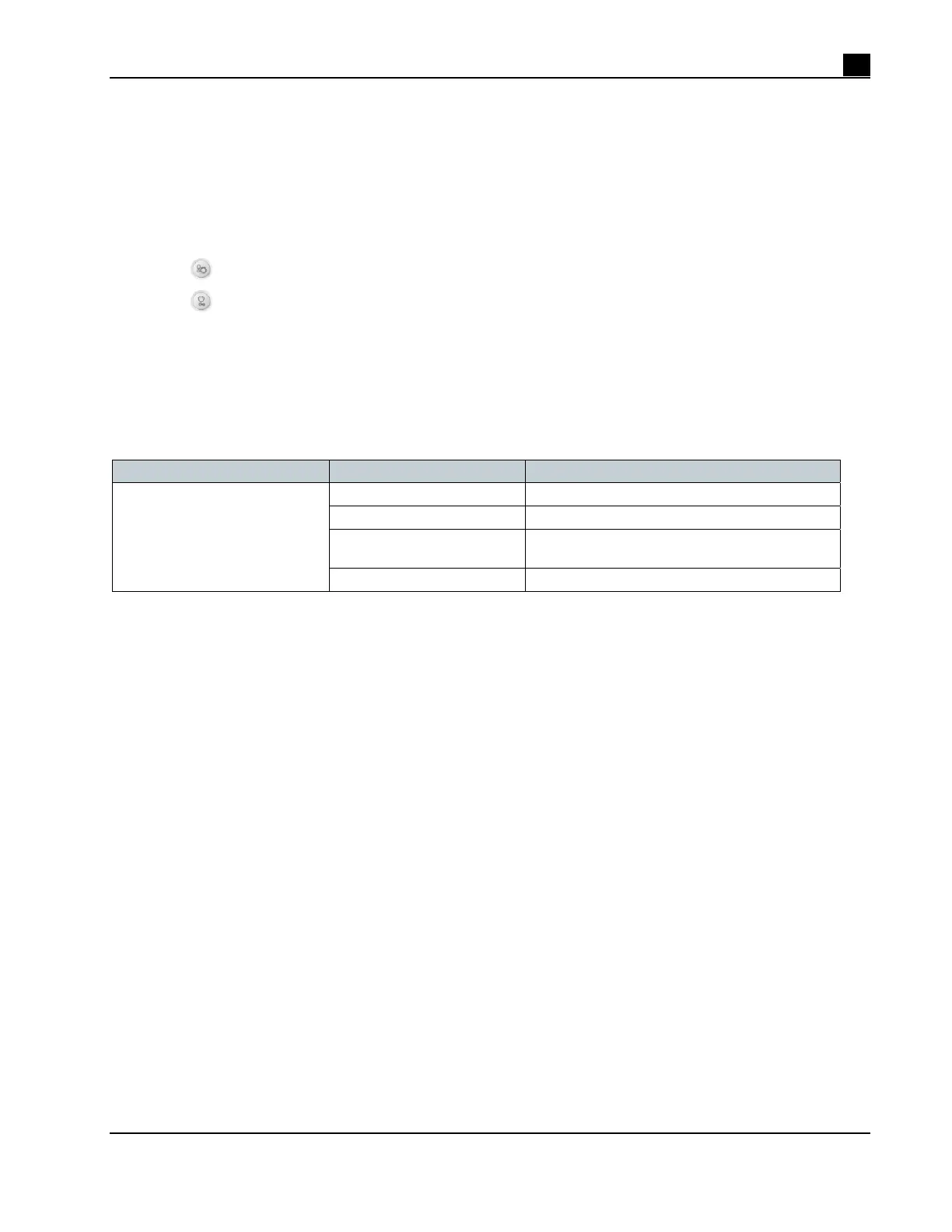
PROBLEM POTENTIAL CAUSE SOLUTION
RoboSep™-S will not start up
No power in outlet Plug into an outlet that is known to be live
Faulty fuse Replace fuse (section 6.3)
Faulty cable
Test by temporarily attaching PC computer
tower cable in place of usual cable
Faulty power supply Contact Technical Support



 To Next Page