STEMCELL TECHNOLOGIES INC.’S QUALITY MANAGEMENT SYSTEM IS CERTIFIED TO ISO 13485 MEDICAL DEVICE STANDARDS.
FOR RESEARCH USE ONLY. NOT INTENDED FOR HUMAN OR ANIMAL DIAGNOSTIC OR THERAPEUTIC USES.
TOLL-FREE PHONE 1 800 667 0322
PHONE +1 604 877 0713 VERSION 02
INFO@STEMCELL.COM
TECHSUPPORT@STEMCELL.COM
FOR GLOBAL CONTACT DETAILS VISIT WWW.STEMCELL.COM DOCUMENT #10000005578
18
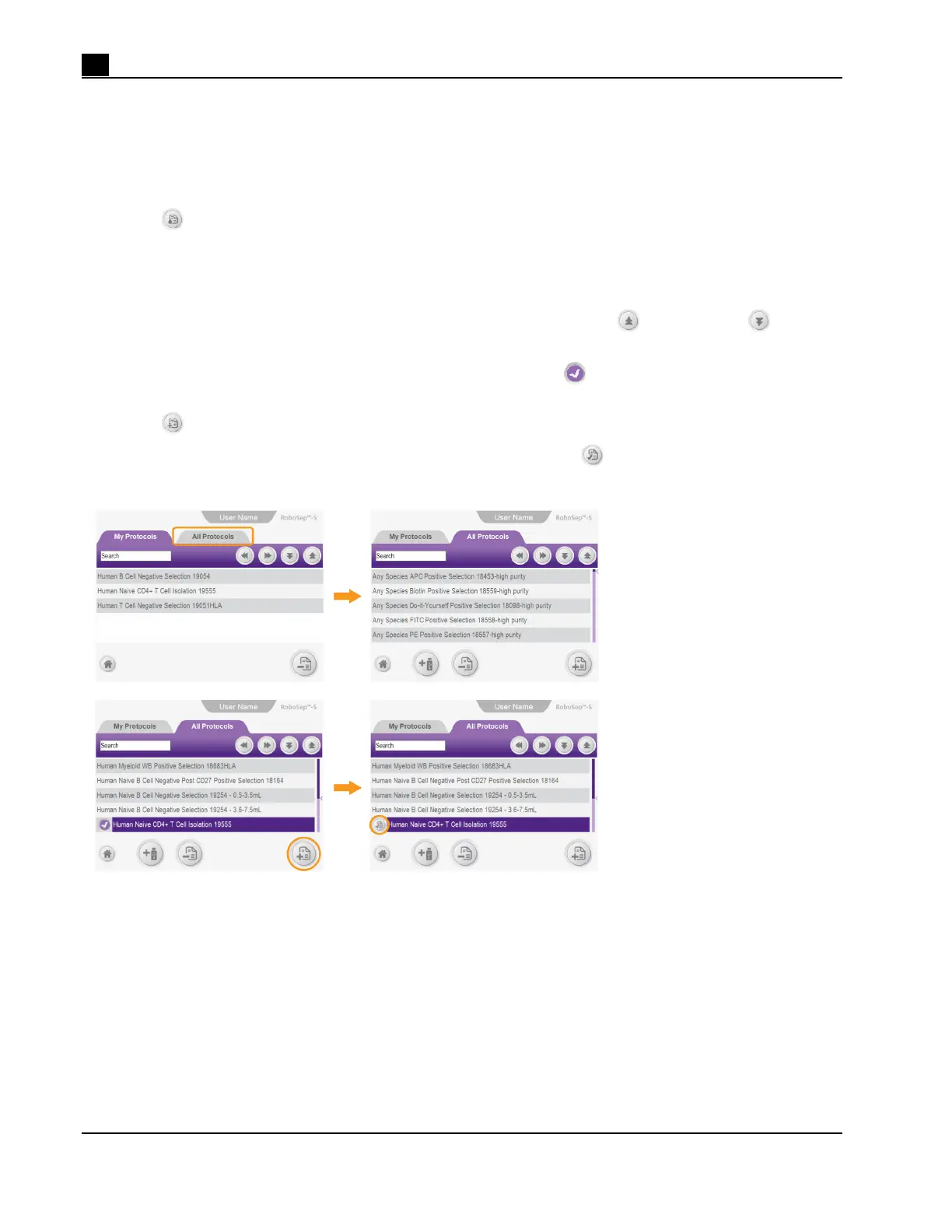
4.2.1 Adding Protocols to a User Profile
Note: Figure 17 represents an overall schematic of the detailed instructions described below.
1. Select a user profile (section 4.1) and ensure that no protocols have been assigned to a quadrant in the
Run Sample screen (i.e. all quadrants have <Select Protocol> listed under Protocol Name).
2. Select
[Protocols] on the Home Screen. The Protocols screen will appear (Figure 16).
3. Select the All Protocols tab and search for the desired protocol using at least one of the following options:
o Use the Search box to type in key words related to a protocol name. For example, enter the
EasySep™ kit catalog number.
o Scroll up and down the All Protocols list as needed using the
[Scroll up] and [Scroll
down], respectively.
4. Select all desired protocols to be added to the My Protocol tab. A
[Select] will appear to the left of the
selected protocol names.
5. Select
[Add protocol]. The protocols will be added to the My Protocols tab.
Note: Once a protocol has been added on the My Protocols tab, the
icon will appear to the left of the
protocol name in the All Protocols tab.
Figure 17. Adding a Protocol to a User Profile



 To Next Page