58
EN
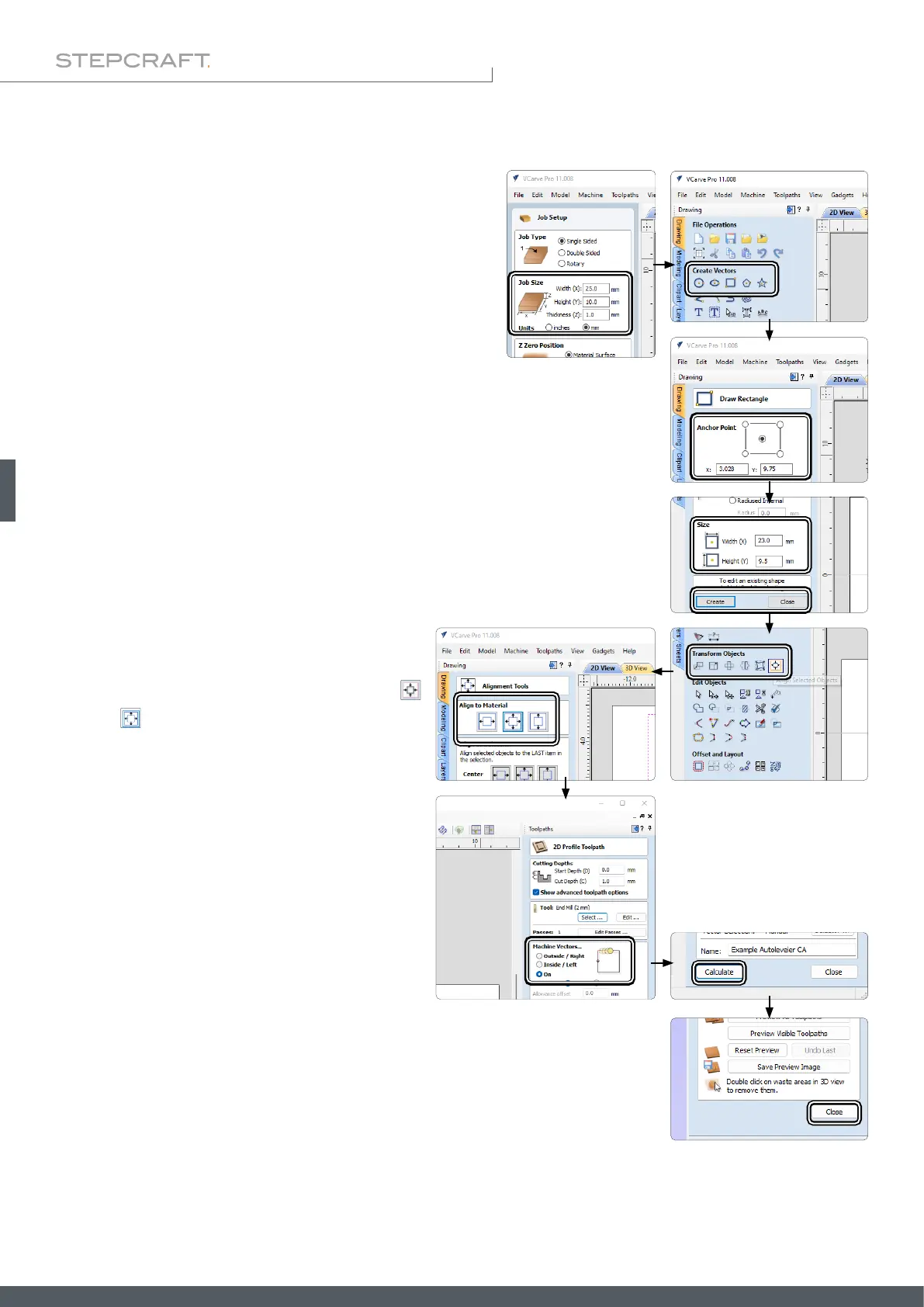
Open your CAD / CAM software. Now create a new project with
the dimensions of your workpiece plus a few mm buffer on each
side. In this example, the X- and Y-origin is set in the center.
However, you can also set a different origin which suits your per-
sonal preference.
Create a rectangle and enter the dimensions of your workpiece. Place the origin at the
center position. Conrm with Create and Close.
Center the rectangle on the workspace by clicking
and then .
Conrm with Close. A 2D contour is created. You can
ignore the settings for the cutting depth, since no ac-
tual milling will be performed.
Set the Machine Vectors setting to On.
Click Calculate.
After the toolpath has been calculated, the toolpath preview opens itself. Disregard this
view by clicking Close without making any further changes.
6.5.4 Vectric VCarve Pro



 To Next Page