Modules & Options
Wireless LAN Module 6 - 15
6
Desktop Mode
1. Switch to the Windows Desktop (click the app or use the Windows logo key +
D key combination).
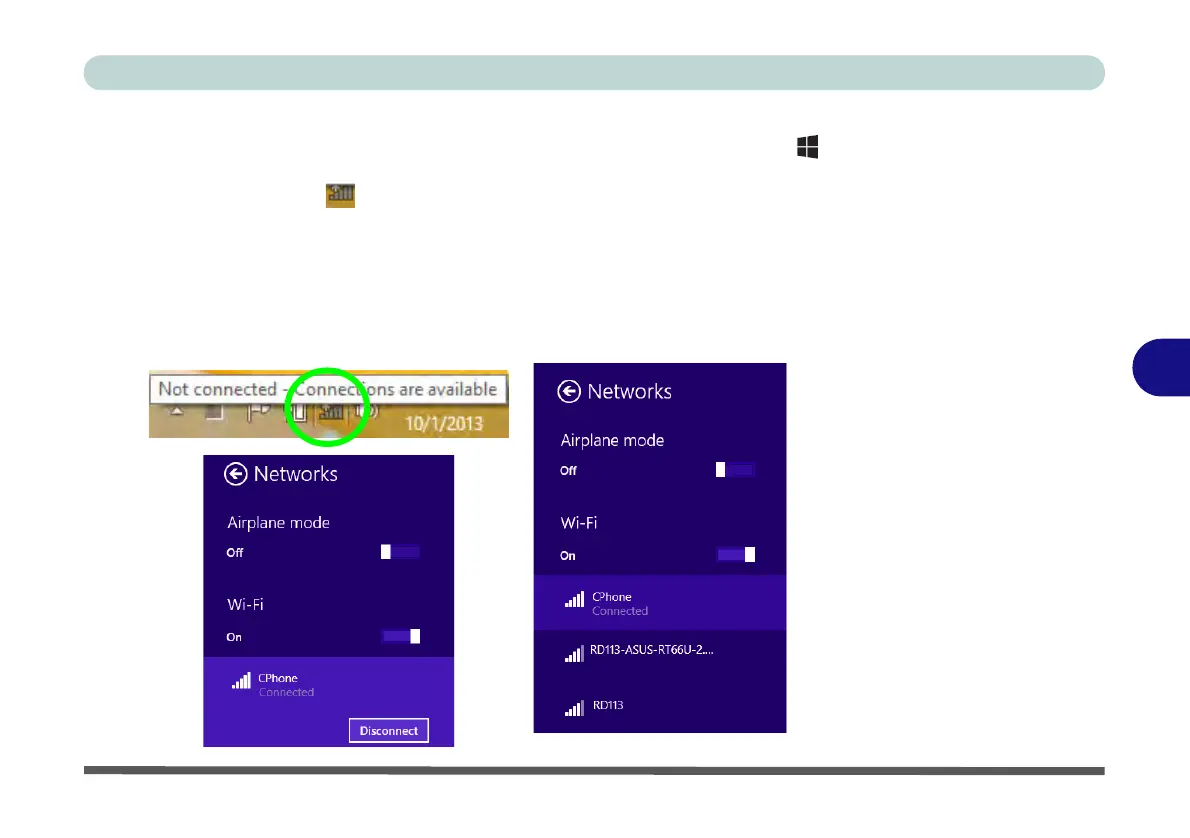
2. Click the wireless icon in the notification area of the taskbar.
3. A list of available access points will appear.
4. Double-click an access point to connect to it (or click it and click Connect).
5. Enter a network security key (password) if required, and click Next.
6. You can choose to find other devices or not.
7. Select any connected network and click Disconnect to disconnect from a
connected access point.
Figure 6 - 12
Windows Desktop
Taskbar Notification
Area WLAN
Connection



 To Next Page