63
VIEWING HEAD DETAILS
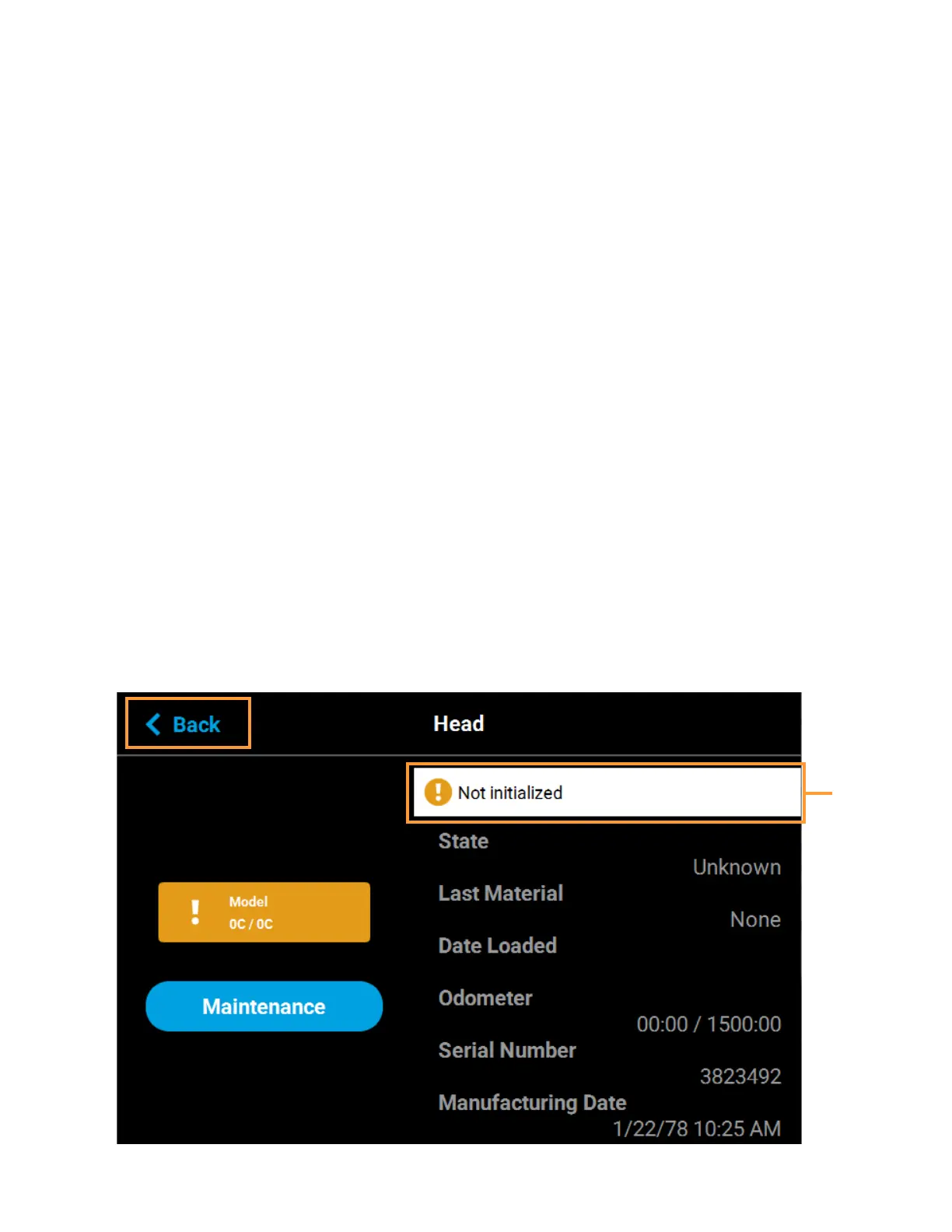
To view additional details regarding the printer’s model or support head, select the desired head by touching its
Head Status Icon on the screen. Doing so will open its Head Details page. If the head is in a warning or error
state additional information pertaining to the warning/error will be displayed within the page (see “Head
Warnings” on page 216 and “Head Errors” on page 216 for details).
The right portion of the screen displays status information pertaining to the selected head:
• State: displays the load status of the corresponding head.
• Last Material: displays the type of material last loaded to the head.
• Date Loaded: displays the date that material was last loaded to the head.
• Odometer: displays the amount of build time for the selected head. This value is important as the
printer will display different errors depending on the amount of build time for a head.
• When a head’s odometer reaches 1350 build hours the Head Status Icon will be displayed in its
warning state, and you will be prompted to order a replacement head.
• When a head’s odometer reaches 1500 build hours (odometer limit) the Head Status Icon will be
displayed in its error state, and you will be prompted to replace the head. You can continue to
build using the head, but part quality will be unpredictable. It is recommended that you
immediately change a head which has exceeded its odometer limit (see “Head Replacement” on
page 117 for instructions).
• Serial Number: displays the head’s unique serial number.
• Manufacturing Date: displays the date that the head was manufactured.
The left portion of the screen displays the same Head Status Icon as is displayed on the Materials page (see
Figure 4-25 on page 60). This icon displays the current temperature as compared to the set point temperature of
the head. The Maintenance button directly below the Head Status Icon will display a menu allowing you to
perform a variety of head maintenance functions.
To close this page and return to the main Materials page, press the Back button within the header of the page.
Figure 4-26: Head Details Page
Warning/
error
information
displayed
here














 To Next Page