19
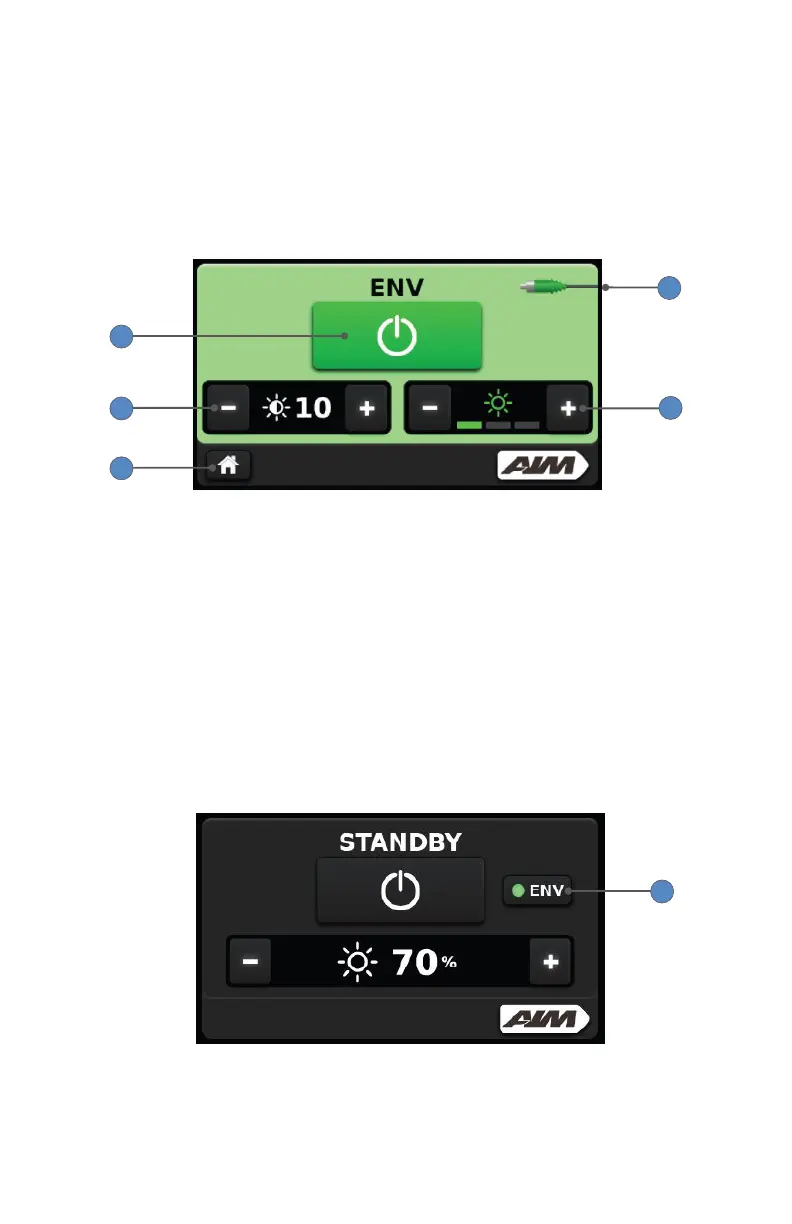
5. On the ENV mode screen, press the touchscreen power button so it
appears green, which indicates the mode is activated.
Note: Press the touchscreen power button again to disable ENV
mode; the button will appear gray. (When ENV mode is disabled, White
Light mode will reactivate. To deactivate the White Light, press the
Home button to return to the White Light mode screen, and press the
touchscreen power button so it appears gray.)
5
6
8
7
1
6. Adjust the backlight level by pressing the plus or minus buttons.
Backlight increases or decreases the brightness of the surrounding
anatomy that is not displayed as glowing green on the display monitor.
7. Adjust the ENV laser level by pressing the plus or minus buttons. ENV
laser level aects the uorescing green appearance of the camera image.
8. Press the Home button to return to the White Light screen.
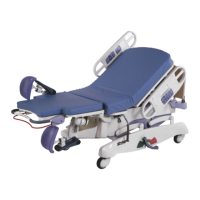
9. If ENV mode is still activated when the user returns to the White Light
screen, an ENV indicator button appears to the right of the touchscreen
power button. Press the ENV indicator button to return to the ENV mode
screen.
9





 To Next Page