Black plate (192,1)
北米Model "A8170BE-A" EDITED: 2011/ 6/ 24
5-14 Audio
This function may not be available when
radio signals are weak. When this hap-
pens, perform manual tuning to select the
desired station.
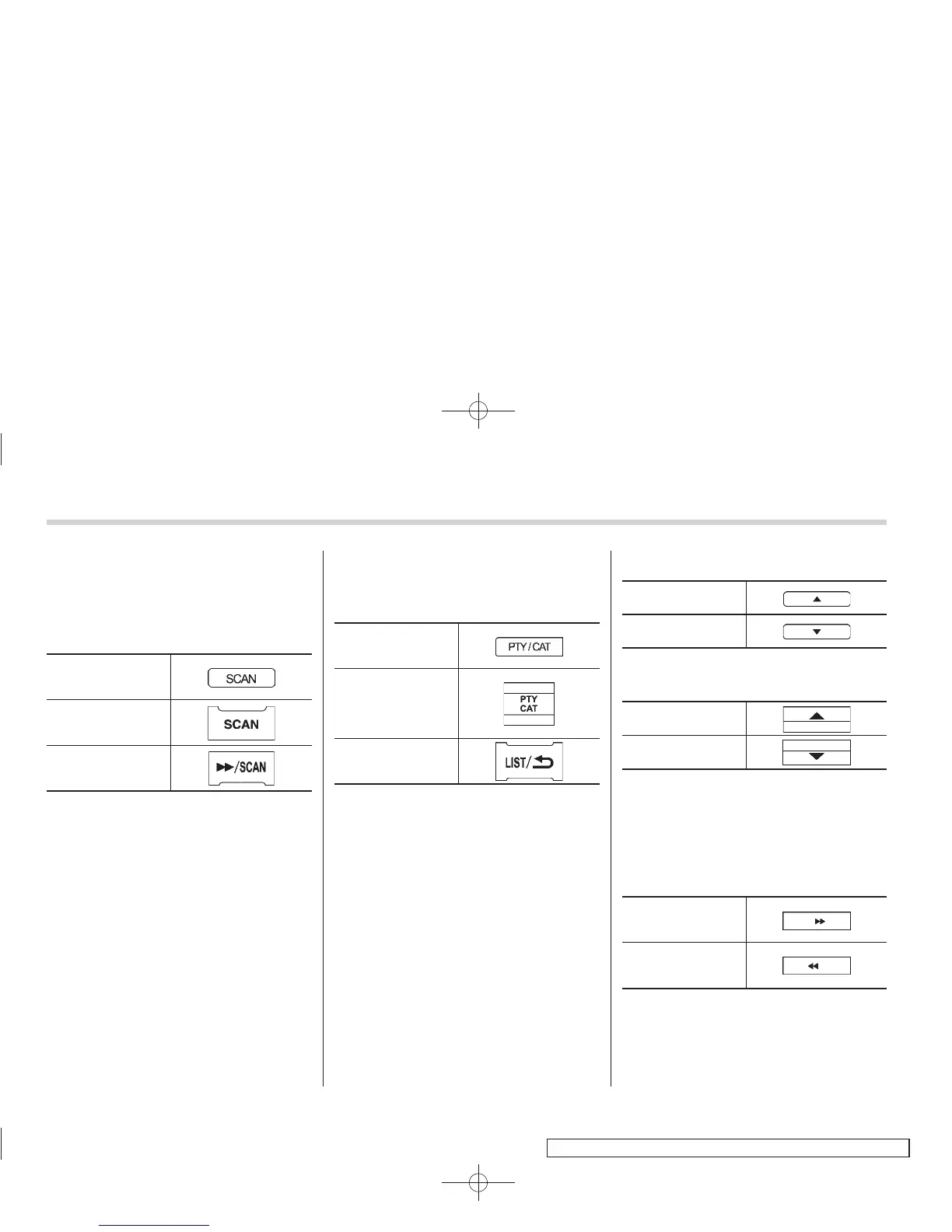
! Scan tuning (SCAN)
Type A and B
audio*
1
Type C audio*
1
Type D audio*
2
*1: Press the button briefly.
*2: Press and hold the button.
If you press the “SCAN” button, the radio
will switch to the scan mode. In this mode,
the radio scans through the radio band
until a receivable station is found. The
radio will stop at the station for 5 seconds
(type A, B and C audio)/10 seconds (type
D audio) while displaying the frequency,
after which scanning will continue until the
entire band has been scanned.
Press the “SCAN” button again to cancel
the S CAN mode and to stop at any
displayed channel.
Automatic tuning may not function prop-
erly if the station reception is weakened by
distance from the station or proximity to
tall buildings and hills.
! PTY (Program type) group tuning
(only FM reception)
Type A and B audio
Type C audio
Type D audio
Press the indicated button to change to
the PTY selection mode. At this time, the
PTY group that you are currently listening
to (type A, B and C audio)/that you
selected the last time (type D audio) will
be displayed for 10 seconds. In the PTY
selection mode, “PTY” is displayed on the
screen.
! PTY (Program type) group selection
In the PTY selection mode, press the
following button to change the PTY group
by one step at a time.
Type A and B audio:
PTY group up by
one step
PTY group down by
one step
Type C audio:
PTY group up by
one step
PTY group down by
one step
This operation only changes the display. It
does not change the station that is
currently being received.
! Seek in PTY (Program type) group
(type A, B and C audio)
Type A and B audio:
Seek up
Seek down














 To Next Page