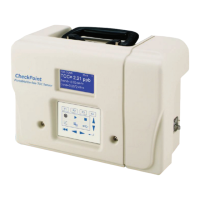
CheckPoint Pharma and CheckPoint
e
Operation and Maintenance Manual
SUEZ © 2018 62 of 112 DLM 97200-03 EN Rev. A
Grab Sample Mode
You can run the Analyzer in Grab Sample mode when you need to analyze sample in a bottle (or, if
you have purchased the optional Calibration kit, in a vial). To enter Grab Sample mode, access the
Main screen, press F1, and then press F2. Make sure the sample inlet line is configured to draw
sample from a vial or bottle before pressing F1 to start analysis. If needed, press F4 to stop analysis.
If a printer has been installed, the CheckPoint will print the results of the grab measurement upon
completion.
System Constants
From the Mode screen, select View Constants to view the current Sensor constants; select Restore
Constants to load constants into the Sensor from a file saved to a USB flash memory drive. You can
also import the system constants information into a spreadsheet program for reference, as described
in ”Appendix B: Importing Sensor Data into a Spreadsheet Program.”
I/O Menu Options
When configured with the I/O option, the CheckPoint provides a variety of data output options.
Access the I/O menu by pressing F2 from the Main screen.
Analog Outputs
The CheckPoint provides three analog outputs, which can be configured as follows.
NOTE: This menu option does not appear if the additional I/O features are not installed in your
configuration.
Instruments built prior to release 1.04 may have only two analog outputs. The available outputs
otherwise operate the same.
1. Scroll to Analog Outputs and press .
2. Press F1 to configure Analog output 1, press F2 to configure Analog output 2, or press F3
to configure Analog output 3. (These menu options are not displayed if the Sensor has not
been configured with I/O features.)
3. Pressing the Function button enters the selected channel’s Setup screen. Use the Vertical
Scroll bar to highlight an option, and then press the button to select that option.


 To Next Page