CheckPoint Pharma and CheckPoint
e
Operation and Maintenance Manual
SUEZ © 2018 107 of 112 DLM 97200-03 EN Rev. A
Appendix B: Importing Sensor Data into a
Spreadsheet Program
This section describes how to export data from the CheckPoint Pharma or CheckPoint
e
Sensor
to a USB drive, and then import this data into a spreadsheet program.
The Sensor exports data in a comma-delimited text format to create a .csv file that can be
imported into many spreadsheet or database programs. A common application involves
exporting data from the Sensor and importing the data into Microsoft
®
Excel
®
.
To export data
from the Sensor
1.
Export
data
to the Sensor’s USB port and capture the data on a USB flash memory drive
.
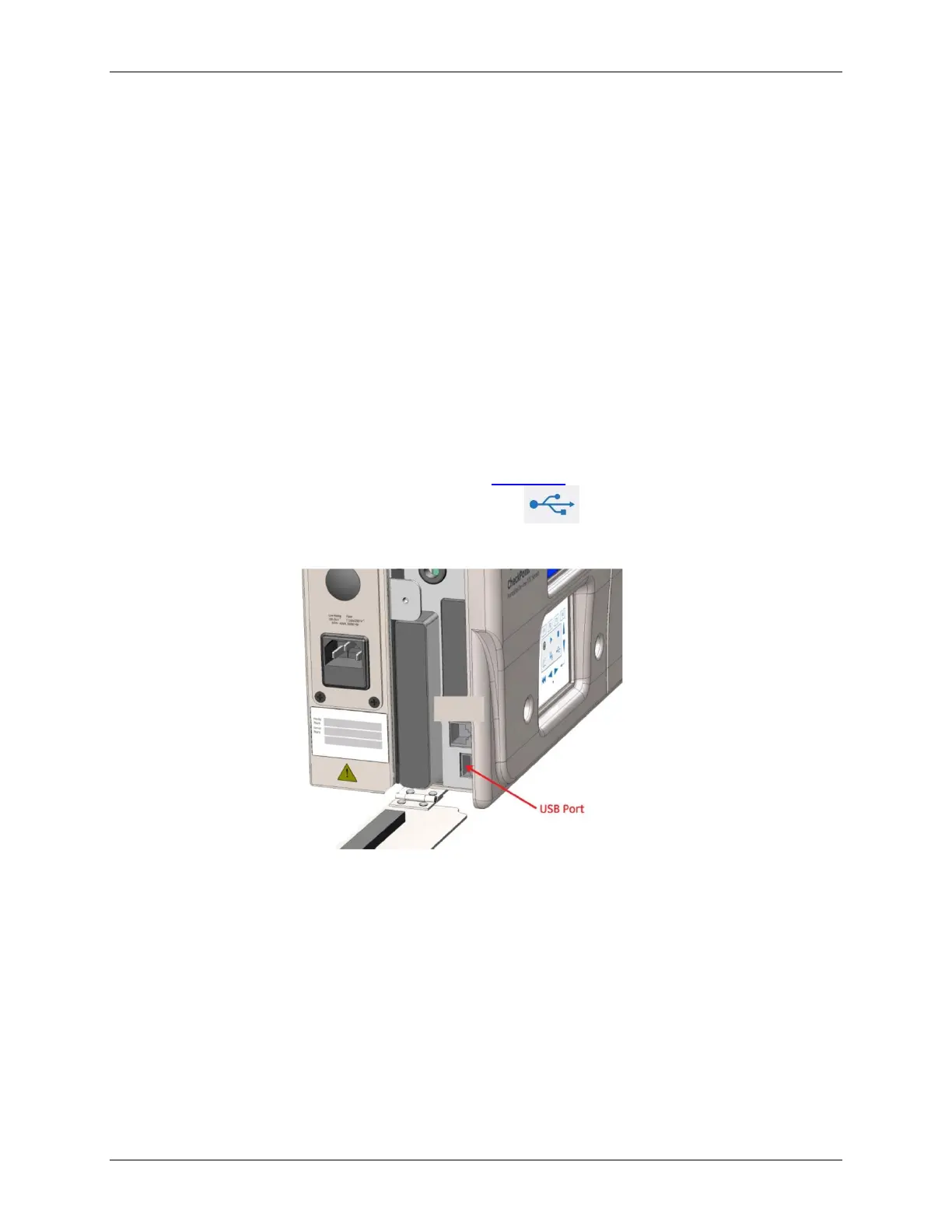
Insert a USB drive into the Sensor’s USB port (Figure 47: USB Port, Located Behind I/O
Cover), and then on the Sensor’s screen, press the button. The Sensor saves files
containing the system constants and the data history to a USB flash memory drive.
Figure 47: USB Port, Located Behind I/O Cover
To import data into Microsoft Excel
1. After exporting the data, remove the USB drive from the Sensor and attach it to your
computer’s USB port. The USB drive should appear in your available drive list as a
“removable media drive.”
2. On your computer, launch Microsoft Excel.
3. Select
File
Open
.


 To Next Page