CheckPoint Pharma and CheckPoint
e
Operation and Maintenance Manual
SUEZ © 2018 65 of 112 DLM 97200-03 EN Rev. A
Using the Ethernet Connection and Modbus
To export data using the Ethernet port, the Sensor exports data using the Modbus communication
protocol. Before data can be exported via Ethernet, you must enable Modbus and configure the
Sensor’s IP address. The connection can be made using DHCP or a static IP address.
NOTE: You may need assistance from your network administrator or information technology (IT)
department to set the IP address correctly for your network.
1. Make sure the Ethernet cable is connected to the Sensor. If you will be connecting The
CheckPoint to your network or another computer, attach the other end of the Ethernet cable to an
Ethernet port on your network or the computer.
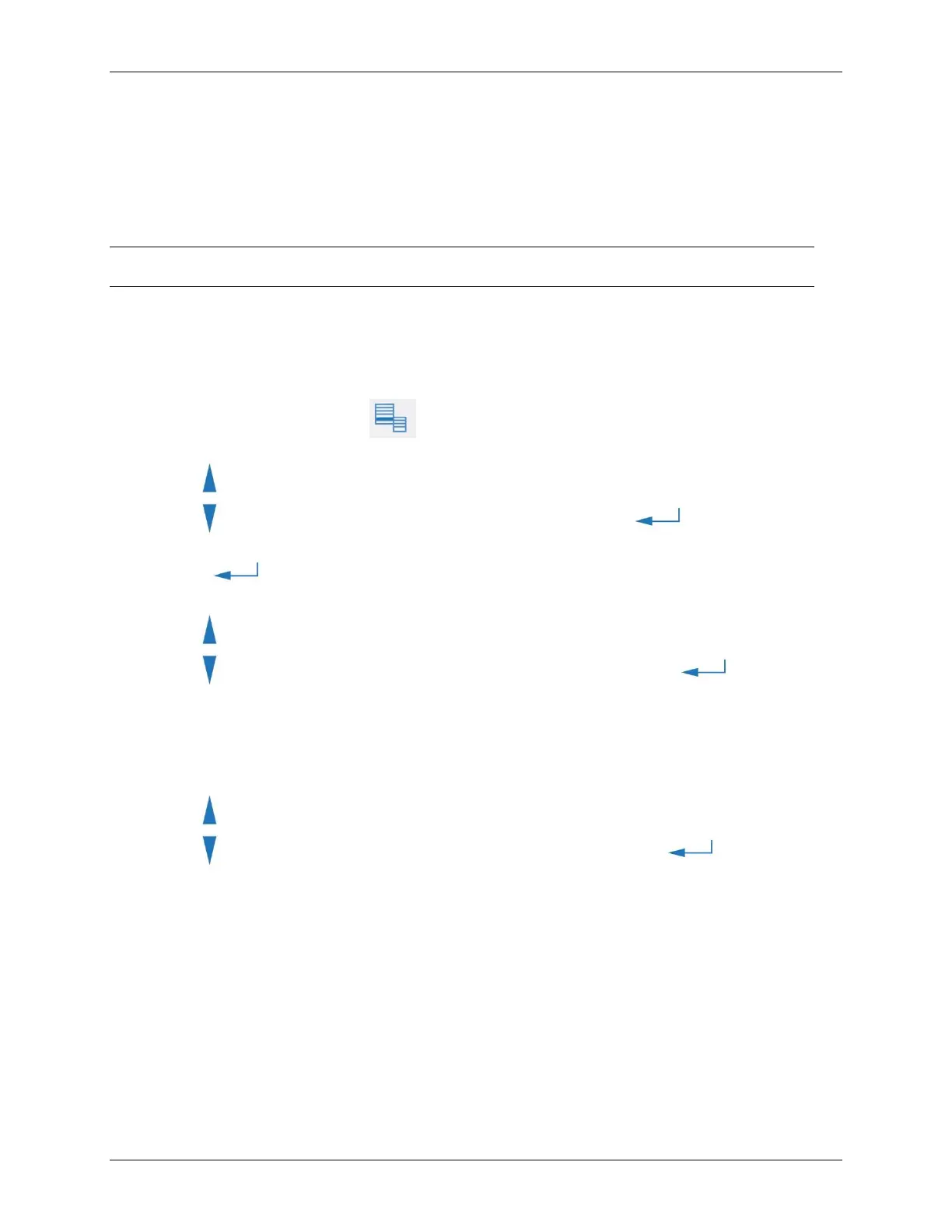
2. From the Main screen, press the button and then press F2 to select I/O.
3. Use the button to scroll down to select Modbus, and then press the button.
4. Press the button to enable Modbus.
5. Use the button to scroll down to select Set IP Address and then press the button.
6. By default the CheckPoint uses DHCP to request an IP address from the server on your network.
If you will be using DHCP, press F2 to apply the setting. If you will be using a fixed IP address,
press F1 and then use the keypad to enter the IP address.
7. Use the button to scroll down to select Set Net Mask and then press the button.
8. Use the keypad to enter the net mask, and then press F1.
9. Press F1 to connect. If the Sensor does not connect, try cycling the power to the Sensor and
connect again.
Pressing F4 cancels any changes to the IP address and returns to the Modbus screen. Use the
Vertical Scroll buttons to move between fields, and press the Enter key to enter a new value.


 To Next Page