12
Navigating the Menus
There are two main ways to navigate through the menus on the DVR. One way is
to use the buttons on the front panel of the DVR and/or the remote control. The
other way is to use the included USB mouse.
Front Panel / Remote Control
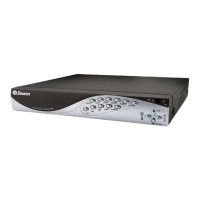
For an explanation of the functions of the buttons on the DVR and the remote
control, see pages 6 and 8, respectively. Many of the controls operate in a similar
manner to controls on a DVD player or similar. However, due to the specific and
multi-channel nature of the DVR, the functionality of some buttons may not be
immediately obvious.
IMPORTANT - Remembering to Apply Your Changes
When you’re using the menus to change settings or values, none of your changes
will be saved until you choose the “Apply” option, which is usually located in the
lower right-hand corner of the screen.
Always select the APPLY button before leaving a menu
if you want to save the changes that you have made.
There are two reasons why the “Apply” button needs to expressly selected. For
one, it helps prevent accidental modification of the DVR’s settings while you’re
navigating other menus or similar. Secondly, the DVR only checks and loads the
settings you’ve modified when the apply button is pressed. This is important to
prevent the DVR operating erratically or performing an unintended operation
whilst settings are in the process of being modified.
USB Mouse
When a USB mouse is attached to the DVR, it
allows for easy navigation and operation of the
menus. In this capacity, the mouse functions in
a very similar manner to the mouse attached to
a computer. The left mouse button is used to
select, confirm choices and otherwise interact
with the menu system. The right mouse button
opens the pop-up menu (when pressed in live-
viewing mode) or exits a menu (when pressed
whilst in the menu system).
The pop-up menu, accessed by
right-clicking the mouse in live-
viewing mode.



 To Next Page