Motion Detection Configuration
Remember: After making changes to the settings press/click the APPLY button.
38
Say, for example, you are trying to monitor your front yard, whilst in the background
there is a busy street, and the cars driving past continually set off the motion
detection. What can you do about it? Setting only part of the camera’s view to be
motion sensitive might be the answer. This is useful in a number of circumstances,
such as monitoring one particular door at the end of busy hallway, or a backyard
with a tree that keeps blowing in the wind.
To set the MOTION DETECTION AREA
In the MOTION DETECTION menu, use the mouse or the arrow buttons to •
highlight the SETUP button for the channel you wish to setup the MOTION
DETECTION AREA for, and confirm by pressing select or left clicking.
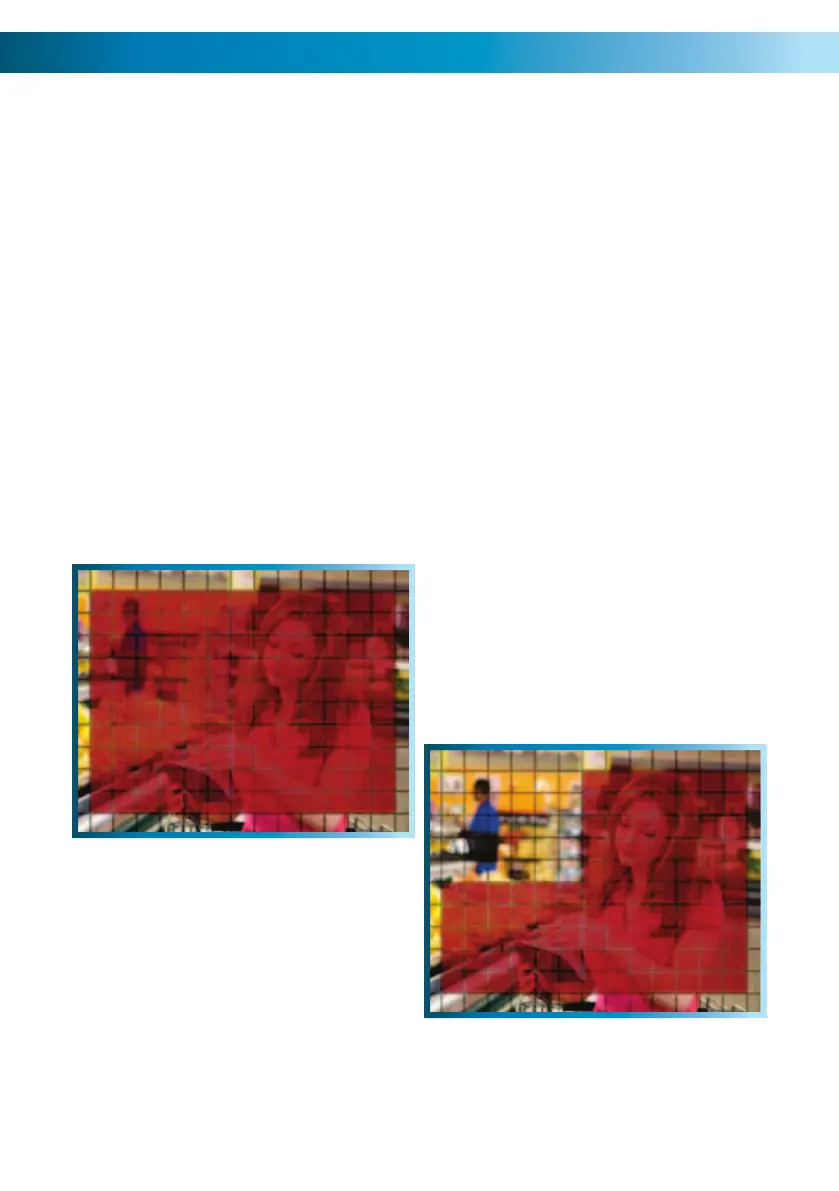
You will see a grid (13 x 10) of red boxes. • The red boxes mark the area that
is sensitive to motion.
Use the arrow buttons or the mouse to move the cursor around the screen.•
By pressing select or left clicking an area in the grid, you can toggle motion •
detection ON or OFF in that location.
Areas marked by red boxes will be sensitive to motion, those not marked will •
not be.
In this example, the entire screen
is active. Movement anywhere in
the screen will trigger the motion
detection.
This example shows the same image, but
the top left side of the motion area is not
activated. Movement in this area will not
trigger the motion detection.



 To Next Page