NetViewer - The Replay Interface
60
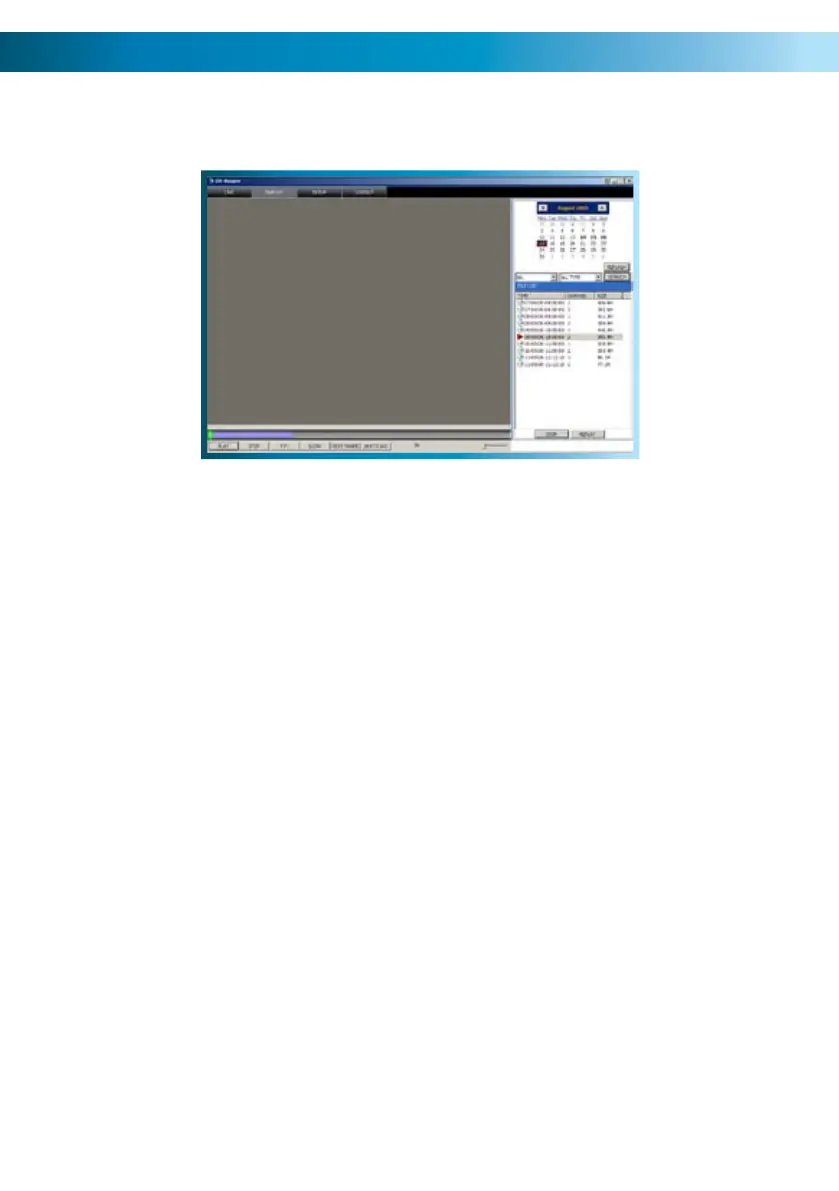
The REPLAY screen allows you to remotely access, playback and backup recordings
from the DVR remotely. When backing up in this manner, the file will be saved
directly to the computer you’re accessing the DVR from.
Locate the calender, located in the 1.
upper right hand corner of the
screen.
Click on the date you wish to access 2.
an event from.
Below the calender, there are two 3.
drop down menus.
The first (left) drop-down menu 4.
selects which channel(s) you want.
The second (right) drop-down 5.
menu chooses the recording mode
you’d like to see events for.
Any event which was recorded on 6.
your selected channel(s) in your
selected recording mode on the
day you’ve selected will be shown
as a chronological list in the small
window located below. Simply
choose the event you want to
playback from this list.
Playback Controls
Play: Begins playback of the selected event.
Stop: Ends playback.
F.F. (Fast Forward): Increases speed of playback. Press multiple times to further
increase playback speed.
Slow: Reduces the speed of playback. Press multiple times to
further reduce the playback speed.
Next Frame: Moves the video forward by the smallest increment possible,
a single frame.
264 to AVI: Exports the currently selected event as a stand-alone video
file that can be played by most computers without dedicated
software. A great backup tool, particularly if you need to
send or share footage with others.



 To Next Page