Static and Dynamic IP Addresses
In much the same way as your home network can use static or dynamic IP addresses,
many Internet providers don’t issue (or charge more for) a static IP address for users.
The easiest way to find out is to contact your Internet service provider. Alternately,
you can access the www.whatismyip.com service, make a note of your IP, then
reboot your router/gateway. This should refresh your Internet connection. If your
IP address stays the same, you’ve probably got a static IP address. If it changes, you
have a dynamic IP address.
How do I deal with a dynamic IP address?
One option is to contact your ISP and request a static IP address. They’ll usually
charge a small fee for doing this. It’s worth noting that not all ISPs offer static IP
addresses.
If your ISP does not offer static IP addresses then you can use a dynamic referencing
service, like www.dyndns.com. They offer a free service which will give you a text
address (such as www.exampleipaddress.example) which will take you directly to
your public IP address. For this service to work correctly, you’ll need to set up the
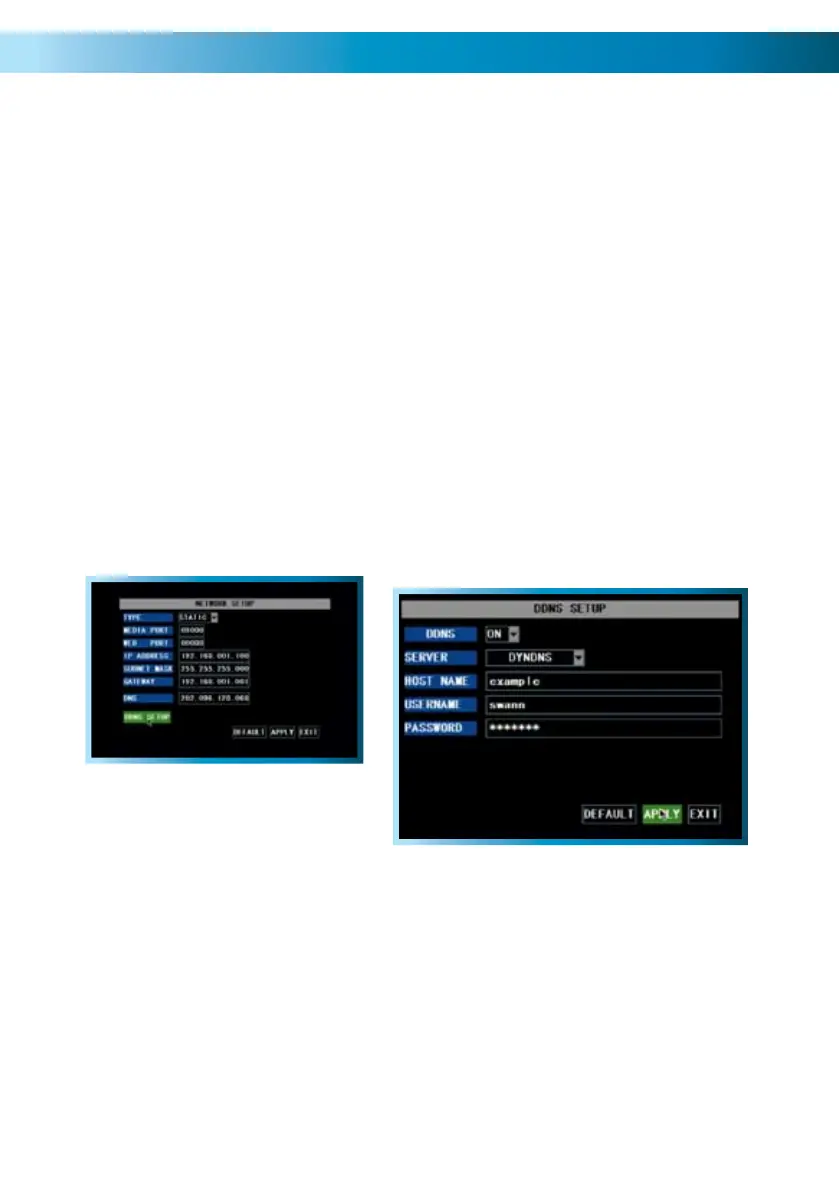
DVR to work with DDNS.
Server: Choose the server that you’re using. There are two options, DYNDNS
(www.dyndns.com) and 3322 (www.3322.org). We suggest DYNDNS, unless you
are fluent at reading Chinese.
Host Name: Enter the host name that you set up in your DDNS service. This is the
address you use to access your network.
Username and Password: Here, enter the username and password you setup
with your DDNS server. These do not have to match your username/password
combination in either your DVR or router (for the sake of security, we suggest
making them different).
Above: The DDNS Setup button, located in
the Network Setup menu.
Right: The DDNS Setup menu.
Remember: After making changes to the settings press/click the APPLY button.
51



 To Next Page