6
Click for contents
Password Reset
There are two methods available to reset your Power Hub’s password -
using the MAC address of your Power Hub sent to your email or by pressing
and holding down your Power Hub’s reset button. Please try the first method
first -
1. Right-click the mouse on the Live View screen to display the Menu Bar,
click the “Start” button (bottom left on the Menu Bar) then click “Setup”.
2. At the password login screen click “Forgot Password” then click “Yes”.
3. After a short moment, you will receive a password reset request email
containing your Power Hub’s MAC address. If it is not in your inbox, check
your junk or spam folder.
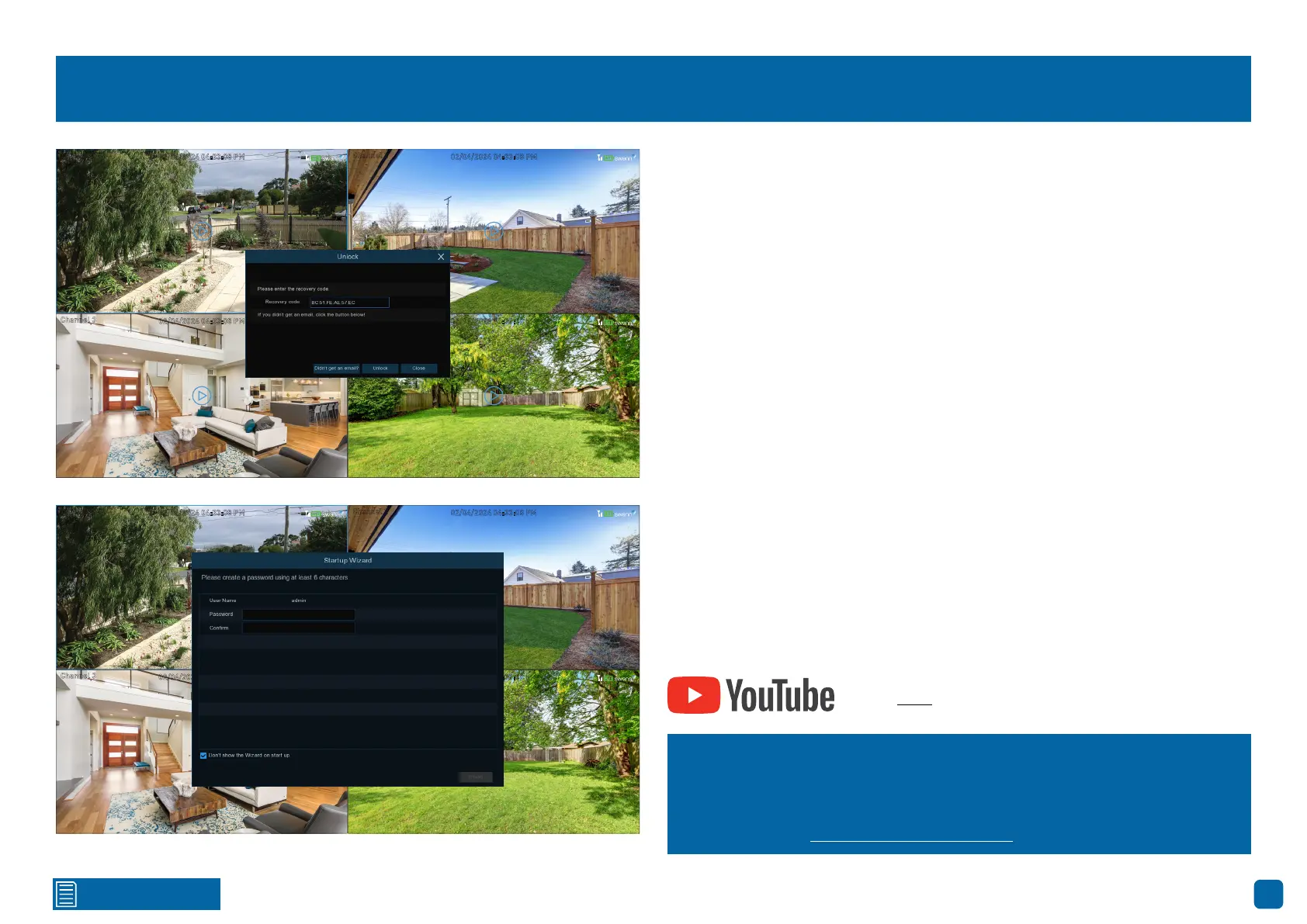
4. Input the MAC address (known as the password recovery code) including
the colons (see top left example) then click “Unlock”.
5. A message will appear on-screen stating that your password has been
reset. Click “OK” to continue.
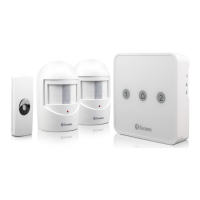
6. Enter a new password. The password has to be a minimum of six charac-
ters and can contain a mixture of numbers and letters.
7. Write down your password for safe keeping.
8. Click “Finish” to continue, then click “OK” to close.
BC:51:FE:08:DB:34
Channel 2
02/04/2024 04:33:08 PM
Channel 3
02/04/2024 04:33:08 PM
Channel 4
02/04/2024 04:33:08 PM
Channel 1
02/04/2024 04:33:08 PM
Channel 2
02/04/2024 04:33:08 PM
Channel 3
02/04/2024 04:33:08 PM
Channel 4
02/04/2024 04:33:08 PM
Channel 1
02/04/2024 04:33:08 PM
Click here to watch the tutorial video.
If you haven’t received a password reset email, you can factory reset your
Power Hub using the reset button. Keep in mind, this will erase all set-
tings changes and saved events for security reasons. For more details,
refer to page 8 - Restoring your Power Hub).


 To Next Page