47
Click for contents
Advanced: Maintain
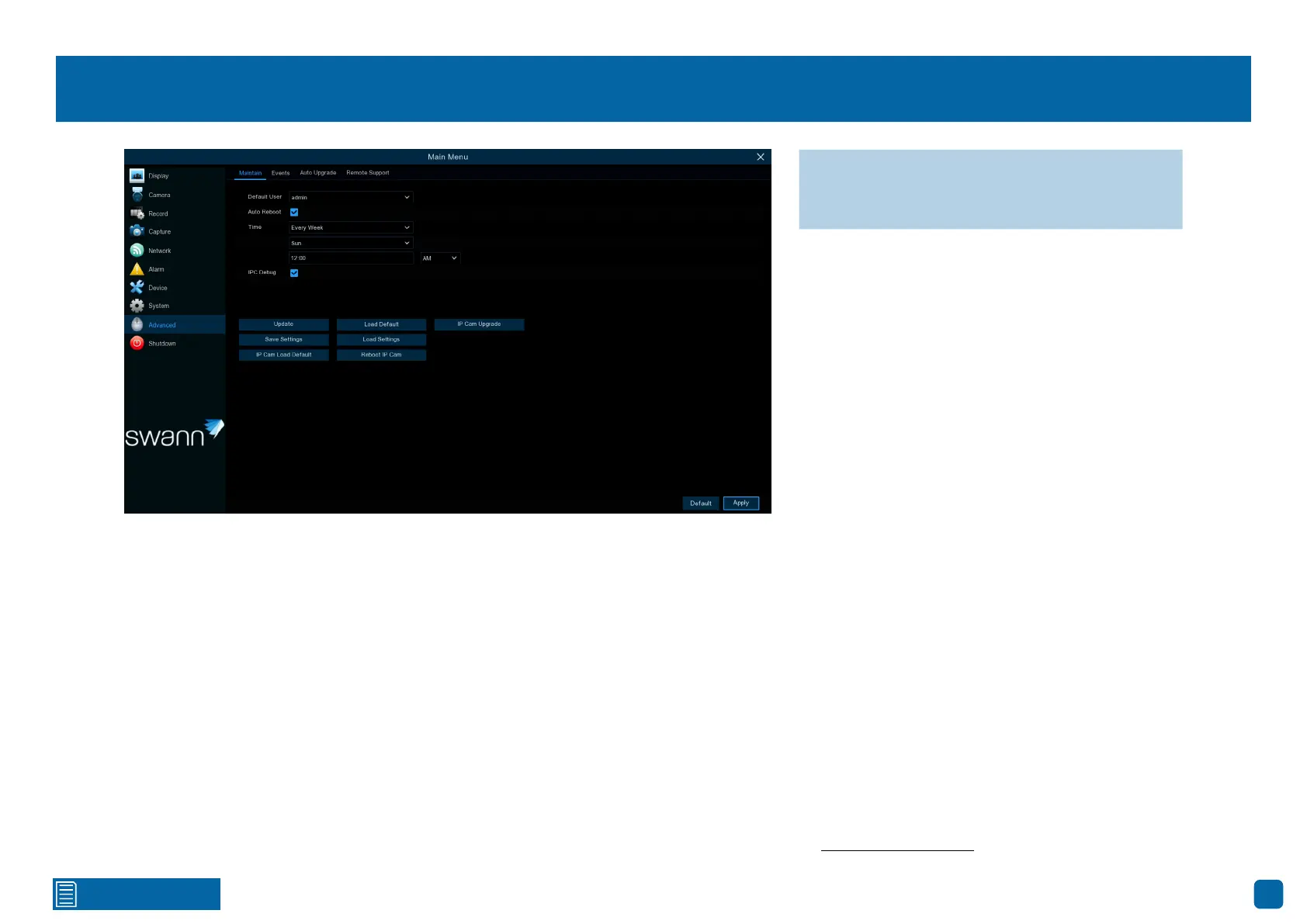
Default User: Admin is the default user account. If multiple user accounts
have been created, click the drop-down menu to turn this off.
Auto Reboot: Keep this enabled to ensure your Power Hub operates smooth-
ly and reliably.
Time: Choose an appropriate day and time to reboot your Power Hub.
IPC Debug: This allows our helpdesk staff to access advanced diagnostic
tools for troubleshooting. Click the checkbox to enable or leave it disabled.
Update: Click this button to update the firmware from a USB flash drive. Se-
lect the firmware file, then “OK” to confirm. When the firmware update has
been completed, your Power Hub will reboot automatically.
Save Settings: Click this button to export a configuration file containing all
the settings that you have customized.
IP Cam Load Default: Click this button to restore the factory default settings
for each camera.
Load Default: Click this button to reset to factory settings. Select “All” and
then “Save”. Your Power Hub will reboot, and the Startup Wizard will appear.
Load Settings: Click this button to import a configuration file containing all
the settings that you have customised.
Reboot IP Cam: In case of any issues, click this button to reboot each camera.
IP Cam Upgrade: Click this button to update the cameras’ firmware from a
USB flash drive. We recommend that the battery level is at 50% or above be-
fore updating. Go to support.swann.com to check for available updates.
→ Click “Default” to revert to default settings.
→ Click “Apply” to save settings.


 To Next Page