Network Configuration
3-17
3.2 Understanding and Configuring Ethernet Settings
Configuring the CB3000’s Ethernet Settings entails specifying a name and network address information for the
CB3000 device. To configure Ethernet settings for the CB3000:
1. Select Settings > Ethernet Settings from the CB3000 menu tree.
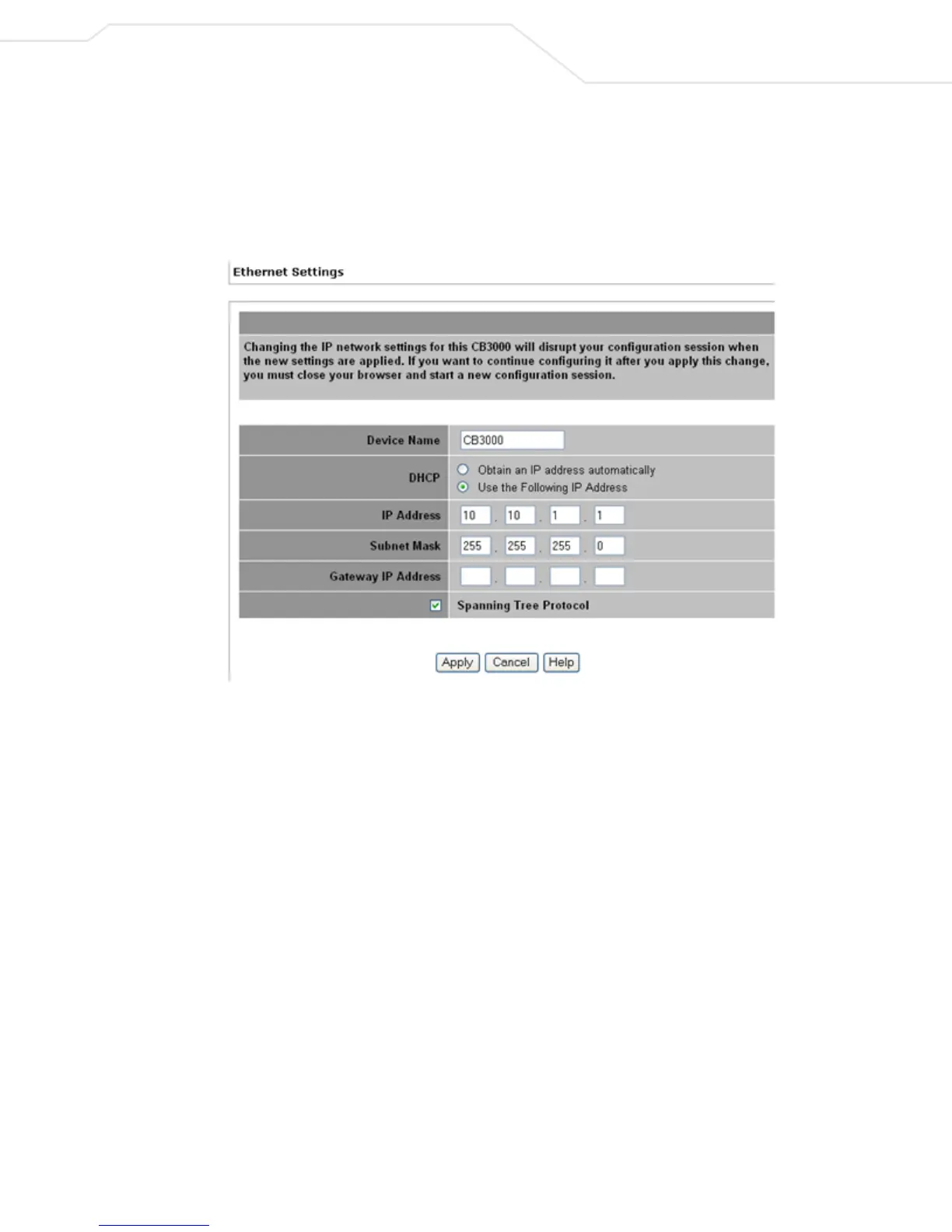
Figure 3.8 Ethernet Settings
2. Assign a CB3000 device name and set CB3000 network address information.
• Device Name – A device name for the CB3000. A suggestion is to use a name representative of
the CB3000 user base (for example, eng1, eng2, SF_retail, NY_retail, etc.).
• DHCP – Select a DHCP setting. The options are as follows:
• Obtain an IP address automatically – Select this option if the CB3000 is using a DHCP
server to obtain an IP address.
• Specify an IP address – Select this option if an IP address is entered manually (static).
• IP Address – If no DHCP resources are available, specify the static IP address of CB3000. This IP
address is visible to the Internet.
• Subnet Mask – If no DHCP resources are available, specify a subnet mask (or filter) for the CB3000
IP address.
• Gateway IP Address – IP address of the device providing the connection to the Internet (such as
the IP address of a cable modem or DSL router).
• Spanning Tree Protocol – Select this checkbox to enable a technique that detects loops in a
network and logically blocks redundant paths, thus ensuring only one route exists between any two
LANs.
3. Click Apply to apply and save the settings, or Cancel to exit the screen without saving your changes.



 To Next Page