CB3000 Client Bridge User Guide
5-4
5.2.2 Restoring the Device
If problems persist with the operation of the CB3000, consider restoring the device’s out-of-box factory
configuration. Reverting the CB3000 back to its default configuration wipes out the current device
configuration. Consider saving the CB3000’s current configuration, and having it available to either port to
another CB3000 or download back to the same CB3000 after restoring the device.
See Importing or Exporting the Configuration File.
Warning! Restoring the CB3000’s default configuration deletes the device’s
current configuration.
To restore the CB3000 to the out-of-box default configuration:
1. Save the CB3000’s current configuration before updating the firmware. After the firmware update, the
configuration file can be imported in order to restore the CB3000 to the configuration saved before the
update. See Importing or Exporting the Configuration File for more information.
Warning! Be sure to save a copy of the CB3000’s configuration file before
restoring the device’s default configuration.
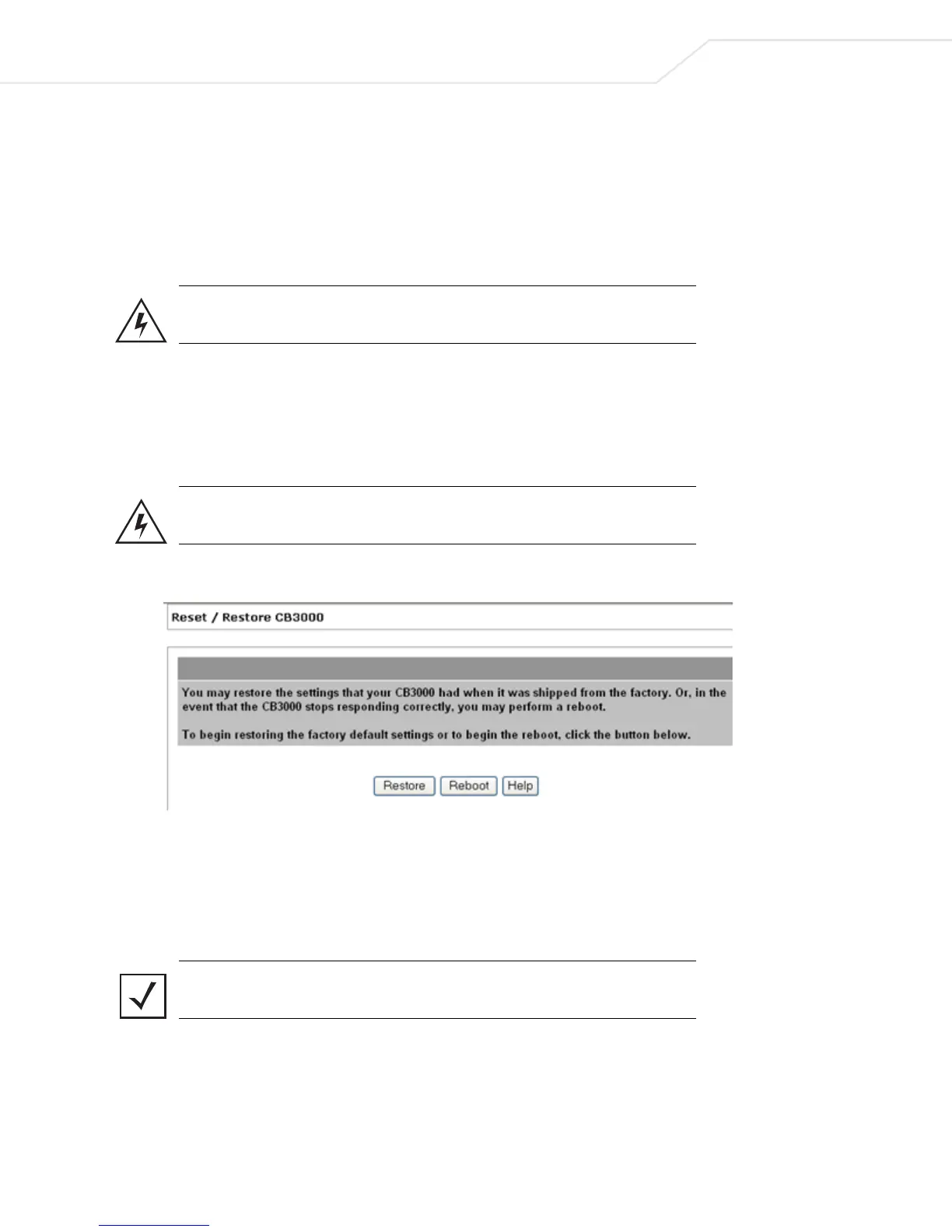
2. Select Tools > Reset/Restore from the CB3000 menu tree. The Reset/Restore CB3000 screen displays.
Figure 5.3 Reset/Restore CB3000 Screen
3. Click the Restore button.
The CB3000’s network connection is disrupted for a few moments while the CB3000 loads its default
(out-of-box) configuration, then restores the screen. Once the default configuration is restored, restore
the last saved configuration or reconfigure the device.
Note Restoring the device is the same as the “Reset to initial” option available on
the Troubleshooting screen.



 To Next Page