Getting Started
2-7
6. Upon logging in, the CB3000 Information screen displays. See Viewing CB3000 Information for more
details.
7. Proceed to the following sections to configure the CB3000:
• Understanding and Configuring Ethernet Settings – This includes configuring identification settings
for the CB3000 within the network.
• Understanding and Configuring Wireless Settings – This includes configuring wireless network
settings, as well as security policies for data received and transmitted through the CB3000.
2.5.2 Web Interface Login
After logging into the CB3000 console using the Discovery Tool (Discovery Tool Login), you can save the IP
address and log into the console in the future using the CB3000’s IP address.
To log into the CB3000 console using an IP address:
1. The CB3000 console is accessible via a Web browser using HTTP over SSL (secure socket layer) protocol.
Simply, this means you need to add an “s” in the intro of the URL. For example, https://
Enter the IP address URL for the CB3000 within your Web browser. The default CB3000 address is
10.10.1.1.
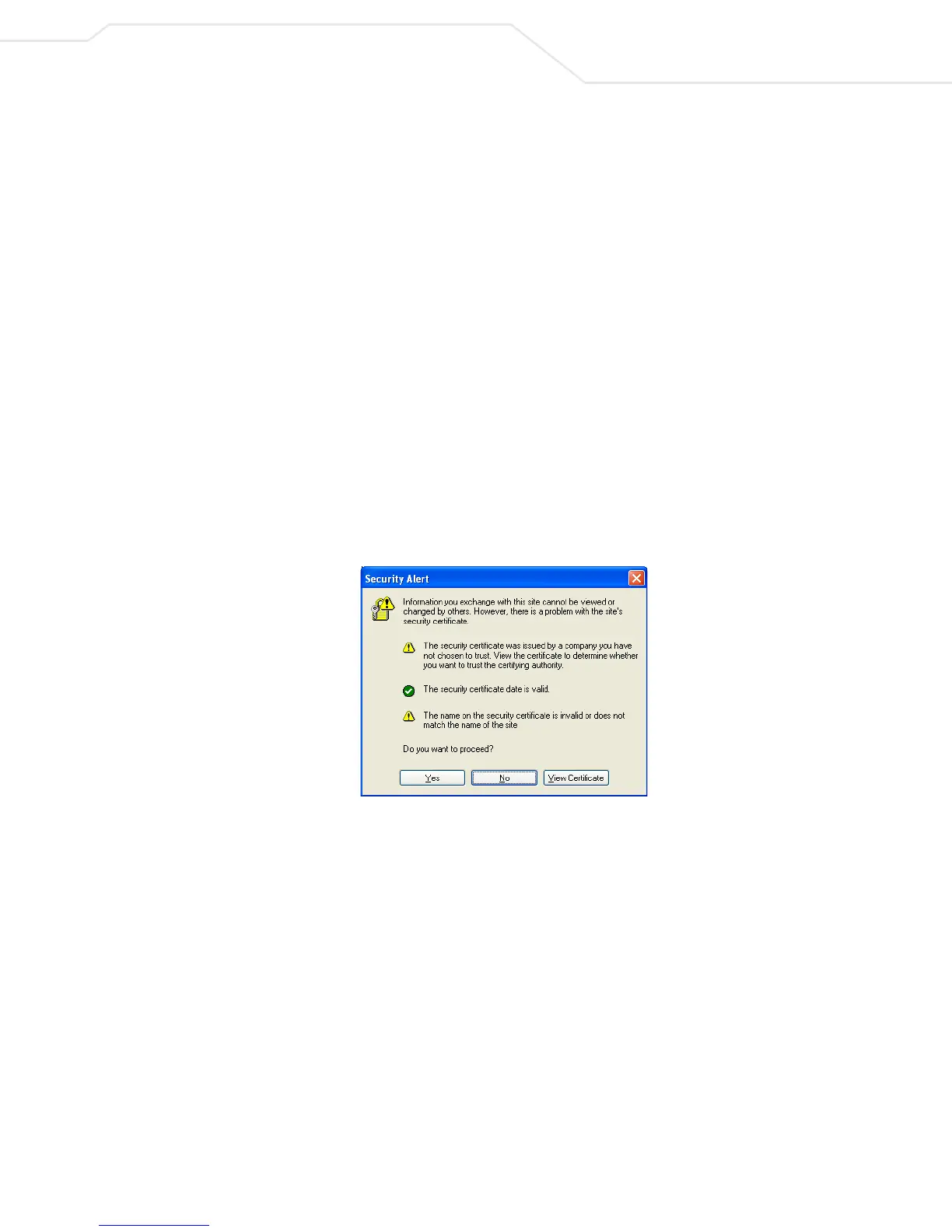
2. A Security Alert dialog box displays, click Yes to proceed.
Figure 2.6 Security Alert Dialog Box
3. A CB3000 Login dialog displays. Enter a username and password to log onto the CB3000 console. The
default username and password are “admin” and “Symbol”, respectively.



 To Next Page